Table of Contents >> Show >> Hide
- How Windows 10 Notifications Work (So You Can Control Them)
- Turn Off All Notifications in Windows 10 (Fast Method)
- How to Turn Off Notifications for Specific Apps
- How to Mute Notification Sounds in Windows 10
- Use Focus Assist to Automatically Block Notifications
- Disable Lock Screen Notifications and Windows Tips
- Troubleshooting: When Notifications Still Won’t Behave
- Real-World Experiences: Finding Your Perfect Notification Balance
- Wrapping Up: Take Control of Windows 10 Notifications
You sit down to focus, finally in the zone… and thending. A notification pops up in the corner of your screen: email, calendar alert, random game you forgot you installed, “helpful” tips from Windows itself. If your Windows 10 PC feels more like a chatty coworker than a quiet tool, it’s time to tame those alerts.
The good news: Windows 10 gives you a lot of control over notifications. You can turn them off completely, silence just the noisy apps, or use smart tools like Focus Assist to block distractions during work, gaming, or presentations. In this guide, you’ll learn how to turn off notifications on Windows 10 step by step, plus some real-world tips on finding a setup that actually works for your life.
How Windows 10 Notifications Work (So You Can Control Them)
Before you start flipping switches, it helps to understand what exactly you’re turning off. Windows 10 notifications usually appear as small “toast” popups in the lower-right corner, and they also collect in the Action Center panel (the little speech-bubble icon on the taskbar).
Types of notifications you’ll see
- App notifications: Email apps, messaging apps, browsers, games, and other programs notifying you of new activity.
- System notifications: Windows tips, update reminders, security alerts, and other messages from the operating system.
- Notification sounds: The chime you hear when an alert appears.
- Lock screen notifications: Alerts you can see even when the PC is locked.
The key idea: you don’t have to accept the default behavior. You can shut everything down, keep only the important stuff, or go somewhere in between.
Turn Off All Notifications in Windows 10 (Fast Method)
If you’re overwhelmed and just want silence right now, you can turn off almost all notifications in one place.
Step-by-step: Disable most notifications at once
- Press Windows key + I to open Settings.
- Select System.
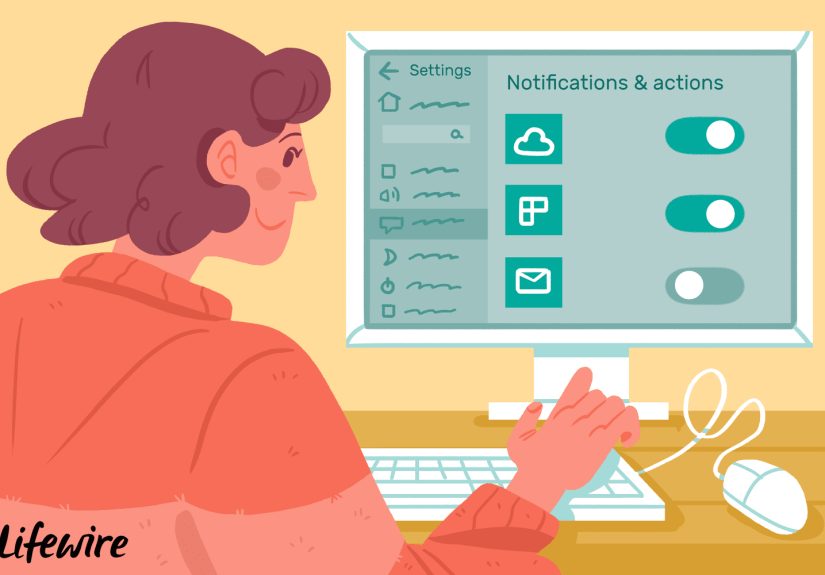
- In the left sidebar, click Notifications & actions.
- At the top, find the toggle labeled “Get notifications from apps and other senders.”
- Switch this toggle to Off.
After you do this, Windows will stop showing most notifications from apps and many built-in features. You may still see certain critical system messages (for example, serious security issues), but the everyday popups and pings will calm down dramatically.
This “master switch” is perfect if:
- You’re on a shared or work PC and don’t want personal popups on-screen.
- You’re easily distracted and want to build a quieter digital environment.
- You’re preparing to present from your laptop and need to avoid surprise popups.
How to Turn Off Notifications for Specific Apps
Maybe you still want email alerts, but not game invites. Or you want calendar reminders, but not “Your PC needs to restart” in the middle of Netflix. You can keep notifications on in general but selectively mute the worst offenders.
Step-by-step: Disable notifications for an individual app
- Open Settings with Windows key + I.
- Go to System > Notifications & actions.
- Scroll down to the section labeled “Get notifications from these senders.”
- You’ll see a list of apps that can show notifications.
- Find the app you want to silence and switch its toggle to Off.
That’s itno more popups from that app. If you change your mind later, just come back and toggle it back on.
Customize how each app notifies you
You don’t have to choose between “all” and “nothing.” For many apps, you can click the app name in that same list to open more detailed options, such as:
- Show or hide banner notifications (the popups in the corner).
- Allow or block sounds for that app.
- Show or hide notifications in the Action Center.
- Control whether notifications appear on the lock screen.
This is especially useful when:
- You want email alerts but don’t need a sound every time.
- You want chat app banners but don’t want the lock screen to reveal messages.
- You’re fine with alerts being quietly stored in the Action Center without interrupting you.
How to Mute Notification Sounds in Windows 10
Sometimes the popup isn’t the problemit’s the sound. If the constant dinging makes you feel like you’re living inside a pinball machine, you can keep visual notifications but mute the noises.
Option 1: Turn off notification sounds inside Settings
- Open Settings using Windows key + I.
- Go to System > Notifications & actions.
- Under Notifications, look for the option like “Allow notifications to play sounds.”
- Uncheck this option to silence notification sounds globally.
You can also open individual app settings in that same list and turn off sounds just for the particularly noisy ones, like chat or game launchers.
Option 2: Change system notification sound (or remove it)
If you want a subtler soundor no sound at allyou can adjust this at the system level:
- Right-click the speaker icon in the taskbar and choose Sounds (or open the classic Control Panel > Hardware and Sound > Sound).
- Go to the Sounds tab.
- In the Program Events list, scroll down to Notification.
- Choose a gentler sound from the drop-down listor choose (None) for complete silence.
- Click Apply and then OK.
This approach keeps the popups but removes the audio “jump scare” every time something happens.
Use Focus Assist to Automatically Block Notifications
Turning things off manually is fine, but what if you’d like Windows 10 to handle it for you when you’re working, gaming, or presenting? That’s where Focus Assist (also known as Quiet Hours) comes in.
Quickly toggle Focus Assist from Action Center
- Press Windows key + A to open the Action Center.
- Look for the Focus Assist button (you may need to click Expand to see all tiles).
- Click the Focus Assist tile to cycle through modes:
- Off: You’ll receive all notifications as usual.
- Priority only: Only notifications from your customized priority list come through.
- Alarms only: All notifications are hidden except alarms.
This is a great one-click way to quiet your PC before a meeting or a big task.
Customize Focus Assist rules and priority list
- Open Settings > System > Focus assist.
- Under Automatic rules, you can choose when Focus Assist turns on automatically, such as:
- During these times (a schedule you pick).
- When I’m duplicating my display (presentations).
- When I’m playing a game.
- Under Priority only, click the link to customize your priority list. Here, you can allow:
- Calls and reminders from certain apps.
- Notifications from specific people (for example, pinned contacts).
This lets you do something powerful: block almost everything, but still let truly important alerts through. No more missing your boss’s email because you muted all notifications, but also no more popups from that game store every time there’s a sale.
Disable Lock Screen Notifications and Windows Tips
Even if you tame regular notifications, some extras can still sneak inlike those messages on the lock screen or the “tips and tricks” Windows likes to show you. Luckily, you can shut those down too.
Turn off notifications on the lock screen
- Open Settings.
- Go to System > Notifications & actions.
- Find options like “Show notifications on the lock screen.”
- Uncheck these boxes to stop notifications from appearing before you sign in.
This is especially important if you use your PC in public or shared spaces and don’t want messages visible to anyone walking by.
Turn off tips, tricks, and suggestions from Windows
- Stay in System > Notifications & actions.
- Look for options like:
- “Get tips, tricks, and suggestions as you use Windows.”
- “Show me the Windows welcome experience…”
- Uncheck these to stop Windows from showing promotional or “helpful” popups.
Think of this as turning off Windows’ inner salesperson. You’ll still receive important alerts, but you won’t be reminded every week that “You can do more with Microsoft Edge!”
Troubleshooting: When Notifications Still Won’t Behave
What if you’ve turned off notifications and you still get random popups? A few things might be going on behind the scenes.
1. The app has its own notification settings
Many appsespecially email, messaging, and gameshave internal notification settings. Even if Windows tries to silence them, the app might still show alerts inside the app window or re-enable notifications later.
Open the app and look for a Settings or Options menu, then check any section labeled Notifications, Alerts, or Sounds. Turn off or adjust notifications directly there as well.
2. The app is running in the background
Some apps keep running even when you close the main window, which means they can continue to trigger notifications.
- Look in the system tray (the icons near the clock) for running apps.
- Right-click an icon and see if you can exit or quit it.
- You can also go into Settings > Privacy > Background apps (on some builds) and stop specific apps from running in the background.
3. Action Center is still enabled (but mostly empty)
Even if you’ve turned off most notifications, the Action Center panel will likely still exist. The difference is that it should contain fewer or no new alerts. If you don’t want to be tempted to check it constantly, you can hide the Action Center icon in the taskbar settings, but most people just ignore it once notifications are under control.
Real-World Experiences: Finding Your Perfect Notification Balance
Turning off notifications on Windows 10 isn’t just a technical exerciseit’s about shaping how you work, relax, and communicate. Here are some experience-based tips and scenarios to help you design a setup that fits your life, not the other way around.
The remote worker: Protecting deep-focus time
Imagine you’re working from home with email, chat, project management tools, and a browser full of tabs. If you leave everything at its defaults, your day will be a constant stream of pings and popups. Many remote workers find it helpful to:
- Turn notifications off for social apps and non-essential tools.
- Use Focus Assist (Priority only) during deep-work blocks.
- Allow only calendar reminders and messages from a manager or key teammates through the priority list.
The result? Fewer interruptions, clearer boundaries, and a better chance of getting actual work done before lunch.
The gamer or streamer: No surprises on-screen
If you play games or stream your screen, the last thing you want is a notification popping up with a private message or work email. Many gamers:
- Set Focus Assist to turn on automatically when they’re playing a game.
- Disable notifications on the lock screen so personal info doesn’t show before they log in.
- Mute notification sounds entirely and rely only on in-game indicators.
This not only protects your privacy, it also keeps your game or stream overlay clean and professional.
The shared family PC: Keeping things private
On a shared home computer, it’s common for multiple people to use the same Windows account (even though separate accounts are safer). If that’s your situation, notifications can reveal more than you’d likemessages from friends, banking alerts, or medical reminders.
A sensible setup might be:
- Turn off lock screen notifications completely.
- Disable notifications for apps that handle sensitive information.
- Use Action Center only as an inbox for quiet notifications that you check when you’re alone.
Even better, you can create separate user accounts so each person has their own notification profilebut if that’s not an option, carefully pruning app alerts is the next best thing.
The productivity minimalist: Less noise, more signal
Some people like to see almost nothing unless it’s truly urgent. If that sounds like you, you can treat notifications like a VIP list at an exclusive club:
- Turn off tips, tricks, and suggestions from Windows.
- Disable notifications for all but a handful of critical apps (calendar, to-do list, maybe one communication app).
- Run Focus Assist in Priority only mode most of the day.
Over a week or two, you’ll probably notice your stress levels dip as the digital noise dies down. And if you miss something important, you can always loosen your rules a bit.
Experiment, adjust, repeat
The biggest lesson from people who have tamed Windows 10 notifications is simple: there’s no one perfect configuration. Your “just right” balance will be different if you’re a student, an IT admin, a designer, or a casual user.
The best approach is to:
- Start with broad changes (turn off most notifications or use Focus Assist).
- Use your PC normally for a few days and notice what you missthose are the notifications you should turn back on.
- Fine-tune individual apps and sounds based on what actually helps you.
After a little experimentation, your Windows 10 machine can go from constantly shouting for attention to quietly supporting your work and downtime.
Wrapping Up: Take Control of Windows 10 Notifications
Notifications are supposed to be helpful, not exhausting. With Windows 10, you can:
- Turn off all notifications quickly through Settings if you want a near-silent system.
- Mute specific apps so only the tools that matter can interrupt you.
- Silence notification sounds while keeping visual alerts.
- Use Focus Assist to automatically block distractions during work, gaming, or presentations.
- Disable lock screen notifications and Windows tips to keep things private and clutter-free.
Start with one or two of these steps today. Once you’ve customized your Windows 10 notification settings, you’ll spend less time reacting to popups and more time doing what you actually turned on your computer for.