Table of Contents >> Show >> Hide
- First: What “Hard Drive” Are You Replacing?
- Before You Touch a Screw: The “Don’t Regret This Later” Checklist
- Option A: Clone Your Old Drive to the New Drive (Recommended for Most Upgrades)
- Option B: Fresh Install (Best if the Old Drive Is Dead or the System Is Messy)
- Now the Physical Swap: Laptop and Desktop Instructions
- Replacing a 2.5-inch SATA Drive in a Laptop (Common Scenario)
- Replacing an M.2 SSD (NVMe or SATA)
- Replacing a 3.5-inch HDD or 2.5-inch SATA SSD in a Desktop
- After the Swap: Make the New Drive Boot and Behave
- Troubleshooting: The Greatest Hits of “Why Isn’t This Working?”
- When You Should Consider Professional Help
- Conclusion: Replacing a Drive Is Mostly Planning (and a Little Screw Management)
- Real-World Experiences: What People Commonly Learn the First Time They Replace a Hard Drive
- 1) The “I bought the wrong kind of M.2” moment
- 2) The “Where did that tiny screw go?” moment
- 3) The “My cloned drive won’t boot” moment
- 4) The “My files are safe…but my apps aren’t” realization
- 5) The “This SSD is fastwhy didn’t I do this sooner?” joy
- 6) The “I forgot about encryption” surprise
- 7) The “New drive installed…now it’s invisible” confusion
- 8) The “I should’ve cleaned the inside while I was here” thought
Replacing a hard drive sounds like the kind of thing you do in a dimly lit repair shop while dramatic music plays.
In reality, it’s usually a careful mix of “tiny screws,” “please don’t drop that,” and “why is this clip so stubborn?”
The good news: if you can follow a checklist and keep track of parts, you can replace a hard drive (or upgrade to an SSD)
and get your computer feeling brand-new again.
This guide walks you through the whole processchoosing the right replacement drive, protecting your data, swapping the hardware,
and getting Windows or macOS running smoothly afterward. You’ll also get troubleshooting tips for the most common “uh-oh” moments,
like a drive not showing up or the computer refusing to boot.
First: What “Hard Drive” Are You Replacing?
People say “hard drive” as shorthand, but your computer could have one of a few different storage types:
- 3.5-inch HDD (common in desktops): bigger, slower, cheaper per terabyte.
- 2.5-inch HDD/SSD (common in laptops and some desktops): thin rectangle, usually SATA.
- M.2 SSD (common in modern laptops/desktops): looks like a stick of gum, can be SATA or NVMe (PCIe).
The replacement steps are similar, but the shape, connectors, and mounting style differ. Before you buy anything, confirm:
(1) the drive type you have now, (2) what your device supports, and (3) whether you’re adding a drive or replacing the main boot drive.
Before You Touch a Screw: The “Don’t Regret This Later” Checklist
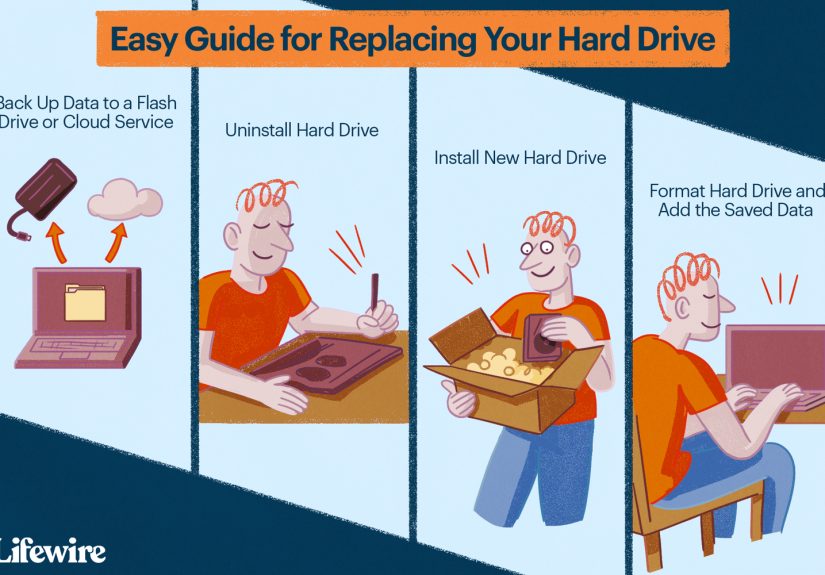
1) Back up like you mean it
If the drive is failing, time is not your friend. Back up the most important files first (photos, documents, school/work folders),
then worry about the rest. For Windows, you can use built-in backup options or copy files to an external drive. For Mac, Time Machine
is the usual MVP.
- Fast backup: copy your user folder (Documents/Desktop/Pictures) to an external drive.
- More complete backup: use a system image or a full backup tool if you want a near-total restore later.
- Cloud bonus: if you already use OneDrive/iCloud/Google Drive, make sure syncing is current before you swap drives.
2) Decide: clone your old drive or do a fresh install
You have two main approaches, and both are valid:
-
Cloning (data migration): copies your current drive to the new one so everything looks the same when you boot.
This is the “I want my apps and settings exactly as-is” option. -
Fresh install: install Windows/macOS cleanly, then restore files from backup.
This is often best if your old drive had errors, malware, or years of “mystery startup programs.”
3) Get the right tools (and a snackoptional but recommended)
- Small Phillips screwdriver (common sizes: #0 or #1 for laptops)
- Plastic pry tool or guitar pick (for popping open laptop base covers)
- External drive enclosure or USB adapter (SATA-to-USB for 2.5-inch drives, NVMe enclosure for M.2 NVMe)
- Anti-static precautions (at minimum, touch a metal part of the case before handling components)
- A clean, well-lit workspace (your carpet is not a certified electronics lab)
4) Check compatibility (so you don’t buy a “perfect” drive that doesn’t fit)
Compatibility depends on the device:
- Laptops: many older models use 2.5-inch SATA drives; many newer models use M.2 NVMe.
- Desktops: can use 3.5-inch SATA HDDs, 2.5-inch SATA SSDs, and/or M.2 NVMe SSDs.
- M.2 details: confirm the length (often 2280) and whether the slot supports NVMe or SATA.
Pro tip: look up your exact model’s service manual or support page. Manufacturers often show where the drive sits and
what type it uses, which saves you from playing “guess the connector” with your wallet.
Option A: Clone Your Old Drive to the New Drive (Recommended for Most Upgrades)
If your old drive still works well enough to read data, cloning is usually the smoothest path. The overall flow is:
connect the new drive externally, clone, shut down, swap drives, then boot from the new drive.
Step-by-step cloning workflow
- Connect the new drive using the correct USB enclosure/adapter.
-
Check available space: the used space on the old drive must fit on the new drive.
If you’re moving from a larger HDD to a smaller SSD, you may need to delete/move files first. -
Run cloning software (often provided by SSD makers, or use reputable third-party tools).
Choose your old drive as source and the new drive as destination. - Let the clone finish (this can take minutes to hours depending on data size and drive speed).
- Shut down completely (not just sleep), then move to the physical swap.
Cloning tips that prevent the most headaches
- Pause BitLocker/device encryption if needed: encrypted drives can complicate some cloning tools. Save recovery keys.
- Close heavy programs during the clone (games, video editors, 47 browser tabsyes, those too).
- Don’t format the new drive first unless your cloning tool specifically asks for it.
- If your old drive is failing, consider a fresh install to avoid copying corruption to the new drive.
Option B: Fresh Install (Best if the Old Drive Is Dead or the System Is Messy)
If your drive died dramatically (clicking sounds, missing boot device, endless repair loops), a fresh install is often the
cleanest move. You’ll install the OS onto the new drive and then restore files from backup.
Windows fresh install overview
- Create Windows installation media on a USB drive (use Microsoft’s official tools).
- Swap the drive (hardware steps below), then boot from the USB installer.
- Install Windows to the new drive.
- Install drivers/updates, then restore your files from backup or cloud sync.
macOS fresh install + restore overview
- Install the new drive (if your Mac model allows internal drive replacement).
- Reinstall macOS using Recovery.
- Restore from Time Machine or use Migration Assistant to bring data back.
Now the Physical Swap: Laptop and Desktop Instructions
Safety steps (non-negotiable)
- Power down fully and unplug the charger.
- Disconnect the battery if your laptop model allows it (or disable internal battery via BIOS if recommended).
- Discharge leftover power: hold the power button for a few seconds after unplugging.
- Work static-safe: avoid carpet, touch metal before handling parts, and handle drives by the edges.
Replacing a 2.5-inch SATA Drive in a Laptop (Common Scenario)
- Remove the bottom panel: unscrew the base cover screws; gently pry open if clipped.
- Locate the drive bay: the 2.5-inch drive is usually in a metal bracket/caddy.
- Disconnect the SATA connector: some slide out; others have a cable connector.
- Remove the bracket screws and lift out the drive.
- Transfer the bracket (and any rubber rails) to the new drive.
- Reconnect the drive, seat it firmly, and reassemble the bottom panel.
If your laptop has both a 2.5-inch bay and an M.2 slot, you may be able to add an SSD without removing the existing drive.
That’s the “two pizzas instead of one” version of storagemore capacity and often a faster boot drive.
Replacing an M.2 SSD (NVMe or SATA)
- Open the system (bottom panel on laptops, side panel on desktops).
- Find the M.2 slot: it’s a flat slot with a tiny screw at the far end.
- Remove the retaining screw carefully (it’s small and loves escaping).
- Slide the old M.2 drive out at a slight angle.
- Insert the new drive at the same angle, then press it down and reinstall the screw.
- Reassemble and boot.
If there’s a thermal pad or heatsink, put it back the way you found it. Heat management matters more with fast NVMe drives,
especially in tight laptop chassis.
Replacing a 3.5-inch HDD or 2.5-inch SATA SSD in a Desktop
- Power down and unplug. Remove the side panel.
- Locate the drive cage and identify the drive to replace.
- Disconnect cables: SATA data cable to the motherboard and SATA power cable from the power supply.
- Remove the drive from its sled/cage (screws or tool-less clips).
- Mount the new drive in the same spot and reconnect SATA power + data.
- Close the case and boot.
After the Swap: Make the New Drive Boot and Behave
If you cloned the drive
- Enter BIOS/UEFI (often F2, DEL, or ESC at startup) and confirm the new drive is detected.
- Set boot order so the new drive is the first boot device.
- First boot may take longer while the system adjusts and checks hardware changes.
If it’s a brand-new drive (fresh install or extra storage)
On Windows, a new internal drive may need to be initialized, partitioned, and formatted before it appears in File Explorer.
This is normalyour computer isn’t ignoring you; it’s just waiting for instructions.
- Open Disk Management (search for “Create and format hard disk partitions”).
- Initialize the disk if prompted (GPT is common for modern systems; MBR is older/legacy).
- Create a new volume, assign a drive letter, and format (NTFS is typical for Windows data drives).
Troubleshooting: The Greatest Hits of “Why Isn’t This Working?”
The computer doesn’t see the new drive
- Re-seat the connectors: loose SATA cables are a classic culprit.
- Try a different SATA port (desktop) or verify the drive is fully inserted (M.2).
- Check BIOS/UEFI: if it’s not listed there, it’s usually a connection or compatibility issue.
The system boots to a black screen or “No boot device”
- Confirm boot order in BIOS/UEFI points to the new drive.
- If you cloned, the clone may not have copied the boot partition correctlyretry the clone or do a repair install.
- If you fresh-installed, boot from installation media and run startup repair options.
Cloning fails or the clone won’t boot
- If the source drive has bad sectors, cloning can choketry imaging/backup instead, or do a fresh install.
- Turn off encryption temporarily if your cloning tool can’t handle it, and keep recovery keys safe.
- Update storage drivers/chipset drivers if recommended by the drive maker.
You replaced the drive, but the computer is still slow
- If you upgraded from HDD to SSD and still feel lag, check RAM usage and startup programs.
- Make sure the SSD is running in the correct mode (NVMe drives should be in the proper M.2 slot; SATA drives should be on a good SATA port).
- Run updatesan out-of-date OS can behave like it’s walking through wet cement.
When You Should Consider Professional Help
Replacing a drive is usually DIY-friendly, but it’s okay to tap out and call a pro if:
the device is under warranty you don’t want to risk, the laptop requires a full teardown,
the drive is failing and contains irreplaceable data, or you’re dealing with liquid damage.
Data recovery in particular can get complicated fastand “complicated” is not a mood you want at 2 a.m.
Conclusion: Replacing a Drive Is Mostly Planning (and a Little Screw Management)
The physical swap is often the easy part. The real success comes from planning: backing up first,
choosing the right replacement (SATA vs NVMe, 2.5-inch vs M.2), and deciding whether to clone or do a clean install.
If you take it step-by-step, you’ll end up with a faster, roomier, more reliable machineand the quiet confidence
of someone who can say, “Yes, I opened my computer on purpose, and it still works.”
Real-World Experiences: What People Commonly Learn the First Time They Replace a Hard Drive
Real life has a way of adding “bonus levels” to simple projects. On paper, replacing a hard drive is:
back up, swap hardware, restore. In practice, people often run into small surprises that aren’t disastersjust
speed bumps that feel dramatic in the moment. Here are some of the most common experiences (and what they teach).
1) The “I bought the wrong kind of M.2” moment
M.2 drives all look similar, so it’s common for someone to buy an NVMe drive when their laptop only supports M.2 SATA,
or to buy a length that doesn’t match the standoff position. The lesson: “M.2” is a shape, not a guarantee of compatibility.
People who check the laptop’s service manual (or the manufacturer’s storage specs) before shopping tend to avoid this entirely.
2) The “Where did that tiny screw go?” moment
M.2 screws are small enough to qualify as “portable problems.” A frequent first-timer experience is removing the screw,
placing it down confidently, and then watching it vanish into another dimension. A simple fix is using a magnetic parts tray
or a small cup. Many people also take a quick photo before removing parts, which helps later when a bracket looks “optional”
(it isn’t).
3) The “My cloned drive won’t boot” moment
Cloning feels magicaluntil the computer boots to a message that basically says, “Nice try.” This often happens due to boot
configuration issues, a missed boot partition, or a mismatch between legacy/UEFI boot modes. People typically solve it by
checking BIOS boot order first, then re-running the clone with the correct settings, or using Windows installation media to
repair startup. The big takeaway: cloning is powerful, but it’s not mind-reading software. It needs a correct source/destination
selection, stable source drive health, and the right boot mode.
4) The “My files are safe…but my apps aren’t” realization
Folks who do a fresh install often feel a wave of relief when documents and photos come back from backupfollowed by mild
annoyance when they realize apps, licenses, and settings don’t automatically return unless they planned for it. The people
who have the easiest time are the ones who make a short pre-swap list: critical apps (and where to download them),
passwords stored in a password manager, and any license keys they might need. It’s the digital version of remembering
your house keys before locking the door.
5) The “This SSD is fastwhy didn’t I do this sooner?” joy
Upgrading from a spinning HDD to an SSD is one of the most dramatic improvements most computers can get. Many people describe
the first boot after an SSD swap as “suspiciously fast,” like the computer is trying to impress them. Programs open quicker,
updates finish sooner, and the whole system feels more responsive. The experience often turns into a chain reaction:
once someone upgrades one computer, they start eyeing every slow machine in the house like, “You’re next.”
6) The “I forgot about encryption” surprise
Modern devices frequently use encryption (like BitLocker or device encryption) quietly in the background. People sometimes
discover this at the worst timeright when cloning fails, or when a recovery key is requested after hardware changes.
The lesson is simple: before replacing the main drive, check whether encryption is enabled and confirm you can access your
recovery key. It’s not scaryit’s just a step that’s easy to overlook until the system asks a question you weren’t expecting.
7) The “New drive installed…now it’s invisible” confusion
When a new secondary drive doesn’t show up in File Explorer, first-timers sometimes assume it’s broken. More often, it just
hasn’t been initialized, partitioned, and formatted yet. Once people learn Disk Management (or the macOS equivalent tools),
it becomes a “five-minute fix” forever after. This experience also teaches a helpful principle: hardware can be installed
correctly and still need software-level setup before it becomes usable.
8) The “I should’ve cleaned the inside while I was here” thought
Opening a laptop or desktop can reveal a surprising amount of dust. Many people take the opportunity to gently clean vents
and fans (without turning the computer into a leaf blower experiment). The practical payoff is better airflow and sometimes
lower temperatures. The emotional payoff is the satisfaction of putting everything back together feeling like a responsible
tech wizard. The key is to keep cleaning gentle and safeno liquids, no aggressive poking, and no “let’s see what happens”
curiosity with delicate connectors.
Bottom line: almost everyone who replaces a hard drive has one moment where they pause and think, “Did I just break it?”
And almost everyone discovers that with a calm checklist, a little patience, and the right setup steps, the project ends
with a working computerand a brand-new skill they can brag about (politely) at the next family tech-support emergency.