Table of Contents >> Show >> Hide
- What Voicemail Is (and What It Isn’t)
- Why Setting Up Voicemail Still Matters
- Before You Start: What You’ll Need
- How to Set Up Voicemail: The Universal Methods
- How to Set Up Voicemail on iPhone
- How to Set Up Voicemail on Android
- Carrier Setup Basics (What Usually Happens)
- Alternative Option: Voicemail Through Google Voice
- Voicemail Security: Yes, You Need a Good PIN
- How to Change Your Greeting (Without Rebuilding Your Whole Life)
- Troubleshooting: When Voicemail Won’t Set Up (or Won’t Work)
- Best Practices: Make Your Voicemail Actually Helpful
- Quick Setup Checklist (Save This for Later)
- Real-World Experiences (and Lessons) From Setting Up Voicemail
- 1) “I got a new phone and voicemail stopped working”
- 2) “Visual voicemail shows a blank screen (or spins forever)”
- 3) “I forgot my voicemail password and now I’m locked out”
- 4) “My greeting is embarrassing because I recorded it in a noisy place”
- 5) “I didn’t realize voicemail could be a security risk”
- 6) “I learned voicemail etiquette the hard way”
- Conclusion
Voicemail is the “I tried!” of the phone world: when you miss a call, the caller can leave a recorded message so you can
catch up later. It’s like having a tiny, tireless assistant who answers your phone while you’re busyexcept your assistant
occasionally needs you to set a password and record a greeting, and it never refills your coffee.
In this guide, you’ll learn what voicemail actually is (and how it differs from visual voicemail and voicemail transcription),
how to set it up on iPhone and Android, how carrier setup typically works, and what to do when voicemail refuses to cooperate.
You’ll also get practical security tips and real-world “here’s what people run into” experiences at the end.
What Voicemail Is (and What It Isn’t)
The basic definition
Voicemail is a service provided by your wireless carrier (or a calling app) that stores voice messages in a mailbox tied to
your phone number. When you don’t answerbecause you’re driving, sleeping, in class, in a meeting, or simply protecting your peace
the call can be routed to voicemail. The caller hears your greeting, leaves a message, and the message is stored for you to play back later.
How voicemail works behind the scenes
Most modern voicemail is “network-based,” meaning messages are stored on your carrier’s systems (not just your phone). That’s why
you can often check voicemail from another device or by calling your number and entering a PIN. Your phone is basically the remote control.
Voicemail vs. Visual Voicemail vs. Transcription
-
Traditional voicemail: You call into a voicemail system (often by pressing and holding 1 or dialing a short code)
and listen to messages in order, navigating with keypad prompts. -
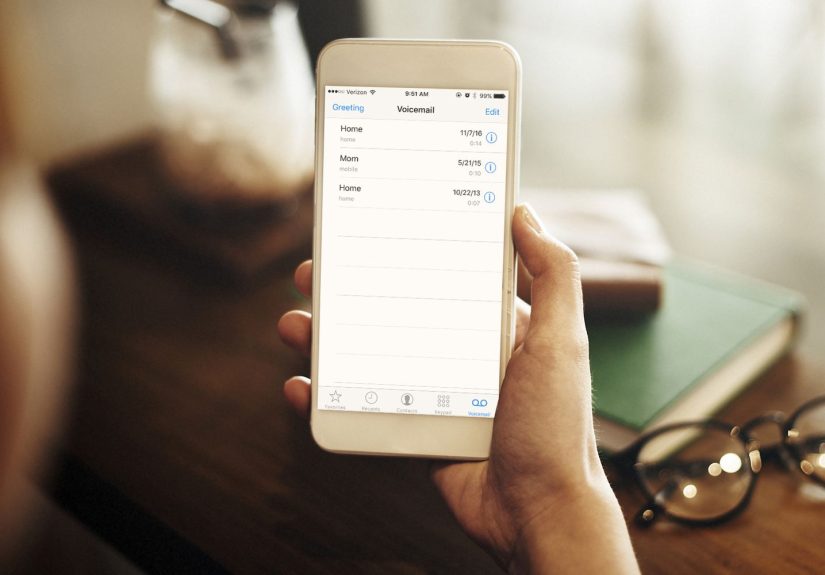
Visual voicemail: Messages show up as a list you can tapmore like an inbox than a phone maze. You can usually play any message
in any order, delete, save, or sometimes share. -
Voicemail transcription: Some services convert audio into text so you can skim messages. It’s convenient, but it’s not perfect
especially with names, accents, background noise, or that one friend who leaves a message like it’s a podcast episode.
Why Setting Up Voicemail Still Matters
You might think voicemail is old-school, but it’s still widely used for work, healthcare calls, delivery updates, and anything
that needs a quick “call me back.” Setting it up properly helps you:
- Catch important calls you missed without playing phone tag.
- Sound credible (especially if you’re applying for jobs or running a business).
- Protect privacy by requiring a PIN so strangers can’t snoop on your messages.
- Reduce confusion by recording a greeting that matches your current number and name.
Before You Start: What You’ll Need
Most voicemail setup takes about 2–5 minutes, but it goes smoother if you have these ready:
- A voicemail PIN/password you can remember (and that nobody else can guess).
- A short greeting (your “voicemail vibe,” professional or casual).
- A good signal (or Wi-Fi/data if you’re using visual voicemail apps that require it).
- Your carrier info (some carriers require voicemail to be enabled on your line).
How to Set Up Voicemail: The Universal Methods
Method 1: Press and hold “1”
On many phones and carriers, opening voicemail is as simple as pressing and holding 1 in the Phone app’s keypad.
If voicemail isn’t set up yet, you’ll be prompted to create a password and record a greeting.
Method 2: Use the Phone app’s Voicemail tab
Many smartphones include a Voicemail tab inside the Phone app. If your carrier supports visual voicemail, you may see
a button like Set Up or Set Up Now.
Method 3: Call your voicemail access number (or your own number)
If the visual interface isn’t available, you can usually access voicemail by calling a carrier-specific voicemail number or by calling
your own phone number and pressing a key (often #) when your greeting starts, then entering your PIN.
How to Set Up Voicemail on iPhone
On iPhone, setup typically happens right inside the Phone app. The exact screens can vary slightly by iOS version and carrier, but the flow is consistent:
you create a voicemail password and record a greeting.
Step-by-step (most iPhones)
- Open the Phone app.
- Tap Voicemail.
- Tap Set Up (or Set Up Now).
- Create a voicemail password (PIN) when prompted.
- Choose a greeting:
- Default (quick and fine)
- Custom (recommendedmore personal and less “robot receptionist”)
- Record your greeting, save it, and you’re done.
Tip: Two greetings that work almost anywhere
-
Professional: “Hi, you’ve reached [Name]. I can’t take your call right now. Please leave your name, number, and a brief message,
and I’ll get back to you as soon as I can.” - Casual but clear: “Hey! It’s [Name]. I can’t answer right nowleave a message and I’ll call you back.”
How to Set Up Voicemail on Android
Android setup depends on your phone brand (Pixel, Samsung, Motorola, etc.) and your carrier. The good news: the core steps are similar.
You’ll either set up voicemail by calling into the system or by using a visual voicemail feature/app.
Option A: Use the Phone app keypad
- Open the Phone app.
- Tap Keypad.
- Press and hold 1 to call voicemail.
- Follow prompts to create a PIN and record a greeting.
Option B: Turn on Visual Voicemail (if available)
Many Android phones support Visual Voicemail through the Phone app settings or a carrier-provided Visual Voicemail app.
If you see a Voicemail “inbox,” you’re in the right place. If you don’t, your carrier may not support it on your plan,
or it may require activation.
Samsung-specific note (common path)
On many Samsung devices, Visual Voicemail appears as an icon that looks like an envelope inside the Phone app, or as a separate Visual Voicemail app.
Follow the prompts to create a password and greeting when you open it for the first time.
Carrier Setup Basics (What Usually Happens)
Even though phones look different, carriers tend to ask for the same essentials during setup:
a password/PIN, your name, and your greeting. Here are common patterns you’ll run into with major U.S. carriers.
Verizon (common workflow)
- Access voicemail by dialing into the system (often via the voicemail key/short code) and follow setup prompts.
- If you forgot your voicemail password, Verizon typically allows resets through account tools or support menus.
- Visual Voicemail may be a dedicated app or built into the Phone app depending on device.
AT&T (common workflow)
- On iPhone, you may see Phone > Voicemail > Set Up and complete setup on-screen.
- On Android/Samsung, AT&T Visual Voicemail can be set up through a Visual Voicemail app or carrier app.
- AT&T account tools and prompts can help you change or manage your voicemail password if needed.
T-Mobile (common workflow)
- Press and hold 1 to call voicemail and follow prompts to set your password and greeting.
- T-Mobile offers a Visual Voicemail app experience on many Android devices, plus standard voicemail access.
- PIN reset options may exist through carrier codes or account settings (varies by plan/phone).
Important: Carrier steps and access codes can change by plan, region, or device type. If prompts don’t match what you see,
use your carrier’s support page or app for your specific line.
Alternative Option: Voicemail Through Google Voice
If you use Google Voice, voicemail can be handled through your Google Voice number and settings instead of (or alongside) carrier voicemail.
Google Voice lets you manage greetings, see messages in an app or on the web, and often includes transcription features.
When Google Voice voicemail is a good fit
- You want voicemail tied to a Google account (easy access across devices).
- You prefer a voicemail inbox you can manage on desktop and mobile.
- You want flexible greeting options and message handling.
Voicemail Security: Yes, You Need a Good PIN
Voicemail can contain personal information (think appointment details, addresses, account callbacks), which is why protecting it matters.
Weak or default passwords are a common risk. Use these best practices:
- Use a longer PIN if allowed (often 6 digits is stronger than 4).
- Avoid obvious combos like 1234, 0000, your birth year, or your phone number.
- Change your PIN if you suspect suspicious activity or if you’ve never changed it since activating service.
- Review your greeting occasionallyunexpected changes can be a red flag.
How to Change Your Greeting (Without Rebuilding Your Whole Life)
Greetings aren’t permanent tattoos. You can change them whenever you wantnew job, new name, new schedule, or just because your old greeting sounded
like you recorded it from inside a wind tunnel.
Common ways to change your greeting
- iPhone: Phone app > Voicemail > Greeting (or Edit) > record/save.
- Android: Phone app settings > Voicemail, or open your Visual Voicemail app and find Greeting settings.
- Carrier system: Call voicemail, then use the menu prompts for Personal Options / Greetings.
- Google Voice: Settings > Voicemail > record/manage greetings.
Troubleshooting: When Voicemail Won’t Set Up (or Won’t Work)
If you’ve ever tapped “Voicemail” and gotten… nothing… welcome to the club. Voicemail issues are usually fixable, but you may need to try
a few steps in order.
Problem: There’s no “Set Up” button
- Try the keypad method: press and hold 1 and follow prompts.
- Restart your phone and check for carrier settings updates (if your phone supports them).
- Confirm voicemail is enabled on your line (some accounts need carrier-side activation).
Problem: Visual Voicemail won’t activate or won’t load messages
- Make sure mobile data is on (many visual voicemail apps require data).
- Update the Phone app/Visual Voicemail app and your system software.
- Toggle Airplane Mode on/off to refresh network registration.
- Clear the app cache (Android) or reinstall the carrier voicemail app if applicable.
- If it’s still broken, contact your carrier: visual voicemail often needs a provisioning “flip” on the backend.
Problem: You forgot your voicemail password
This is extremely common (and deeply human). Most major carriers let you reset voicemail passwords through their apps, account pages,
or automated support menus. If you’re locked out, use your carrier’s official reset method rather than guessing until you get blocked.
Problem: Call forwarding or porting messed up voicemail
If you recently switched carriers, moved from physical SIM to eSIM, changed devices, or ported your number, voicemail can get “confused.”
In those cases, the carrier may need to reinitialize voicemail on your line. This is also why it’s smart to confirm voicemail works shortly
after a number transfer.
Best Practices: Make Your Voicemail Actually Helpful
Keep it short and clear
Your voicemail greeting is not the place for an autobiography. Aim for 10–20 seconds.
State your name, and (optionally) request the caller’s name/number and reason for calling.
Don’t overshare
Avoid putting sensitive details in your greeting like your exact schedule, address, or travel plans. A simple “I can’t take your call”
is enough.
Set expectations you can meet
If you know you can’t call back quickly, don’t promise “I’ll call you back in 10 minutes” unless you truly mean it. Your voicemail greeting
should help, not create new drama.
Quick Setup Checklist (Save This for Later)
- Access voicemail (Voicemail tab or press-and-hold 1).
- Create a strong PIN/password.
- Record a greeting (default is fine, custom is better).
- Send yourself a test voicemail and confirm you can play it back.
- Turn on notifications (and transcription if you want it).
- Reset your PIN if it’s default or easy to guess.
Real-World Experiences (and Lessons) From Setting Up Voicemail
Voicemail seems simpleuntil real life shows up with muddy boots and a clipboard. Here are common “on the ground” experiences people
have when learning what voicemail is and trying to set it up, along with what tends to solve the problem.
1) “I got a new phone and voicemail stopped working”
This happens more than you’d think. People upgrade phones, swap SIMs, or move to eSIM and assume voicemail will magically follow.
Sometimes it does. Sometimes voicemail behaves like it’s meeting you for the first time and insists on a fresh setup.
A quick test helps: call your number from another phone, let it ring out, and see if it hits your greeting. If it doesn’t,
pressing and holding 1 often triggers setup prompts. If you still don’t get prompts, that’s a clue your carrier
may need to re-enable or re-provision voicemail on the lineespecially after a carrier switch or number port.
2) “Visual voicemail shows a blank screen (or spins forever)”
Visual voicemail is convenient, but it’s also pickier. Many people don’t realize it may require mobile data, specific permissions,
or a carrier feature toggle. A common fix is surprisingly boring: turn on mobile data, ensure the voicemail app has permissions
(Phone, Contacts, Notifications), update the app, and reboot. If messages show up in traditional voicemail but not in the visual inbox,
your voicemail is workingthe visual layer isn’t. In that case, reinstalling the voicemail app or asking the carrier to refresh the
“visual voicemail provisioning” usually resolves it.
3) “I forgot my voicemail password and now I’m locked out”
This is practically a rite of passage. People set a PIN during setup (often in a hurry), then never use it again until months later.
The key lesson: don’t brute-force it. Carriers frequently have official password reset tools in their apps or account pages.
Resetting is usually faster (and safer) than trying every meaningful number you’ve ever known. Once you’re back in,
pick a PIN that’s not your birthday, not 1234, and not the last four digits of your phone numbereven if it’s convenient.
Convenience is how passwords get you.
4) “My greeting is embarrassing because I recorded it in a noisy place”
It’s common to record a greeting while walking outside, riding in a car (not recommended), or standing next to a fan that sounds like
it’s trying to take off. Then you forget to change it, and months later your voicemail sounds like a weather report from inside a hurricane.
The fix is easy: re-record indoors, speak slowly, and keep it short. A great greeting is less about sounding fancy and more about being understandable.
If you want to be extra helpful, add: “Texting is faster” or “Email me if it’s urgent,” but only if that’s actually true for you.
5) “I didn’t realize voicemail could be a security risk”
Many people assume voicemail is harmless. But voicemails can include account callbacks, one-time links, addresses, and personal details.
That’s why security advice often emphasizes using a stronger PIN and changing default passwords. In real life, people usually tighten voicemail
security after one of two events: a scary-sounding account alert or an unexpected change to their greeting. The best time to upgrade your voicemail
PIN is before anything weird happens. Use a longer PIN if your carrier allows it, avoid predictable sequences, and consider changing it if you’ve
shared it with anyone or used it for years.
6) “I learned voicemail etiquette the hard way”
Voicemail etiquette is simple, but lots of people discover it during a cringe moment. For callers: start with your name and number,
say why you’re calling, and keep it under 30 seconds unless it truly needs more detail. For voicemail owners: your greeting should at least
identify you (or your number) and invite a message. If your greeting says “You know what to do,” that’s funnyuntil the doctor’s office calls
and isn’t sure they reached the right person. A clear greeting helps everyone, including Future You who will be listening at 11:47 p.m.
wondering why Past You didn’t include basic context.
The overall takeaway: voicemail setup is usually quick, but when it fails, it’s often because of carrier provisioning, app permissions/data,
or password issues. Testing your voicemail after major phone or carrier changesand setting a strong PINprevents most headaches.
Conclusion
Voicemail is still one of the simplest ways to catch missed calls without playing endless phone tag. Once you understand the basicstraditional voicemail,
visual voicemail, and transcriptionyou can set it up on iPhone or Android in minutes. The key moves are consistent: access voicemail, create a secure PIN,
record a clear greeting, and send yourself a test message. If something breaks, it’s usually a fixable mix of carrier settings, app permissions, or an
easy-to-reset password. Set it up once, tune it to your style, and you’ll sound more organizedeven when you’re definitely not.