Table of Contents >> Show >> Hide
- The 3 fastest ways to highlight (select) an entire column
- Way 1: Click the column letter (the no-drama method)
- Way 2: Use the keyboard shortcut (the “look what I can do” method)
- Way 3: Use the Name box to select a column by typing a range
- When “highlight” really means “make it stand out” (color + formatting)
- Option A: Manually color-highlight an entire column
- Option B: Automatically highlight a column with conditional formatting
- Common “why isn’t this working?” fixes
- Mini FAQ
- Real-World Experiences : How column highlighting saves your sanity
- Conclusion
There are two kinds of “highlighting” in Google Sheets:
(1) selecting a whole column (so you can edit, format, copy, delete, sort, etc.),
and (2) coloring a column (so your eyes stop crossing when your sheet hits “spreadsheet soup”).
This guide covers bothstarting with the three fastest ways to select an entire column, then showing how to make that selection visually pop.
Quick promise: by the end, you’ll be able to highlight a full column in about the time it takes your coworker to say,
“Wait… which column are we looking at again?”
The 3 fastest ways to highlight (select) an entire column
| Method | Best for | How fast? |
|---|---|---|
| Way 1: Click the column letter | Everyone (including “I don’t use shortcuts” people) | Instant |
| Way 2: Keyboard shortcut | Power users, repetitive tasks | Instant + satisfying |
| Way 3: Type the range (Name box) | Jumping to a specific column, massive sheets | Fast + precise |
Way 1: Click the column letter (the no-drama method)
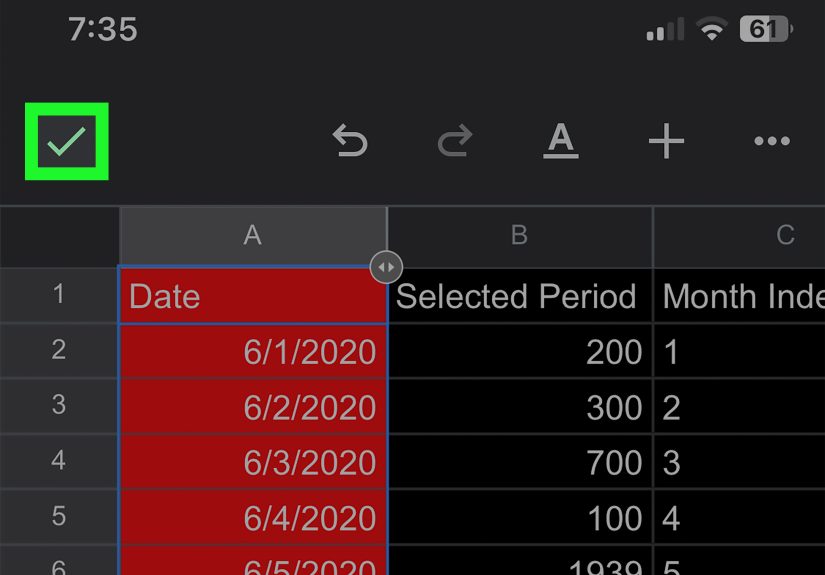
The most straightforward way to highlight an entire column is to click the letter at the top of that column
(A, B, C… you get the idea). When you click the column header, Google Sheets selects every cell in that column.
Step-by-step
- Open your Google Sheet.
- Move your cursor to the top of the column you want.
- Click the column letter (for example, click B to select Column B).
Useful variations
-
Select multiple adjacent columns: click the first column letter, then drag across other column letters
(or click the first column letter, hold Shift, and click the last column letter). -
Select the entire sheet: click the small square in the top-left corner where row numbers and column letters meet.
(It’s the “select absolutely everything” button.) -
Format the whole column right away: once the column is selected, use the toolbar to change font, size,
number format, or fill coloreverything applies to the whole column.
Example: If Column D contains prices, click D, then click the currency format button.
Boomevery value in that column gets the same format, and your sheet suddenly looks like it pays taxes.
Way 2: Use the keyboard shortcut (the “look what I can do” method)
If you highlight columns a lotespecially for formatting, filtering, copying, or cleaning datakeyboard shortcuts will save you
a ridiculous amount of time.
The shortcut
- Windows / ChromeOS: Ctrl + Space
- Mac: Ctrl + Space (yes, Controlmore on Mac quirks in a second)
Step-by-step
- Click any cell inside the column you want to select (example: click cell B7).
- Press Ctrl + Space.
- The entire column highlights instantly.
Mac troubleshooting (because Macs are delightful and also chaos)
On some Mac setups, Cmd + Space is reserved for Spotlight Search, and browser shortcuts can vary.
If your shortcut doesn’t select the column:
- Try clicking inside the sheet first (so the browser focus is definitely in Google Sheets).
- Try a different browser (Chrome is usually the most consistent for Sheets shortcuts).
- Open the shortcuts list in Sheets with Ctrl + / to confirm what’s currently supported.
Pro tip: Once a column is selected, follow up with a second shortcut:
Ctrl + clears formatting (great for removing “mystery formatting” that spreads like glitter).
Way 3: Use the Name box to select a column by typing a range
This method is perfect when you know exactly what you want and you don’t feel like scrolling for 20 minutes to find Column “AQ.”
The Name box (also called the range box) lets you type a cell or range reference and jump/select it instantly.
Step-by-step
- Click the Name box (it’s near the formula bar and usually shows something like A1).
- Type a full-column range like
B:B. - Press Enter.
Range examples you can steal
A:A→ selects all of Column AD:D→ selects all of Column DB2:B→ selects Column B starting at row 2 (handy if row 1 is headers)F:F→ selects Column F (also known as “the column that always gets forgotten”)
Why this is awesome: it’s faster than scrolling, and it’s more accurate than trying to click a tiny column letter
when your sheet is zoomed out like it’s trying to fit the entire internet on one screen.
When “highlight” really means “make it stand out” (color + formatting)
Selecting a column is great for editing. But if your goal is visuallike tracking a key metric, scanning entries,
or focusing attentionthen you want formatting.
Option A: Manually color-highlight an entire column
Use this when you want a simple, permanent visual emphasis (like marking the “Final Score” column).
Steps
- Select the column using Way 1, 2, or 3.
- Click the Fill color (paint bucket) in the toolbar.
- Pick a color that says “important” without screaming “emergency.”
Example use cases
- Budget sheet: highlight the “Remaining” column so you spot overspending fast.
- Content calendar: highlight “Publish Date” so deadlines stop sneaking up on you.
- CRM sheet: highlight “Next Step” so follow-ups don’t vanish into the void.
Option B: Automatically highlight a column with conditional formatting
Conditional formatting is the “smart highlight” tool. Instead of coloring the whole column forever, you tell Sheets:
“Only highlight when something meets a rule.” That means your column can light up when there’s a problem, a pattern,
a milestone, or a “please fix me” situation.
How to apply conditional formatting to a full column
- Select the column (example: click the B column letter).
- Go to Format > Conditional formatting.
-
In the rule panel, set Apply to range to something like
B:BorB2:B.
(UseB2:Bif row 1 is headers.) - Choose a rule type (like “Greater than,” “Text contains,” or Custom formula is).
- Pick a formatting style (fill color, bold text, etc.).
- Click Done.
Three practical conditional-formatting examples
Example 1: Highlight duplicates in a column
Perfect for IDs, emails, invoice numbers, or anything that should be unique.
- Apply to range:
A2:A - Rule: Custom formula is
- Formula:
=COUNTIF($A:$A,A2)>1
What it does: if a value appears more than once in Column A, those duplicate cells get highlighted.
(Yes, it’s basically a lie detector for copy-paste accidents.)
Example 2: Highlight values over a threshold
Great for budgets, performance metrics, or anything with a “too high” or “too low” line.
- Apply to range:
D2:D - Rule: Greater than
- Value:
1000
Example 3: Highlight blanks you need to fill
Ideal for checklists and data-entry workflows.
- Apply to range:
F2:F - Rule: Is empty
Common “why isn’t this working?” fixes
1) Your header row is getting highlighted
Use a range like B2:B instead of B:B. That tells Sheets, “Start below the headers.”
2) The shortcut selects nothing (or does something weird)
- Click inside the sheet before using the shortcut.
- Check shortcut conflicts (especially on Mac).
- Try Chrome if another browser is intercepting key commands.
3) Conditional formatting highlights the wrong cells
Double-check your references. In custom formulas, dollar signs matter:
$A:$Alocks the column so it doesn’t shift.A2changes by row, so each row checks its own value.
Mini FAQ
Is highlighting the same as selecting?
In everyday spreadsheet talk, people say “highlight” to mean “select.” But if someone says “highlight it in yellow,”
they mean formatting. This guide gives you both so you don’t have to play spreadsheet charades.
Can I highlight multiple non-adjacent columns?
Yes: click one column letter, then hold Ctrl (Windows/ChromeOS) or Cmd (Mac) and click other column letters.
This selects multiple separate columns for formatting or copying.
What’s the cleanest way to keep using the same key column?
Consider creating a Named range for that column (like “Revenue” or “Status”) so it’s easier to reuse in formulas
and navigationespecially in large sheets with many tabs.
Real-World Experiences : How column highlighting saves your sanity
The first time you learn to highlight a whole column quickly, it feels like a small trick. Then you use it in a real sheet,
and suddenly it feels like you’ve been walking everywhere and someone just handed you car keys.
One common scenario: you inherit a shared spreadsheet that has been touched by twelve people and at least one mysterious
“Spreadsheet Gremlin.” The sheet has a “Status” column, a “Due Date” column, and a “Notes” column that is basically a novel.
You’re told, “Just clean it up.” That’s not a taskthat’s a quest. Clicking the column letter to highlight “Status” lets you
apply consistent formatting instantly: maybe bold text, maybe a dropdown style, maybe a fill color. The goal isn’t to make it pretty.
The goal is to make it readable enough that your brain doesn’t file a complaint.
Another experience you’ll recognize if you work with lists: duplicates. Duplicates in emails. Duplicates in invoice numbers.
Duplicates in product SKUs. The kind of duplicates that don’t look scary until they become an “Oh no, we emailed the same person
three times” situation. Selecting the entire column and applying conditional formatting to flag duplicates is the spreadsheet version
of turning on the lights. It doesn’t fix the mess automatically, but it reveals it instantlyso you can actually solve the problem
instead of guessing where it is.
Keyboard highlighting becomes a superpower when you’re doing repetitive cleanup. Imagine you’re standardizing a “Phone Number” column.
You click one cell, hit Ctrl + Space, and now the whole column is selected. From there, you can apply the same
number format, clear weird font changes, or copy a formula down the column without dragging for miles. The best part is that it feels
consistent: click, shortcut, action. Your hands learn it. Your brain relaxes.
The Name box method shines in big, real-life sheetslike content calendars, reporting dashboards, or inventory trackerswhere columns
stretch far beyond what fits on your screen. If someone says, “Look at Column AK,” you don’t scroll like you’re reading a historical
scroll from ancient times. You type the range (like AK:AK), hit enter, and you’re there. It’s not just fasterit’s calmer.
You’re not losing your place. You’re not overshooting. You’re not muttering “where is it, WHERE is it” at your monitor.
And then there’s the quiet win: visual focus. Highlighting the key columnwhether it’s “Profit,” “Owner,” or “Next Step”keeps everyone
aligned in meetings. People stop arguing about the wrong column. Reviewers spot issues faster. You can say, “Everything highlighted here
needs attention,” and suddenly the spreadsheet turns into a checklist instead of a confusing wall of cells.
So yes, selecting an entire column is a small technique. But in the real world, small techniques compound. You save seconds hundreds of times.
You reduce errors. You lower friction. And you gain that tiny smug satisfaction of knowing your spreadsheet isn’t running youyou’re running it.
Conclusion
If you only remember three things, make them these:
click the column letter when you want the simplest method, use Ctrl + Space when you want speed,
and use the Name box when you want precision. From there, decide whether you’re selecting a column to work on itor highlighting it visually
with color or conditional formatting so it’s impossible to miss.