Table of Contents >> Show >> Hide
- First, Know Your Incoming Call Screens (So You Don’t Panic-Tap)
- How to Answer a Call on iPhone (Step-by-Step)
- How to Silence, Decline, or Send a Call to Voicemail (Without Being “That Person”)
- Call Waiting: What to Do When a Second Call Pops Up Mid-Conversation
- During the Call: Essential Buttons You Should Actually Use
- Change Incoming Calls to Banner or Full Screen (So Calls Stop Hijacking Your Screen)
- Unknown Callers and Spam: Answer Smart, Not Hard
- Troubleshooting: “Why Can’t I Answer This Call?!”
- Hands-Free Options: When Your Hands Are Busy (Or Just Dramatic)
- Extra: of Real-World “Been There” Experiences (So You Feel Less Alone)
- Conclusion
Your iPhone rings. Your brain freezes. Your thumb suddenly forgets it’s been trained for years to tap a green button.
Congratulationsyou’re human. The good news is that answering an iPhone call is easy once you know which call screen
you’re looking at (because yes, Apple gives you more than one). This guide walks you through every common scenario:
locked screen, unlocked screen, banner vs. full screen, AirPods, CarPlay, call waiting, and what to do when the caller
is… let’s say “mysterious.”
First, Know Your Incoming Call Screens (So You Don’t Panic-Tap)
Before we jump into steps, here’s the big idea: the way you answer depends on whether your iPhone is locked and how your
incoming call alerts are set up. On modern iOS versions, you’ll typically see one of these:
- Locked screen call: you usually slide to answer (helps prevent accidental pocket-answers).
- Unlocked screen call: you see buttons to accept or decline (or a compact banner at the top).
- When you’re using an accessory: you may answer from AirPods, a headset button, or CarPlay controls instead of the iPhone screen.
How to Answer a Call on iPhone (Step-by-Step)
Scenario 1: Your iPhone Is Unlocked (You’re Already Using It)
- Look for the call alert: it may appear as a full-screen call card or as a banner at the top.
- Tap the green Answer/Accept button (wording/icons can vary slightly), and you’re connected.
- If it’s a banner: tap the banner to expand it if you want more options, or answer directly if the buttons are visible.
Pro tip: If you’re in the middle of a game, map, or video and calls feel “too tiny,” you can switch the incoming call style (banner vs. full screen).
We’ll cover that later.
Scenario 2: Your iPhone Is Locked (The Classic “Slide to Answer” Moment)
- Wake the screen (tap it or raise to wake).
- Slide to answer: drag the on-screen slider/phone icon as shown.
- Start talkingyour iPhone automatically switches to the in-call screen.
If you’ve ever wondered why you don’t always see a big red “Decline” button on the locked screen, you’re not imagining it.
On many iPhone setups, declining from the lock screen is done with buttons rather than an on-screen decline button.
Scenario 3: Answer a Call with AirPods (Because Touching Your Phone Is So 2017)
If your AirPods are connected, you can answer without picking up your iPhone:
- AirPods with stems (newer models): press the stem once to answer; double-press to decline (model-dependent).
- AirPods (1st/2nd gen): typically double-tap to answer (depending on your settings).
If you’re not sure which AirPods you have, the safest move is to check Apple’s AirPods guide for your model’s exact gesture.
Scenario 4: Answer Calls While Driving (CarPlay)
If you use CarPlay, incoming calls can show on your car’s display. You can typically:
- Answer using the on-screen prompt in CarPlay’s Phone app.
- Use your car’s built-in controls (like steering wheel buttons) if supported.
CarPlay is designed so you can handle calls without fumbling for your phoneyour vehicle controls may vary, but the Phone app
in CarPlay is the central hub.
How to Silence, Decline, or Send a Call to Voicemail (Without Being “That Person”)
Silence the Ringing (You Need 10 Seconds to Decide)
- Press the side button once (or a volume button) to silence the ringer while the call keeps ringing. This is perfect when you’re in a meeting, class, or “quiet place where phones go to feel shame.”
Decline the Call (Send It to Voicemail)
- When unlocked: tap Decline on the call screen.
- When locked: you can usually press the side button twice quickly to decline.
- If a call banner is showing: you may be able to swipe it away/up to dismiss or access options (interface varies by iOS version and call style).
Reply With a Text Instead (Polite “Can’t Talk” Energy)
On many incoming call screens, you can tap Message to send a quick reply like “Can I call you later?” or “In a meeting.”
It’s a great option when you want to acknowledge someone without turning your hallway into a phone booth.
Call Waiting: What to Do When a Second Call Pops Up Mid-Conversation
Call waiting lets another call come through while you’re already on the phone (assuming your carrier supports it and it’s enabled).
Enable Call Waiting (So Calls Don’t Auto-Voicemail You)
- Open Settings.
- Go to Apps → Phone (wording may vary by iOS version/region).
- Tap Call Waiting and turn it on.
If call waiting is off, incoming calls while you’re on the line may go straight to voicemail.
When the Second Call Arrives: Your Main Options
- Hold & Accept: put the first caller on hold and answer the new call.
- End & Accept: end the current call and answer the new one (availability depends on network/carrier behavior).
- Ignore: let the new call go to voicemail while you stay on your current call.
Swap or Merge Calls (When You Become the Human Switchboard)
- Swap: switch between callers when one is on hold.
- Merge Calls: combine calls into a conference (carrier limits apply).
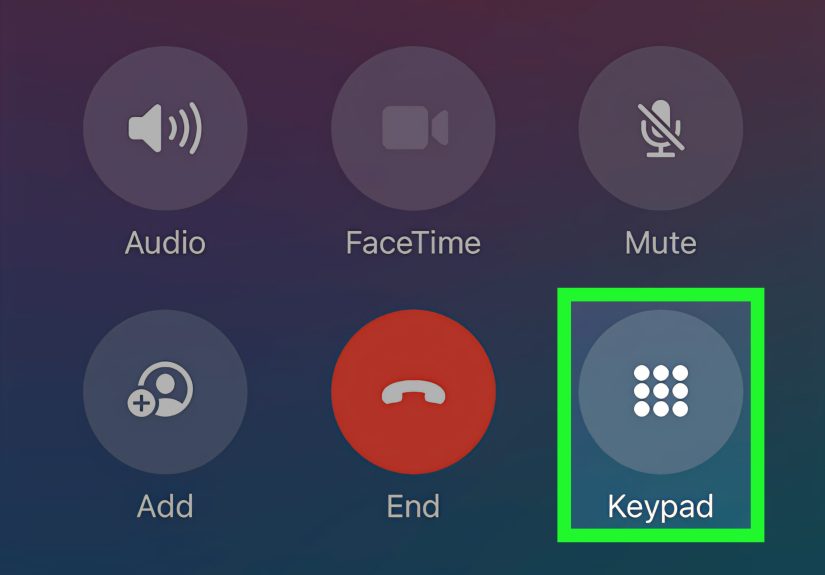
During the Call: Essential Buttons You Should Actually Use
Once you answer, the in-call screen is your command center. Here’s what matters most in real life:
- Speaker: great for hands-free, but maybe not for private conversations in an elevator.
- Mute: use it when you need to cough, talk to someone nearby, or dramatically whisper “I can’t believe this is happening.”
- Keypad: for extensions and “Press 1 for English” menus.
- Audio: switch sound between iPhone, speaker, Bluetooth devices, or other connected options.
Change Incoming Calls to Banner or Full Screen (So Calls Stop Hijacking Your Screen)
If you prefer calls to appear as a small banner while you keep doing what you were doing (scrolling, mapping, or heroically ignoring your inbox),
you can change the incoming call style.
- Open Settings.
- Tap Apps → Phone.
- Tap Incoming Calls.
- Select Banner or Full Screen.
Many iPhones default to Banner-style alerts when unlocked, but you can switch back to full screen if you want the “old-school, stop-everything” call screen.
Unknown Callers and Spam: Answer Smart, Not Hard
Not every call deserves your time. (Some calls deserve to be studied by scientists: “How did you get this number?”)
iPhone includes built-in tools that help you decide whether to answer.
Option 1: Screen Unknown Callers (Call Screening)
In newer iOS versions, iPhone can automatically interact with calls from numbers not saved in your contacts and show you
the caller’s name/reason so you can decide whether to pick up.
Option 2: Silence Unknown Callers
If you want fewer interruptions, you can silence calls from unknown numbers so they go to voicemail without ringing.
This is effective, but it can also silence legitimate calls (like a new doctor’s office or a delivery driver).
Option 3: Live Voicemail (Read the Message While It’s Being Left)
Live Voicemail can show a real-time transcription while someone leaves a voicemailso you can answer mid-message if it turns out
the call is important.
Option 4: Block Specific Numbers
If a number keeps bothering you, you can block it from your call history or contact card so it can’t call or message you anymore.
(This is the digital equivalent of installing a “No Soliciting” sign.)
Troubleshooting: “Why Can’t I Answer This Call?!”
If the call screen feels glitchy or you can’t hear the caller, try these practical fixes:
- Check audio routing: your call may be going to a Bluetooth device you forgot you paired three months ago. Use the Audio button during the call to switch back to iPhone or Speaker.
- Restart your iPhone: it solves more than it should, and that’s all we’ll say about it.
- Update iOS: updates often include bug fixes that can improve calling reliability and call-screen behavior.
- Remove obstacles: bulky cases and screen protectors can sometimes interfere with touch gestures (especially the “slide” motion).
Hands-Free Options: When Your Hands Are Busy (Or Just Dramatic)
You can set up your iPhone so calls are easier to handle without staring at your screen.
For example, iPhone can announce calls via Siri in supported setups, letting you decide quickly whether to answer.
Extra: of Real-World “Been There” Experiences (So You Feel Less Alone)
Let’s talk about the experiences nobody tells you when they say, “Just answer the call.” Because in real life, calls happen at the worst times:
when you’re carrying groceries, when you’re mid-scroll, when your AirPods are in but your brain is out, and when you’re about to hit “Send” on a text
you’ll regret anyway.
Experience #1: The Locked-Screen Fumble. You see “slide to answer,” and suddenly you forget how sliding workseven though you’ve been doing it
since you were old enough to borrow a phone. The trick is to follow the on-screen direction exactly: don’t tap wildly; commit to the drag. Once you realize
Apple uses the locked-screen slider to prevent accidental answers in pockets and bags, the design makes more sense. If you actually don’t want to answer,
the side button double-press is your best “nope” shortcutfast, quiet, and it doesn’t require unlocking your phone first.
Experience #2: The Banner Call That Pretends It’s Not Interrupting You. Banner calls are greatuntil you miss the tiny options and wonder why the call
disappeared. What often happened is you dismissed the banner or didn’t tap the right spot. If you prefer something impossible to miss, switch to full screen.
If you love banners because you’re multitasking, treat the banner like a “doorbell”: tap it to expand when you need more controls.
Experience #3: AirPods Answering Is Awesome… Until You Don’t Remember the Gesture. With newer AirPods, pressing the stem once to answer feels magical.
But in the moment, people often squeeze too long, squeeze the wrong AirPod, or accidentally trigger noise control changes. If calls are important for you (work,
family, school), practice once when you’re not under pressure: call yourself from another phone and rehearse the gesture. One calm practice run saves five frantic
“Hello? HELLO?” moments later.
Experience #4: Call Waiting Turns You Into Customer Support for Your Own Life. You’re on a call, another call pops up, and suddenly you’re choosing between
“Hold & Accept” and “End & Accept” like it’s a relationship quiz. A simple rule: if the current call is urgent, ignore the new one. If the new call might be more
urgent (or you’re expecting it), hold the first call and accept the new one. And if you truly need everyone together, merging calls can be a lifesaverjust remember
it depends on carrier support, and not every plan behaves the same way.
Experience #5: Spam Calls, But Make It Strategic. The most satisfying feeling is watching an unknown caller get screened or sent to voicemail while you continue
living your life. Features like Call Screening, Silence Unknown Callers, and Live Voicemail can dramatically cut interruptionsyet they work best when you keep your
important contacts saved. A lot of “missed important calls” stories happen because someone didn’t have the dentist, school, or delivery service saved. Do yourself a favor:
save the numbers you genuinely care about, then let your iPhone be the bouncer for the rest.
Conclusion
Answering a call on iPhone is simple once you match the situation to the right action: tap to answer when unlocked, slide when locked, use AirPods/CarPlay controls when
you’re connected, and lean on call waiting tools when life double-books your phone. If calls feel too intrusive, switch between banner and full screen. And if unknown calls
drive you nuts, use screening, silencing, Live Voicemail, and blocking to take controlwithout turning your day into a nonstop ringtone remix.