Table of Contents >> Show >> Hide
- Why Bitmoji works better with friends (and not just as a solo act)
- Before you start: a quick setup checklist
- 1) Make “Friendmoji” moments in Snapchat (including group chats)
- 2) Drop Bitmoji into any group chat (texts, iMessage, WhatsApp, Messenger, and more)
- Option A: Send a sticker straight from the Bitmoji app
- Option B: Add the Bitmoji keyboard on iPhone
- Option C: Enable the Bitmoji keyboard on Android
- Option D: Use Bitmoji inside Gboard (fastest for many Android users)
- iMessage bonus: the Snapchat iMessage extension on iOS
- Group chat etiquette: how to be funny, not exhausting
- 3) Use Bitmoji on the web for shared projects, invites, and email banter
- Troubleshooting: when Bitmoji refuses to be the main character
- Wrap-up: pick your Bitmoji “friend lane” and have fun with it
- Real-life Bitmoji-with-friends experiences (the stuff that actually happens)
Bitmoji is basically a tiny cartoon version of you that’s always dressed better, never forgets to text back, and somehow has a sticker for every emotionyes, even the one you feel when someone says “let’s circle back” in a group chat.
The best part? Bitmoji gets way funnier when you use it with friends. Whether you’re roasting your bestie (lovingly), planning a trip, or just trying to communicate “I’m alive, but barely,” here are three practical, not-annoying, actually-fun ways to use Bitmoji together.
Why Bitmoji works better with friends (and not just as a solo act)
On your own, Bitmoji is a cute way to react without typing a novel. With friends, it becomes a shared language: inside jokes, running gags, and “this sticker is literally you” energy. The goal isn’t to replace real conversationit’s to add flavor.
Think of Bitmoji like hot sauce: a little makes everything better; too much and suddenly everyone’s sweating and regretting life choices.
Before you start: a quick setup checklist
- Install Bitmoji and create your avatar (or refresh it if it’s still wearing 2017 fashion).
- Link Bitmoji to Snapchat if you want Friendmoji and Snap Map features.
- Enable a Bitmoji keyboard option (iPhone, Android, or Gboard) if you want to use Bitmoji in texts and other apps.
- Pick your “friend lane”: Snapchat moments, group chats everywhere, or web/email banter.
1) Make “Friendmoji” moments in Snapchat (including group chats)
If you and your friends live on Snapchat, this is the crown jewel: Friendmoji (sometimes called Friendmojis) puts both of your avatars in the same sticker. It’s like a buddy comedy, except you’re the cast and the writers are apparently very online.
Step 1: Make sure your Bitmoji is linked to Snapchat
Linking matters because Friendmoji only appears when both people have Bitmoji set up and connected. If you don’t see any friend-style stickers, it’s usually a linking issuenot the universe trying to humble you.
Step 2: Send Friendmoji in a one-on-one chat
- Open a chat with your friend in Snapchat.
- Tap the Sticker picker (or the smiley/sticker tray).
- Look for the Bitmoji section and scroll until you see stickers featuring both of you.
Example use: Your friend says, “I’m five minutes away,” while still at home. Reply with a Friendmoji that screams “Sure, Jan,” but in a cute cartoon way that preserves the friendship.
Step 3: Use Friendmoji in a group chat without starting a spreadsheet
Group chats are chaotic. Friendmoji helps you aim your reaction at the right person without tagging them like it’s a corporate email chain.
- In the Snapchat group chat, open the sticker tray.
- Go to Bitmoji stickers.
- Press and hold on a Friendmoji sticker to choose which friend appears with you.
- Select your target friend and send the sticker.
Useful quirk: In Snapchat group chats, Friendmoji can “pair” with whoever last chatted in the groupso if it looks like you’re high-fiving the wrong person, blame the timeline, not your loyalty.
Bonus: Snap Map “My Bitmoji” tray (aka: the low-effort status update)
Snap Map isn’t just “where are you?”it can be “what are you up to?” in a way that feels lighter than posting a full Story. The My Bitmoji tray lets you change outfits and choose activities so friends can see your vibe at a glance.
- Open Snap Map.
- Tap My Bitmoji (often at the lower-left area).
- Change your outfit or pick an activity that matches what you’re doing.
Example use: You’re studying, your friend is out, and you want to say “I can’t” without typing “I can’t.” Set an activity vibe and let your tiny cartoon self do the explaining.
Privacy tip: control how your avatar shows up with friends
Snapchat includes settings that let you manage who can use your Bitmoji in friend-based features. If you like your friends but don’t want your avatar starring in everyone’s sticker universe, it’s worth checking your preferences in Snapchat’s Bitmoji-related settings.
2) Drop Bitmoji into any group chat (texts, iMessage, WhatsApp, Messenger, and more)
Snapchat is great, but sometimes the group chat lives somewhere elseMessages, WhatsApp, Instagram DMs, Discord, you name it. The secret is simple:
make Bitmoji available at keyboard-speed, not “open an app, find a sticker, lose your place, forget why you were texting.”
Option A: Send a sticker straight from the Bitmoji app
This is the simplest “no keyboard setup” method. You pick a sticker in the Bitmoji app, then choose which messaging app to send it through.
It’s slightly slower than a keyboardbut it’s beginner-friendly and works when you’re troubleshooting.
Best for: occasional Bitmoji users, or anyone who doesn’t want to touch keyboard permissions at 2 a.m. and accidentally enable something called “Full Access to the Universe.”
Option B: Add the Bitmoji keyboard on iPhone
If you’re on iPhone, you can add Bitmoji as a keyboard so it’s available in basically any app where you type.
- Open Settings → General → Keyboard.
- Tap Keyboards → Add New Keyboard.
- Select Bitmoji.
- Turn on Full Access if you want the keyboard to work as intended.
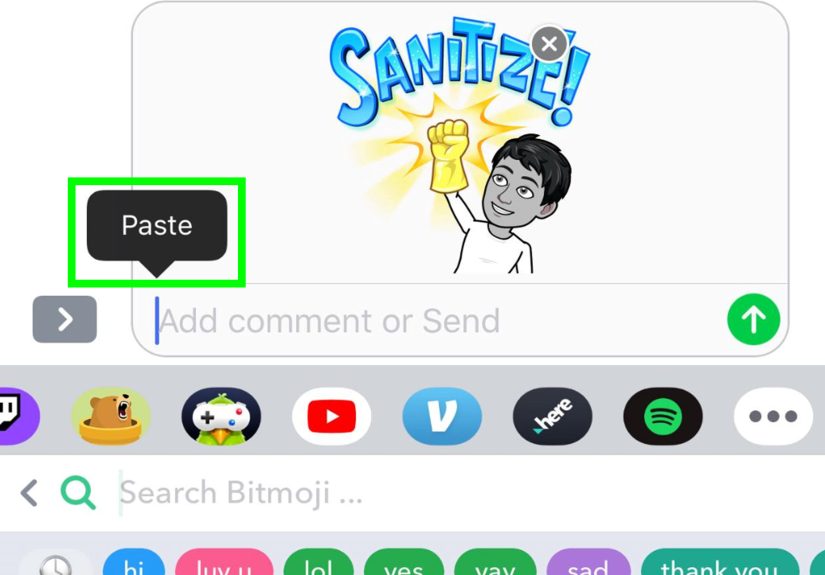
How to use it: In a chat app, switch keyboards (usually the globe icon), pick Bitmoji, and tap a sticker to insert it.
Example use: Your group chat is deciding dinner. Instead of typing “I don’t care,” send a Bitmoji that very clearly cares (but is pretending not to).
Option C: Enable the Bitmoji keyboard on Android
Android setup varies a bit by device, but the idea is the same: enable Bitmoji as an on-screen keyboard option, then switch to it when you want stickers.
- Install and log in to Bitmoji.
- In Bitmoji, go to the keyboard setup area and follow prompts or enable it in your Android keyboard settings (often under Language & input → On-screen keyboard).
Pro move: If you don’t love typing on the Bitmoji keyboard itself, keep your normal keyboard for words and switch to Bitmoji only when it’s sticker time.
Option D: Use Bitmoji inside Gboard (fastest for many Android users)
If you use Google’s Gboard, Bitmoji can show up inside the keyboard interface, which makes sending stickers feel like using emojisquick and casual.
- Open a messaging app and make sure Gboard is your active keyboard.
- Tap the emoji/smiley icon.
- Tap Bitmoji and follow the setup/login prompt if needed.
- Select a sticker to insert it directly into your conversation.
Example use: Your friend sends a blurry photo like it’s an artistic statement. Reply with a Bitmoji sticker that conveys “I support you” and “What is this?” at the same time.
iMessage bonus: the Snapchat iMessage extension on iOS
If your friend group lives in iMessage, Snapchat offers an iMessage extension on iOS so you can add Bitmoji and other Snapchat stickers right inside Messages.
It’s basically “bring Snapchat sticker energy to iMessage,” minus the app-hopping.
- Open Messages and start or open a conversation.
- Tap the + Apps button.
- Select the Snapchat icon to insert Bitmoji or stickers.
Group chat etiquette: how to be funny, not exhausting
- Match the moment. A sticker is perfect for a punchlinenot for every single message.
- Use Bitmoji as punctuation. One sticker can end a conversation cleanly (and lovingly).
- Don’t spam the same sticker. Even the funniest Bitmoji becomes a jump scare after the fifth repeat.
- Let friends “borrow” your vibe. When someone says “this is so you,” save that sticker as part of the group’s shared lore.
3) Use Bitmoji on the web for shared projects, invites, and email banter
Not every friend interaction happens in a chat app. Sometimes you’re planning a trip, organizing a party, or sending a “Yes, I’m still alive” email to a group thread.
This is where Bitmoji on the web shinesespecially if you like adding personality to otherwise painfully adult communication.
Install the Bitmoji Chrome extension
The Bitmoji Chrome extension lets you drop Bitmoji into web spaces like Gmail and copy/paste stickers into other places online.
If you spend a lot of time on a laptop, this is the easiest way to keep Bitmoji within reach without grabbing your phone.
- Add the Bitmoji extension in Chrome.
- Log in to your Bitmoji account.
- Click the extension icon to browse stickers, then insert or copy them where you need.
Example use: You’re emailing your friends about a weekend plan. Instead of “Reminder: be on time,” add a Bitmoji that looks politely stressed. Everyone gets it. No one feels attacked. Mostly.
Copy-paste Bitmoji into shared planning spaces
Bitmoji can make shared planning feel less like homework. Think:
- Group trip itineraries: use a “confident” sticker next to the person in charge of directions.
- Party planning: add a sticker to the “snacks” line item so people stop pretending they didn’t see it.
- Shared calendars/invites: paste a Bitmoji into the description to set the tone (“fancy dinner” vs “pizza in sweatpants”).
The point isn’t to turn every document into a comic strip. It’s to make coordination feel more humanlike you’re planning with friends, not submitting a tax form.
Connect Bitmoji to third-party apps when the option appears
Some apps offer a “Connect Bitmoji” option. Typically, you’ll link by logging in through Bitmoji or scanning a QR code, and then your avatar/stickers can show up inside that app’s features.
If you see the option in a social or messaging app you trust, it’s worth tryingespecially if your friend group uses that platform every day.
Optional fun: Bitmoji content that features you and your friends
Snapchat has experimented with Bitmoji-based content over the years (like friend-focused Bitmoji features and styles). You don’t have to chase every new feature,
but it’s nice to know that Bitmoji isn’t staticyour avatar and how it shows up with friends can evolve with new looks or formats.
Troubleshooting: when Bitmoji refuses to be the main character
“I don’t see Friendmoji at all.”
- Confirm both you and your friend have Bitmoji linked to Snapchat.
- In chats, open the sticker tray and look specifically under the Bitmoji area.
- In group chats, try press-and-hold on a Friendmoji to switch which friend appears.
“My Bitmoji keyboard isn’t showing up.”
- On iPhone, verify Bitmoji is added under Settings → General → Keyboard → Keyboards.
- On Android, confirm Bitmoji Keyboard is enabled in your on-screen keyboard settings.
- If you’re using Gboard, make sure you’ve completed the Bitmoji setup inside Gboard’s emoji/sticker area.
“It works in one app but not another.”
Some apps handle sticker pasting differently. If a sticker won’t paste, try sending it as an image through the Bitmoji app’s share menu, or use a different method (keyboard vs share).
“Full Access” on iOS makes me nervous.”
That’s a fair reactionApple’s wording sounds dramatic. If you’re uncomfortable, you can start with the Bitmoji app’s share method and only enable keyboard features if you decide it’s worth the convenience.
Wrap-up: pick your Bitmoji “friend lane” and have fun with it
If you want maximum laughs with minimum effort, start here:
- Snapchat-first friends: use Friendmoji in chats and group chats, plus Snap Map vibes.
- Group chat everywhere: set up Bitmoji keyboard (or Gboard) so stickers are always one tap away.
- Desktop planners and email warriors: use the Chrome extension to keep Bitmoji alive on the web.
Most importantly: Bitmoji is supposed to make communication lighter. If your friends are laughing, you’re doing it right. If they’re muting the chat, scale back and try again tomorrow. (With a sorry-looking Bitmoji, obviously.)
Real-life Bitmoji-with-friends experiences (the stuff that actually happens)
Here’s what using Bitmoji with friends looks like in the wildnot in a marketing video where everyone is smiling in perfect lighting and no one has ever typed “k” as a full sentence.
1) The “late but optimistic” friend
Every friend group has someone who’s always “almost there.” You know the one: they’re “two minutes away” from your apartment while still choosing shoes.
This is where Friendmoji becomes the gentle art of playful accountability. Instead of sending a passive-aggressive paragraph, you drop a sticker of you and them runningor you looking dramatically impatientand suddenly the message is clear without turning into a courtroom drama.
It’s not about shaming; it’s about keeping the vibe fun while nudging them toward reality.
2) The group chat that plans everything… and nothing
Planning in a group chat often goes like this: someone suggests a plan, three people reply “down,” two people disappear, and one person starts discussing a completely unrelated topic like “Do you think penguins have knees?”
Bitmoji helps you “anchor” the conversation. A well-timed sticker next to “7 PM or 8 PM?” can pull attention back better than a follow-up message that says “guys????”
In iMessage or WhatsApp-style chats, having Bitmoji on your keyboard makes it quicklike punctuation that says “this is the part we need to answer.”
3) The inside joke that won’t die (and shouldn’t)
Some jokes are too powerful to retire. Maybe your friend once spilled iced coffee in slow motion and now “The Spill” is a sacred piece of group mythology.
Bitmoji is perfect for immortalizing these moments because you can find stickers that match the mood: shocked, embarrassed, victorious, chaotic, all of it.
Over time, certain stickers become shorthand. One sticker might mean “I can’t believe you did that again,” while another means “I support you, but I also need details immediately.”
It’s like building a tiny shared dictionary that only your group understands.
4) Long-distance friendships that need low-pressure check-ins
When you’re not in the same city, “keeping up” can feel weirdly high-effort. You don’t always have a big life update ready.
Bitmoji makes small check-ins feel warm: a sticker that says “thinking of you,” “surviving Monday,” or “I’m free this weekend” can reopen a conversation without the pressure of a long catch-up call right away.
And if you’re using Snapchat, Snap Map activities or quick Bitmoji reactions can give a little daily presencelike you’re still in each other’s orbit.
5) The “adulting” thread that needs emotional support
Sometimes friends coordinate real-life stuff: splitting rent utilities, planning a trip budget, reminding someone to bring their passport (again).
Dropping Bitmoji into a shared doc or an email thread sounds silly until you realize it makes people kinder. A sticker next to “Please send your portion by Friday” softens the message just enough to keep it from sounding like a bank notification.
It’s not manipulationit’s tone management. The sticker does the “we’re friends” part while your words handle the logistics.
The best Bitmoji experiences with friends aren’t about being the funniest person in the chat 24/7. They’re about adding a little humanityyour faces, your inside jokes, your shared chaosinto the places where text can feel flat. Use it like seasoning, not like a fire hose, and your friend group will start “speaking Bitmoji” without even noticing.