Table of Contents >> Show >> Hide
- Quick Cheat Sheet: The 3 Best Ways to Access iCloud Photos on a PC
- Before You Start: What You Need (So Setup Doesn’t Turn Into a Puzzle)
- Method 1: Access iCloud Photos in the Microsoft Photos App (Best “Native” Experience)
- Method 2: Use File Explorer (Best for Downloads, Uploads, and Backups)
- Method 3: Use iCloud.com in a Browser (No Install, Fast Access)
- Shared Albums, Shared Libraries, and “Why Can’t I See That Album?”
- Build a Reliable “Not Panicking Later” Workflow (Download Strategy)
- Troubleshooting: When iCloud Photos Won’t Load (Or Only Shows Thumbnails)
- Security and Privacy Tips (Because Photos Are Personal)
- FAQs
- Conclusion
- Real-World Experiences: What People Commonly Run Into (and How to Stay Sane)
You took 4,000 photos on your iPhone (including 37 nearly identical pictures of your dog blinking),
and now you’re on a Windows PC thinking: “Okay… where did Apple put my memories?”
Good news: your iCloud Photos aren’t trapped in a glass cube guarded by a minimalist genius.
You can access them from your PC in a few solid wayssome fast, some flexible, and some “I refuse to install anything.”
This guide walks you through the best methods, how to download originals (not just thumbnails),
how to upload from your PC, and how to fix the usual “Why is nothing loading?” momentswithout turning your day into a tech-support documentary.
Quick Cheat Sheet: The 3 Best Ways to Access iCloud Photos on a PC
| Method | Best For | What You Get | Setup Time |
|---|---|---|---|
| iCloud for Windows + Photos app | Everyday browsing, sorting, easy viewing | iCloud Photos inside Microsoft Photos | 5–10 minutes |
| File Explorer (iCloud Photos folder) | Downloads, uploads, backups, power-user control | A PC folder-like view with download status | 5–10 minutes |
| iCloud.com (browser) | No-install access, quick downloads/uploads | Web gallery + download/upload tools | 1–2 minutes |
Before You Start: What You Need (So Setup Doesn’t Turn Into a Puzzle)
1) Make sure iCloud Photos is actually enabled
On your iPhone (or iPad), iCloud Photos must be turned on for your library to sync to iCloud.
If it’s off, your photos may live only on your deviceor be split between device storage and iCloud in confusing ways.
2) Have your Apple Account sign-in ready (and be prepared for verification)
When you sign in on a PC, you’ll typically need to verify the login with a code (two-factor authentication).
Translation: keep your iPhone nearby, or at least have access to where verification codes land.
3) Decide what you’re trying to do
- Browse and find photos quickly: Microsoft Photos integration is convenient.
- Download lots of originals for backup: File Explorer workflow is usually best.
- Use a shared/public PC: iCloud.com is fastest, but remember to sign out.
Method 1: Access iCloud Photos in the Microsoft Photos App (Best “Native” Experience)
If you want iCloud Photos to feel like part of Windows, this is the smoothest routeespecially on Windows 11.
The Photos app can show an “iCloud Photos” section once iCloud for Windows is installed and set up.
Step 1: Install iCloud for Windows from the Microsoft Store
Apple’s official iCloud for Windows app is distributed via the Microsoft Store. Install it, open it, and sign in with your Apple Account.
If you already installed an older version long ago, updating often fixes sync and sign-in weirdness.
Step 2: Enable Photos inside iCloud for Windows
In iCloud for Windows, make sure Photos is selected. This is what turns on the link between your iCloud Photo Library and your PC.
Depending on your Windows version and app versions, you may see options that affect how photos show up and what gets stored locally.
Step 3: Open the Microsoft Photos app and look for iCloud Photos
Open the Photos app and check the left navigation panel. You should see iCloud Photos.
Click it to browse your iCloud library from inside Photos, similar to how you’d browse a local collection.
Step 4: Understand what you’re seeing (thumbnails vs originals)
One common surprise: your PC may initially show placeholders or thumbnails and download originals only when you open them.
That’s not a bugit’s a storage strategy. If you want everything downloaded for offline access or backups, Method 2 (File Explorer) is often more direct.
Method 2: Use File Explorer (Best for Downloads, Uploads, and Backups)
If you like to know exactly where your files areand you enjoy the comforting honesty of foldersFile Explorer is your friend.
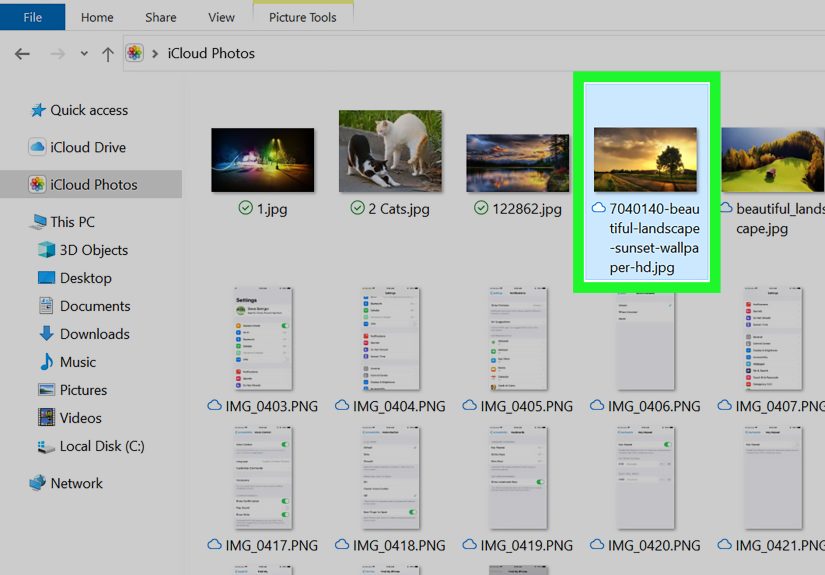
With iCloud for Windows enabled, you’ll see iCloud Photos in File Explorer.
Step 1: Open File Explorer → iCloud Photos
In File Explorer, look in the navigation pane for iCloud Photos.
If you don’t see it right away, check under Pictures where iCloud Photos may live.
Step 2: Download a photo (the “double-click makes it real” moment)
Double-click a thumbnail to download and view the full file. This is the classic workflow:
iCloud shows you what exists, and pulls down the original when needed.
If you’re selecting multiple items, use Ctrl-click (or Shift-click for ranges) like any other Windows folder.
Step 3: Learn the status icons (tiny symbols, big meaning)
iCloud Photos on Windows uses small icons to indicate whether something is stored locally, pending download, or synced.
If you’re trying to back up everything, those icons matterbecause a thumbnail is not the same as an original file.
Step 4: Upload photos from your PC to iCloud Photos
Yesyou can also go the other direction. In File Explorer, you can drag photos and videos into iCloud Photos
to upload them, then they’ll show up across your Apple devices (assuming iCloud Photos is enabled on those devices).
Step 5: Use File Explorer for “real backup behavior”
If your goal is a true local archive, here’s the mindset shift:
Don’t assume “visible” means “downloaded.” For backups, you want confirmed local files.
Many people create a separate “iCloud Photo Backup” folder and copy downloaded originals into it.
That way, even if sync settings change later, your backup stays put.
Method 3: Use iCloud.com in a Browser (No Install, Fast Access)
If you just need to grab a few photos quicklyor you’re on a computer where you can’t install appsuse iCloud.com.
It’s also a great “sanity check” tool: if iCloud.com shows your photos but your PC app doesn’t, the issue is probably Windows-side.
Step 1: Sign in to iCloud.com/photos
Go to iCloud.com and open Photos. After you sign in, you’ll see your library and albums in a web interface.
Step 2: Download photos or videos
Select one or multiple items, then hit the download button. For multiple selections, use Ctrl-click (Windows standard).
The web method is straightforward, but bulk library downloads can be time-consuming if you’re trying to grab thousands.
Step 3: Upload from PC (handy for quick transfers)
iCloud.com Photos also lets you upload photos from your PC. This is perfect when someone hands you a folder of images
and says, “Put these in iCloud,” like you’re the family’s unofficial cloud librarian.
Shared Albums, Shared Libraries, and “Why Can’t I See That Album?”
Shared Albums (and the “Public Website” trick)
Shared Albums can behave differently than your personal iCloud Photo Library.
If someone shares an album with you, you may access it through iCloud features depending on how it’s shared.
If a Shared Album is set to “Public Website,” it can be viewed via a link in a browseruseful when someone needs access without app setup.
iCloud Shared Photo Library
If you use iCloud Shared Photo Library (the collaborative family-style library), some photos may be marked or categorized differently.
On Windows, pay attention to indicators that tell you whether an item is from your personal library or shared libraryespecially if you’re organizing or backing up.
Build a Reliable “Not Panicking Later” Workflow (Download Strategy)
Access is easy. A reliable long-term setup is the real win. Here’s a practical approach many people use:
- Use iCloud for Windows for ongoing access (Photos app + File Explorer).
- For backups, copy downloaded originals into a separate local folder not controlled by iCloud syncing.
- Back that folder up using your preferred Windows backup method (external drive, NAS, cloud backupyour call).
This prevents the classic heartbreak scenario: “I can see everything… until I can’t.”
A synced folder is convenient, but a separate archive is insurance.
Troubleshooting: When iCloud Photos Won’t Load (Or Only Shows Thumbnails)
Problem: “I don’t see iCloud Photos anywhere on my PC.”
- Confirm iCloud for Windows is installed from the Microsoft Store and you’re signed in.
- Make sure Photos is enabled inside iCloud for Windows settings.
- Restart iCloud for Windows (and yes, sometimes restarting the PC helpsannoying but true).
Problem: “Photos appear, but they won’t download.”
- Check your internet connection and any VPN/security software that might block syncing.
- Make sure you have enough disk space for downloads.
- Try downloading a smaller batch first to confirm the pipeline works.
Problem: “It’s stuck syncing forever.”
- Update iCloud for Windows and the Microsoft Photos app.
- Sign out of iCloud for Windows, restart, then sign back in (yes, it’s the digital version of unplugging a lamp).
- Confirm you’re using the same Apple Account as your iPhone/iPad.
Problem: “My downloaded photos look different, or some are HEIC.”
iPhones often store photos as HEIC/HEIF, and videos as formats that some Windows setups don’t love out of the box.
If a file won’t preview, you may need Windows media/photo extensions or to view it in a compatible app.
The good news: the files are usually finethe viewer is the picky one.
Security and Privacy Tips (Because Photos Are Personal)
- Use two-factor authentication and don’t share verification codes.
- Avoid signing in on public PCs unless you absolutely mustand always sign out afterward.
- Be cautious deleting photos on your PC: with syncing, deletions can propagate and remove items from iCloud across devices.
FAQs
Can I access iCloud Photos on a PC without iCloud for Windows?
Yes. Use iCloud.com in a browser to view, download, and upload. It’s the simplest no-install method.
Does editing or deleting on PC affect my iPhone?
If you’re editing/deleting within a synced environment, changes can sync across devices.
Think of iCloud Photos as one shared library seen from multiple windowspun fully intended.
What’s the best method for downloading everything?
For large libraries, File Explorer with iCloud for Windows is usually more practical than manually downloading in a browser.
For true long-term backup, copy confirmed originals into a separate folder and back that up independently.
Conclusion
Accessing iCloud Photos from a Windows PC is no longer a “choose between pain and suffering” situation.
For most people, iCloud for Windows + Microsoft Photos is the easiest day-to-day setup,
while File Explorer is the best route for downloads and backups.
And if you’re in a hurryor on a locked-down computeriCloud.com still gets the job done.
Pick the method that matches your goal (browse, download, upload, or backup), and you’ll stop treating your photo library like a mysterious cloud portal
and start treating it like what it is: your stuff, accessible on your terms.
Real-World Experiences: What People Commonly Run Into (and How to Stay Sane)
In real life, accessing iCloud Photos on a PC is usually less about “Can I open my photos?” and more about
“Why does it work perfectly on Tuesday and act haunted on Wednesday?”
The most common experience goes like this: you install iCloud for Windows, you sign in, you see your library,
and you feel victoriousuntil you realize you’re looking at a sea of thumbnails that don’t fully download
when you try to copy them to an external drive.
The key lesson people learn (sometimes the hard way) is that visibility is not the same as possession.
Seeing 20,000 photos listed in File Explorer doesn’t mean your PC has 20,000 full-resolution files ready to move.
What helps is treating iCloud Photos like a “smart catalog” that can fetch originals on demand. If your goal is a real backup,
you’ll want to deliberately download originalsoften in batchesthen copy them into a separate folder that isn’t managed by iCloud syncing.
That little extra step is what turns “I think I backed it up” into “I actually backed it up.”
Another common experience: sign-in verification. People underestimate how often they’ll be asked to confirm their Apple Account,
especially after Windows updates, iCloud app updates, or password changes. The practical solution is simple:
keep at least one trusted Apple device nearby during setup, and don’t start this process when you’re about to run out the door.
It’s not difficultbut it does require a few moments of uninterrupted attention, like a cat that only wants affection when you’re holding a sandwich.
Then there’s the “My Photos app shows iCloud Photos, but it’s slow” situation. Large libraries can take time to populate,
especially if you have years of photos, lots of videos, or spotty Wi-Fi. People who have the smoothest experience usually do two things:
(1) leave the PC on for a while during the initial sync phase (yes, patience is a feature),
and (2) avoid trying to download the entire universe in one click. Smaller batches reduce errors and make it easier to confirm you’re getting originals.
File format surprises are also common. If you’re deep in Apple-land, HEIC feels normal. If you’re deep in Windows-land,
HEIC can feel like your PC is refusing to acknowledge your photos out of principle. In most cases, the files are fine
you just need a compatible viewer or the right extensions. People often discover this when they try to preview a folder of images
and Windows acts like it’s never heard of modern photography. The fix is typically straightforward, but it’s a good reminder:
test your workflow with a small sample before you migrate or back up a massive library.
Finally, the big emotional moment: accidental deletions. Many users assume deleting from a PC folder is “local only.”
With synced photo libraries, it may not be. A surprisingly common experience is someone cleaning up duplicates on a PC
and later realizing those deletions synced elsewhere. The best practice is to move cautiously:
if you’re doing major cleanup, consider doing it on a device/interface you trust, and double-check how syncing behaves
before you unleash your inner minimalist on 10,000 screenshots.
The bottom line from real-world usage is reassuring: once you understand the difference between thumbnails and originals,
and once you build a simple backup habit (download → copy to separate folder → back up), iCloud Photos on PC becomes predictable.
Not perfect. Not magical. But reliably usefulwhich, honestly, is all any of us want from technology.