Table of Contents >> Show >> Hide
- The honest answer: usually no (and Apple designed it that way)
- Before we declare it “gone,” make sure it’s actually cleared
- What “cleared” actually means on iPhone (because wording matters)
- So… can you view cleared notifications on iPhone?
- What you can do instead: real-world workarounds that actually work
- 1) Go straight to the app (most important tip on this whole page)
- 2) Use app icon badges as your “I still have something” safety net
- 3) Search your iPhone (because the notification was probably pointing to something searchable)
- 4) Check alternative “receipts” for time-sensitive alerts
- 5) If you’re using notification summaries, remember what they are (and what they aren’t)
- How to stop losing important notifications in the first place
- 1) Switch to List view if you miss things easily
- 2) Use Persistent banners for “don’t let me ignore this” apps
- 3) Turn on Time Sensitive notifications where it makes sense
- 4) Use Focus modes like a bouncer, not a brick wall
- 5) Schedule summaries for the noisy apps
- 6) Show previews when you need context (or hide them when you don’t)
- 7) Consider “Priority” features if your iOS version supports them
- Troubleshooting: “My notifications disappear too fast” (or never show up)
- FAQ: quick answers people actually search for
- Conclusion: the truth (plus the smarter way to live)
- Extra: of real-life “I cleared it and regretted it” experiences
You know that tiny moment of confidence right before you tap “Clear All”… and then immediately realize the one notification you actually needed
(the verification code, the delivery photo, the “your flight gate changed” alert) just got yeeted into the void? Yeah. iPhone notifications are great at
showing up at the worst timeand disappearing the second you actually want them.
So let’s settle it: Can you view cleared notifications on iPhone? We’ll cover the real answer (not the wishful-thinking one),
the closest workarounds that actually help, and a bunch of practical ways to stop Future You from rage-whispering “WHY, APPLE?” into a pillow.
The honest answer: usually no (and Apple designed it that way)
If you truly cleared a notificationmeaning you dismissed it from your Lock Screen / Notification Centerthere’s no built-in “notification history”
page on iPhone that lets you browse everything you swiped away later. In plain English: cleared notifications generally can’t be viewed again.
That’s different from some Android phones, which can keep a system-level log of notifications. On iPhone, notifications are treated more like “live alerts,” not a permanent inbox.
Apple leans hard into privacy and minimizing background accessso the system doesn’t offer a universal back-in-time list for every app’s notifications.
Before we declare it “gone,” make sure it’s actually cleared
A shocking number of “missing notifications” are just… hiding. iOS changes how notifications look depending on your settings, and it loves stacking things into neat little piles
that you don’t notice until you poke them.
1) Check Notification Center the right way
Try this first, because it’s the easiest win:
- On the Lock Screen: wake the screen, then swipe up to reveal Notification Center.
- When unlocked: swipe down from the top center to open Notification Center.
- Scroll upward to see older notifications (if they still exist and haven’t been cleared).
2) Expand stacks (they’re sneaky)
If notifications are grouped, you might see a single stack like “3 Notifications” from one app. Tap the stack to expand it, or use a two-finger pinch-out gesture to open it up.
Sometimes the specific alert you want is tucked behind a “summary” card or grouped under “Earlier Today.”
3) Check your display mode: Count vs Stack vs List
In newer iOS versions, your Lock Screen can show notifications as a Count (just a number), a Stack, or a List.
If you’re on Count, your notifications may look “gone” until you swipe up to reveal them.
Switch it at Settings > Notifications > Display As.
What “cleared” actually means on iPhone (because wording matters)
iOS has a few different outcomes that feel similar but behave differently:
- Not yet cleared: The notification is still in Notification Center (you can still view it).
- Cleared/dismissed: You swiped it away or used Clear All (it’s removed from Notification Center).
- Opened: You tapped it (it typically disappears from Notification Center because it’s considered “handled”).
- Delivered quietly (summary/focus): It may arrive later or be grouped differently, but once dismissed, it’s still gone from the system view.
That’s why two people can ask the same question“Can I see old notifications?”and get different outcomes.
If it’s still sitting in Notification Center, you can see it. If it’s been cleared, the system usually can’t resurrect it.
So… can you view cleared notifications on iPhone?
Not in a universal, system-wide way. iPhone doesn’t provide a built-in notification log that lets you browse everything you cleared.
Once dismissed, notifications typically aren’t retrievable through iOS settings.
Butand this is a big butsome apps keep their own history. That’s your best “recovery” path.
You’re not recovering the notification itself; you’re finding the underlying message/event inside the app.
What you can do instead: real-world workarounds that actually work
1) Go straight to the app (most important tip on this whole page)
Notifications are often just a doorbell. The actual package is inside the app:
- Messages: the text/iMessage is in your thread list. Search by name or keyword.
- Mail: the email is in your inbox (or another mailbox). Use search; check Junk/Archive.
- Calendar: invites/changes appear in the event list; check the calendar day.
- Reminders: the reminder is still in its list (unless you completed/deleted it).
- Social apps (Instagram, X, Facebook, TikTok): check the in-app notifications/activity tab.
- Shopping/delivery apps: check order history and tracking updates.
- Banking apps: look for a messages/alerts center inside the app (many have one).
Example: If you cleared a “Your package was delivered” notification, the photo and delivery status usually live in the carrier app (or the retailer’s order tracking).
The notification is gone, but the evidence is still there.
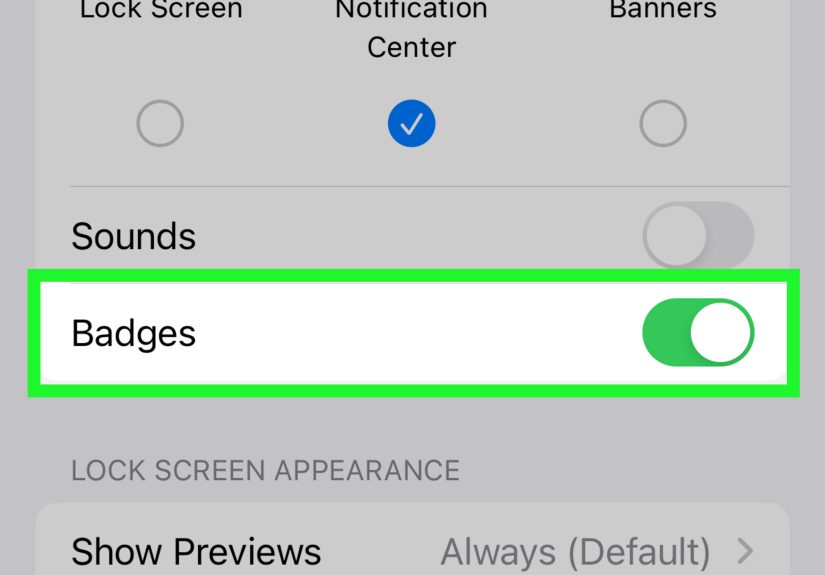
2) Use app icon badges as your “I still have something” safety net
If you’re the type who clears notifications like you’re sweeping confetti off a stage, turn on Badges for important apps.
The little red number can act as your backup “unread alert” indicator even after you wipe the Lock Screen clean.
Go to Settings > Notifications, tap the app, and toggle Badges on.
3) Search your iPhone (because the notification was probably pointing to something searchable)
Swipe down on the Home Screen to open Search, then try:
- the sender’s name (“Mom”)
- a keyword from the alert (“verification,” “receipt,” “gate,” “refund”)
- the app name (“Gmail,” “Slack,” “Uber”)
Again, you’re not searching the deleted notificationyou’re searching the content it was advertising.
Think of the notification as a sticky note; the real document is still in the filing cabinet.
4) Check alternative “receipts” for time-sensitive alerts
Some notifications have a second trail:
- Two-factor codes: they may arrive via SMS or emailcheck both. Some services also show backup codes inside your account settings.
- Missed calls/voicemail: the Phone app’s Recents and Voicemail may preserve what the notification was about.
- Payment alerts: many banks also email receipts or keep an in-app alert center.
- Calendar changes: invites often show in Mail and Calendar.
5) If you’re using notification summaries, remember what they are (and what they aren’t)
Scheduled Summary (and newer “Summarize Notifications” features) can bundle less-urgent alerts and deliver them at set times.
Helpful for sanity, but it’s not a “notification history vault.”
If you dismiss the summary items, you’re back to the same reality: dismissed is dismissed.
How to stop losing important notifications in the first place
The best “recovery” plan is preventionbecause iOS isn’t going to become an Android-style notification logger overnight.
Here are settings that make you less likely to delete something you’ll need five minutes later.
1) Switch to List view if you miss things easily
If stacks feel like notifications are playing hide-and-seek, try List:
Settings > Notifications > Display As > List.
It’s the most “everything is visible” option and reduces the chances you clear a stack without realizing what’s inside.
2) Use Persistent banners for “don’t let me ignore this” apps
For critical apps (banking, authenticator backups, delivery, travel), set banners to Persistent so they don’t vanish after a few seconds.
Go to Settings > Notifications, pick the app, then adjust the banner style.
3) Turn on Time Sensitive notifications where it makes sense
Many apps support Time Sensitive alerts that can break through Focus (depending on your settings).
Great for rides, flights, security alerts, and anything that becomes useless in 10 minutes.
4) Use Focus modes like a bouncer, not a brick wall
Focus isn’t just “Do Not Disturb 2.0.” You can allow specific people and apps through, and silence the rest.
That means fewer junk notificationsand fewer moments where you rage-clear everything just to see your wallpaper again.
5) Schedule summaries for the noisy apps
Put the chatter into Scheduled Summary so your Lock Screen doesn’t become a group chat scrapbook.
Settings path: Settings > Notifications > Scheduled Summary / Summarize Notifications.
Pick the apps that can wait, and set delivery times that match your day (morning, lunch, evening).
6) Show previews when you need context (or hide them when you don’t)
If you keep clearing notifications because you can’t tell what they are, enabling previews can help you decide faster.
If privacy matters more, keep previews hidden and rely on badges and in-app history.
Control it via Settings > Notifications > Show Previews.
7) Consider “Priority” features if your iOS version supports them
Newer iOS releases have introduced smarter sorting (including priority-style notifications on supported devices/versions).
When enabled, important alerts can appear more prominently so you’re less likely to bulldoze them with everything else.
Troubleshooting: “My notifications disappear too fast” (or never show up)
If you’re not even making it to the “oops I cleared it” stage because alerts don’t stick around:
- Check app notification permission: Settings > Notifications > [App] > Allow Notifications.
- Check Focus modes: Settings > Focus. Make sure the app/person isn’t silenced.
- Look at Scheduled Summary settings: the app might be routed to a summary, not immediate delivery.
- Check Lock Screen delivery: make sure the app is allowed on Lock Screen and Notification Center.
- Update iOS: notification bugs do happen; keeping iOS current can reduce weirdness.
FAQ: quick answers people actually search for
Does iPhone have a notification history feature?
Not a universal, system-level “notification history” log you can browse after clearing alerts. You can view notifications while they remain in Notification Center,
but once cleared, they’re typically not accessible through iOS.
Can a third-party app show me all cleared notifications?
Generally, no. iOS limits system-wide access for privacy and security. Apps can show their own in-app notification/activity history, but not every alert from every app.
Can I restore cleared notifications from iCloud or a backup?
Backups restore apps and data, not a magical replay of your notification list. Notifications are meant to be transient, not archived like email.
If the content matters, your best bet is the app’s own history (messages, email, activity feed, order tracking, etc.).
If I cleared a one-time passcode notification, am I doomed?
Not usually. Request a new code, or check where it was sent (SMS, email, authenticator app, or the service’s account/security page).
The notification is just the messengerget the message again.
Conclusion: the truth (plus the smarter way to live)
You can absolutely view old notifications on iPhoneas long as they’re still in Notification Center. But if you cleared them,
iOS usually won’t let you pull up a system-wide “cleared notifications” list later.
The good news is you can often recover what you needed by going straight to the source: the app’s inbox, activity tab, order history, email thread,
or message conversation. And once you tune your notification settingsList view, badges, summaries, Focus, and persistent alertsyou’ll clear less and find more.
Extra: of real-life “I cleared it and regretted it” experiences
I used to treat my iPhone Lock Screen like it was a messy kitchen counter. If something appeared, I wiped it away. Clean! Minimal! Zen! And then I discovered
that “Zen” is not the emotion you feel when you’ve just dismissed the only notification that contained the building entry code you needed right now.
The first time it happened was a delivery. I got that classic alert: “Package delivered.” I swiped it away with the confidence of someone who absolutely,
definitely remembers everything. Ten minutes later: “Wait… where did they put it?” I went back to Notification Center like it was going to apologize and hand me the photo.
It did not. I ended up checking the retailer’s order page, then the carrier app, then my email, then my front porch like a confused raccoon.
Lesson learned: the notification wasn’t the contentthe app was.
Then came the one-time passcode incident. You know the kind: a six-digit code that expires faster than a free donut in a break room. I saw the code pop up,
I thought “I’ll remember it,” andthis is importantI was wrong. I cleared the notification while switching apps, came back, and suddenly I was staring at
a blank code field like it was judging my life choices. That’s when I started checking where codes come from (SMS vs email vs authenticator),
and I stopped trusting my brain to be a reliable clipboard.
My favorite (read: least favorite) mishap happened with a flight update. A notification told me the gate changed. I cleared it because I was “busy”
(translation: I was scrolling). Later at the airport, I couldn’t remember the new gate, and of course I’d dismissed the one alert that mattered.
I found the update again in the airline app, but only after I did the classic airport ritual: panic-refresh, speed-walk, and pretend I’m not panicking.
That’s when I set travel apps to Persistent banners and enabled badges. Now I can clear the Lock Screen without losing the breadcrumb trail.
Over time, I realized most notification regret comes from two habits: clearing in bulk and letting every app scream equally.
Once I moved noisy apps into Scheduled Summary and kept only truly important apps delivering immediately, my Lock Screen stopped looking like a
slot machineand I stopped rage-clearing out of annoyance.
If you take one “experience-based” tip: set up your iPhone so important notifications are harder to accidentally delete and easier to notice.
List view if you miss things, badges if you clear things, Focus if you’re overwhelmed, and summaries if you want your phone to chill.
Your future self will thank you. Possibly out loud. Possibly while boarding a flight at the correct gate.