Table of Contents >> Show >> Hide
- First, define “smaller” (because Windows does)
- Windows 10: make the taskbar bigger or smaller (the easy, normal way)
- Windows 11: what you can change today (and what Windows won’t let go of)
- Bonus: Make Windows 11 feel more compact without resizing
- Third-party tools: when you want true control (and Windows 11 won’t cooperate)
- Troubleshooting: when your taskbar refuses to change size
- FAQ: quick answers people actually need
- Conclusion
- Real-World Experience: what people run into (and how to avoid the drama)
The Windows taskbar is basically your desktop’s “utility belt.” When it’s too big, it hogs screen space like it pays rent.
When it’s too small, you’re playing icon roulettehovering, squinting, and accidentally opening Excel when you meant Spotify.
The good news: Windows 10 is wonderfully flexible, and Windows 11 is… learning to share. Slowly. Like a cat.
This guide shows practical, up-to-date ways to make the taskbar smaller or bigger on Windows 10 and Windows 11using built-in settings first,
then safe tweaks (and only then the “hold my coffee” options like Registry edits or third-party tools).
First, define “smaller” (because Windows does)
People say “resize the taskbar,” but they often mean different things. Before you change anything, decide which goal you actually have:
- Taskbar height (the bar itself gets taller/shortermore vertical space or less)
- Taskbar button/icon size (icons get smaller/largermore apps visible across the bottom)
- Taskbar clutter (same size, but it feels smaller because fewer items are shown)
Windows 10 can do all three easily. Windows 11 can do the third one easily, can often do the second one now,
and is still weirdly protective about the first one in many versions.
Windows 10: make the taskbar bigger or smaller (the easy, normal way)
Method 1: Drag to resize the taskbar height
If you want the taskbar to physically get taller (more rows) or thinner (more screen space), Windows 10 still lets you do it the old-school way:
unlock, drag, re-lock.
- Right-click an empty area of the taskbar.
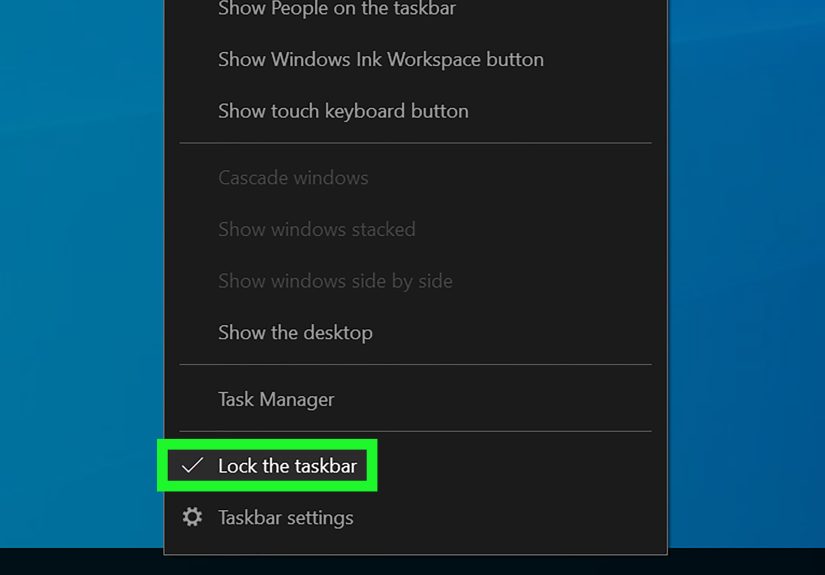
- Click Lock the taskbar to turn it off (uncheck it).
- Hover your cursor over the top edge of the taskbar until it becomes a double-headed arrow.
- Click and drag up to make it bigger (taller), or down to make it smaller (shorter).
- Right-click the taskbar again and turn Lock the taskbar back on.
Pro tip: If the resize cursor never appears, the taskbar is almost always still lockedor you’re grabbing the wrong edge (Windows is picky like that).
Method 2: Use “small taskbar buttons” (shrinks icons and the taskbar feel)
Want a compact look without manually dragging edges? Windows 10 has a built-in toggle that makes taskbar buttons smaller.
This is usually the fastest way to make the taskbar look slimmer.
- Right-click the taskbar and choose Taskbar settings.
- Turn on Use small taskbar buttons.
This is perfect if you want more horizontal room for pinned apps and open windowswithout turning your desktop into a game of “Where’s Waldo?”
Method 3: Make it feel smaller without resizing anything
Sometimes you don’t need a smaller taskbaryou need a less busy taskbar. Try these “declutter” moves:
- Auto-hide the taskbar: Settings > Personalization > Taskbar > turn on Automatically hide the taskbar.
-
Combine buttons / hide labels: This squeezes more apps into the same space by grouping windows and removing text labels.
(Your taskbar becomes less chatty. Some days, we all need that.) - Trim extra UI: Hide or icon-ify Search, Task View, or other toolbar items you never touch.
If your goal is “more usable screen,” auto-hide is the heavyweight champion. If your goal is “less chaos,” combining buttons and hiding labels is the tidy win.
Windows 11: what you can change today (and what Windows won’t let go of)
The honest truth: many Windows 11 builds don’t allow free resizing
In Windows 11, you often can’t just unlock the taskbar and drag it taller/shorter the way you can in Windows 10.
If you tried and felt personally rejected by your own operating systemyes, that’s normal.
So, what can you do? You’ve got three practical lanes:
(A) a built-in “smaller buttons/icons” setting if your Windows version includes it,
(B) a Registry tweak (works on some builds, not all),
and (C) smart layout tricks (combine buttons, auto-hide, display scaling).
Option A (Best when available): “Show smaller taskbar buttons” in Settings
Newer Windows 11 updates and some channels include a Settings option that reduces taskbar icon/button size to fit more apps across the bar.
Importantly, in its current form it typically changes icon size more than it changes taskbar height.
Translation: more room left-to-right, not necessarily more room top-to-bottom.
- Open Settings.
- Go to Personalization > Taskbar.
- Open Taskbar behaviors.
-
Find Show smaller taskbar buttons and choose:
- Always (smaller icons all the time)
- When taskbar is full (shrinks icons only when space gets tight)
- Never (default size)
If you multitask like it’s an Olympic sport (browser + docs + chat + music + five “temporary” File Explorer windows),
the “When taskbar is full” option is a surprisingly civilized compromise.
Option B: The Registry tweak (TaskbarSi) to make the taskbar smaller or bigger
Yes, the classic Windows 11 TaskbarSi tweak still exists in guides and forums. On some systems it works.
On others, it changes nothingespecially after certain updates.
So treat this as “try it carefully,” not “guaranteed magic.”
Before you touch the Registry: back up what you’re changing. The Registry is powerful, and it does not do “oops.”
- Press Win + R, type regedit, and press Enter.
- Navigate to:
HKEY_CURRENT_USERSoftwareMicrosoftWindowsCurrentVersionExplorerAdvanced -
In the right pane, look for TaskbarSi.
- If it exists, go to the next step.
- If it doesn’t: right-click empty space > New > DWORD (32-bit) Value > name it TaskbarSi.
- Double-click TaskbarSi and set Value data to:
- 0 = smaller
- 1 = default
- 2 = larger
- Click OK.
-
Apply the change by either:
- Restarting your PC, or
- Opening Task Manager > selecting Windows Explorer > clicking Restart.
To undo it: set TaskbarSi back to 1, or delete the value entirely, then restart Explorer or reboot.
Important reality check: if you try 0/1/2 and nothing changes, you didn’t “do it wrong.”
You likely hit a Windows build where this tweak is ignored or overridden.
In that case, skip ahead to the built-in Settings option (if available) or consider third-party tools.
Option C: Use display scaling when you want everything bigger/smaller
If your real problem is “everything feels huge” (or tiny), display scaling can fix the taskbar and the rest of your UI.
This is less surgical, but it’s stable and supported.
- Go to Settings > System > Display.
- Adjust Scale (for example, 100%, 125%, 150%).
- If text becomes too small after lowering scale, adjust Text size (Accessibility) to bring reading comfort back.
Think of scaling as the “change the font size on your phone” move: not just the taskbar, but your whole world.
Bonus: Make Windows 11 feel more compact without resizing
Even if Windows 11 refuses to become shorter, you can still reclaim space and reduce visual noise.
Here are the high-impact tweaks:
- Auto-hide: Settings > Personalization > Taskbar > Taskbar behaviors > Automatically hide the taskbar.
- Combine buttons / hide labels: Lets you fit more open apps before they spill into overflow.
-
Tablet / touch optimization: On 2-in-1 devices, Windows can use a tablet-optimized taskbar that expands and collapses.
If you want it less chunky, turn off Optimize taskbar for touch interactions when applicable. - Trim extras: Remove taskbar items you don’t use (widgets, chat, task view, etc.) so the bar feels calmer.
Third-party tools: when you want true control (and Windows 11 won’t cooperate)
If you want Windows 11 to behave more like Windows 10resizable taskbar height, classic behaviors, tighter spacing
third-party customization tools are the practical solution. They’re also the “use responsibly” solution.
When third-party tools make sense
- You need a truly shorter/taller taskbar (not just smaller icons).
- You want classic taskbar behavior (more positioning, more sizing options).
- You tried TaskbarSi and nothing happened (or it caused weirdness).
Safety rules for using taskbar customization apps
- Choose well-known tools with active development and clear uninstall steps.
- Create a restore point before installing anything that hooks into Explorer/taskbar.
- Update cautiously after major Windows updates; some tools break until patched.
- Keep an exit plan: know how to boot into Safe Mode and uninstall if the taskbar gets unstable.
If you’re allergic to risk, stick to built-in Settings and display scaling. If you’re comfortable tinkering,
third-party tools can deliver the “Why doesn’t Windows just let me do this?” experience you wanted in the first place.
Troubleshooting: when your taskbar refuses to change size
Windows 10 won’t resize when I drag
- Check the lock: If the taskbar is locked, the resize handle won’t cooperate.
- Grab the correct edge: You resize from the border between the taskbar and the desktop.
- Auto-hide can confuse you: Turn it off temporarily while resizing.
- Multiple monitors: Make sure you’re resizing the taskbar on the monitor you actually mean to change.
Windows 11 TaskbarSi didn’t work
- Restart Explorer or reboot: Many changes won’t apply until Explorer reloads.
- Confirm the path: It must be under the current user’s Explorer Advanced key.
- Your Windows build may ignore it: This happens; use “Show smaller taskbar buttons” (if available) or a third-party tool.
- Undo safely: Set TaskbarSi to 1 or delete it, then restart Explorer.
My taskbar got huge after an update (or on a 2-in-1)
- Check touch optimization: Tablet-optimized behaviors can make the taskbar feel larger.
- Check display scaling: Updates or driver changes can reset scaling.
- Keep it simple first: Try Settings toggles and scaling before Registry edits.
FAQ: quick answers people actually need
Does making the taskbar smaller improve performance?
Not meaningfully. You’re changing layout, not horsepower. The “performance” benefit is mostly human:
less clutter, faster targeting, fewer misclicks, and fewer moments of “why is my screen 40% taskbar?”
On Windows 11, does “smaller taskbar buttons” reduce taskbar height?
Often, no. The newer “Show smaller taskbar buttons” behavior is typically about fitting more apps horizontally by shrinking icons,
not reclaiming vertical pixels by shrinking the bar.
How do I reset everything back to normal?
- Windows 10: Turn off “Use small taskbar buttons,” set scaling back to your preferred value, and re-lock the taskbar.
- Windows 11 (Settings): Set “Show smaller taskbar buttons” to Never.
- Windows 11 (Registry): Set TaskbarSi to 1 or delete it, then restart Explorer.
Conclusion
If you’re on Windows 10, resizing the taskbar is delightfully straightforward: unlock, drag, toggle small buttons, and enjoy your reclaimed pixels.
Windows 11 is more complicated, but it’s getting betterespecially if your build includes the “Show smaller taskbar buttons” option.
And if Windows still refuses to give you the exact size you want, you can either adjust display scaling for a clean, supported fix,
or use a reputable third-party tool when you need full control.
Bottom line: make the taskbar fit you. Your screen is not a storage unit for oversized icons.
Real-World Experience: what people run into (and how to avoid the drama)
In real life, “resize the taskbar” is rarely a calm, single-step journey. It’s more like assembling furniture:
it looks easy until you realize you’re holding a screw that “shouldn’t be left over.”
The most common Windows 10 experience is honestly pretty wholesomesomeone bumps a setting,
the taskbar gets taller, and the fix is simply unlocking it and dragging it back down.
The only time Windows 10 gets spicy is when auto-hide is enabled and you’re trying to resize something that keeps vanishing like a shy groundhog.
If that happens, turning off auto-hide for two minutes saves you twenty minutes of annoyed hovering.
Windows 11 is where expectations go to get “managed.” People assume they can drag the taskbar edge like they’ve done for a decade,
and Windows 11 responds with the digital equivalent of a polite shrug. That’s why the new “Show smaller taskbar buttons” setting is such a big deal:
it solves the most common complaint“I have too many apps open and they’re overflowing”without requiring any risky hacks.
The “When taskbar is full” option, in particular, fits how people actually work: keep icons normal until things get crowded,
then shrink just enough to keep everything visible.
The Registry trick (TaskbarSi) is where stories split into two camps. Camp A: “It worked instantly, my taskbar is perfect, I am a wizard.”
Camp B: “I changed 0/1/2 ten times and nothing happened, Windows is gaslighting me.” If you land in Camp B, it’s usually not user error.
Some Windows updates and builds simply ignore that tweak or override it. The smart move is not to keep hammering the Registry out of spite
(the Registry does not negotiate); instead, pivot to supported options: Settings toggles (if available), taskbar behavior cleanup,
or display scaling if you can tolerate changing the whole UI.
Another pattern: people want a smaller taskbar, but what they really need is a calmer taskbar.
Removing unused taskbar items, hiding labels, and combining buttons often delivers the “smaller” feeling without touching size at all.
It’s like cleaning your desk instead of buying a smaller desk. And on laptops or 2-in-1 devices,
turning off touch optimization can immediately make the interface feel less chunkyespecially if Windows switched modes after a keyboard detach.
Finally, third-party tools are the “power tools” of taskbar resizing. They can be fantastic, but they’re not toys.
The most painless experiences come from treating them like any system-level change: install one reputable tool, make one change at a time,
and keep your escape hatch ready (restore point + uninstall path). Do that, and you can get a taskbar that feels tailor-made
instead of factory-issued in three sizes: too big, too small, and “why though?”