Table of Contents >> Show >> Hide
- Why Your iPad Email Signature Matters More Than You Think
- How to Change the Email Signature in Apple Mail on iPad
- How to Change the Gmail Signature on an iPad
- How to Change the Outlook Signature on an iPad
- Apple Mail vs. Gmail vs. Outlook on iPad
- What to Put in an iPad Email Signature
- What to Avoid in an iPad Email Signature
- Troubleshooting: Why Your Signature Is Not Changing on iPad
- Best Practices for a Professional iPad Email Signature
- Real-World Experiences and Practical Lessons From Changing an Email Signature on an iPad
- Final Thoughts
If your emails from an iPad still end with the classic “Sent from my iPad”, congratulations: your device is doing a little retro performance art. Charming? Maybe. Professional? Usually not. The good news is that changing your email signature on an iPad is easy, fast, and surprisingly worth the tiny effort.
Whether you use Apple Mail, Gmail, or Outlook, your email signature is the small block of text that quietly says, “Yes, I am organized, reachable, and probably wearing real shoes.” It can be simple, polished, funny, professional, or all four if you know what you’re doing.
In this guide, you’ll learn exactly how to change the email signature on an iPad, how the process differs across mail apps, what to include in a strong signature, and what mistakes make your email footer look like it was assembled during a power outage. By the end, you’ll have a better signature and one less tiny piece of digital chaos in your life.
Why Your iPad Email Signature Matters More Than You Think
An email signature is small, but it does a lot of heavy lifting. It identifies you, gives recipients a quick way to contact you, and adds a layer of credibility to your message. In business settings, it also helps recipients know your role, company, and preferred contact details without hunting through the email thread like detectives in a low-budget procedural.
On an iPad, signatures matter even more because mobile emails are often brief and sent quickly. That means your signature may be the most structured part of the entire message. A good one creates clarity. A bad one creates questions. A missing one says, “Please guess who I am from context.” That is rarely a winning communications strategy.
If you use multiple accounts on your iPad, a clean signature also helps separate your personal identity from your work identity. That matters when one email is going to your manager and the next is going to your cousin asking whether anyone remembered the potato salad.
How to Change the Email Signature in Apple Mail on iPad
If you use the built-in Mail app on your iPad, changing your signature takes only a minute. This is the default setup many people use, especially if they’ve added iCloud, Gmail, Yahoo, Exchange, or other accounts directly to Apple Mail.
Change One Signature for All Accounts
- Open the Settings app on your iPad.
- Tap Apps.
- Tap Mail.
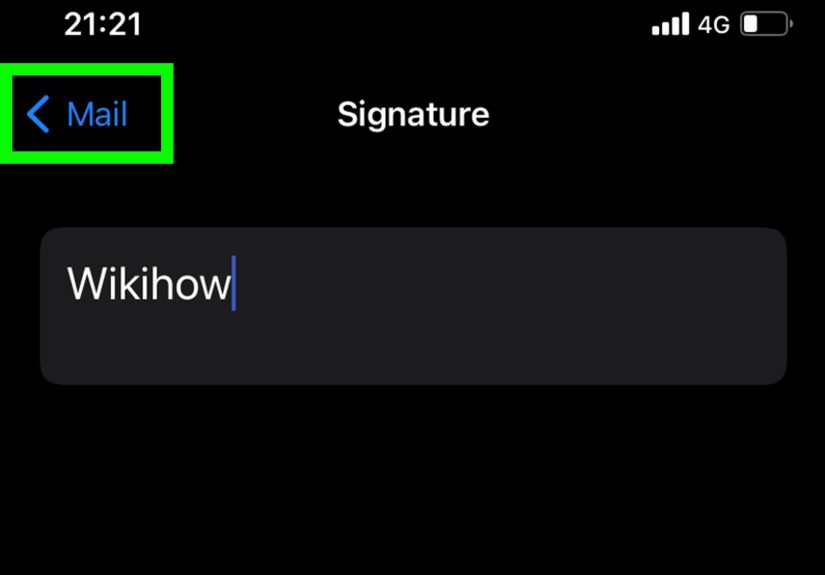
- Under the Composing section, tap Signature.
- Delete the existing text, such as “Sent from my iPad.”
- Type the signature you want to use.
That’s it. Your new signature will appear automatically at the bottom of messages sent from the Apple Mail app.
Use a Different Signature for Each Email Account
If your iPad handles both work and personal accounts, using the same signature for every email can get awkward fast. Apple makes this easier with the Per Account option.
- Go to Settings > Apps > Mail > Signature.
- Turn on Per Account.
- Tap into each account field.
- Enter a different signature for each account.
This is the best setup for people who want a professional signature for work and a simpler signature for personal messages. For example, your work account might include your full name, job title, and company website, while your personal account can stay minimal with just your name.
Important Limitation in Apple Mail
Here’s the catch: Apple Mail on iPad supports text-only signatures in its built-in signature settings. That means no fancy HTML layout, no embedded logo, and no beautifully overachieving headshot smiling beside a LinkedIn icon. If you want richer formatting, images, or branded templates, you may need to use another email client or set up a signature through a web-based email service where supported.
How to Change the Gmail Signature on an iPad
If you use the Gmail app on your iPad, changing the signature inside Apple Mail won’t affect the Gmail app. Gmail has its own separate mobile signature setting, which is both useful and slightly annoying until you know where it lives.
- Open the Gmail app on your iPad.
- Tap the menu icon.
- Tap Settings.
- Under Compose and Reply, tap Signature settings.
- Turn on Mobile Signature.
- Add or edit your signature.
- Tap back to save.
This is a good place to keep your signature short and practical. Since mobile emails are often quicker and more casual, many people use a simplified Gmail signature on iPad rather than copying the full desktop version with every title, certification, and social link known to humankind.
If your Gmail signature looks different on your laptop and your iPad, that is normal. The Gmail mobile app uses its own signature settings, so changes made elsewhere may not carry over the way you expect.
How to Change the Outlook Signature on an iPad
If your school or workplace uses Microsoft Outlook, the Outlook app on iPad also manages signatures separately. Once again, the theme is simple: every mail app wants to be the main character.
- Open the Outlook app on your iPad.
- Open Settings.
- Under Mail, tap Signature.
- Enter the signature you want to use.
- If available for your setup, switch on Per Account Signature to customize each account separately.
Outlook is a strong choice for users who need account-specific signatures, especially in professional environments. If you manage a work inbox, a personal Microsoft account, and maybe one side-hustle address you pretend is temporary, separating signatures can save you from embarrassing cross-account mix-ups.
Apple Mail vs. Gmail vs. Outlook on iPad
Here’s the simplest way to think about it:
- Apple Mail: Easy to edit in iPad Settings, supports one signature or per-account signatures, but the signature field is text-only.
- Gmail app: Uses its own mobile signature setting inside the Gmail app.
- Outlook app: Uses its own signature setting inside the Outlook app and may support per-account signatures.
So if you changed your signature in one place and nothing happened in another app, you are not losing your mind. You are simply experiencing modern email architecture.
What to Put in an iPad Email Signature
A strong iPad email signature is short, clear, and useful. Think of it like a digital business card, not a résumé, billboard, and motivational poster fused together.
For Professional Use
A solid professional signature usually includes:
- Your full name
- Your job title
- Your company name
- Your phone number or best contact method
- Your website or company URL if relevant
Example:
Jordan Lee
Senior Account Manager
North Harbor Media
(212) 555-0189
www.northharbormedia.com
For Personal Use
Personal signatures can be much simpler.
Example:
Jordan
Or:
Example:
Jordan Lee
Best,
(212) 555-0189
The right version depends on who you email and why. If you mostly write to friends and family, you can keep it light. If you regularly contact clients, vendors, professors, or recruiters, add enough information to look polished and easy to reach.
Should You Add Social Links?
Sometimes. But only if they are relevant. A LinkedIn profile can make sense in a business signature. A company website is often helpful. A random collection of five social icons can make your footer look like it is auditioning for a sponsorship deal.
Use only the links people might reasonably click to contact you, verify your role, or learn more about your work.
What to Avoid in an iPad Email Signature
Even a tiny signature can go wildly off course. Here are the usual suspects:
1. Too Much Information
If your signature is longer than some of your emails, it needs editing. Keep it readable. Most recipients want enough detail to know who you are, not a small novel in the footer.
2. Too Many Quotes
Inspirational quotes are tempting. Very tempting. But in many professional situations, they add clutter and can distract from your message. Also, not every client wants to receive a quarterly update followed by a quote about dancing in the rain.
3. Unnecessary Repetition
You usually don’t need to include your email address in your signature if the message already came from that address. That is like signing a handwritten note with your full return address on every page.
4. Excessive Styling
On iPad, especially in Apple Mail, simple formatting works best. Plain text is cleaner, more reliable, and less likely to break across devices. If your signature depends on ten colors and three fonts, mobile email will humble you quickly.
5. Outdated Information
A signature with an old job title, broken phone number, or retired website link quietly damages trust. Review it whenever your role, branding, or contact details change.
Troubleshooting: Why Your Signature Is Not Changing on iPad
If your new signature is not showing up, the issue is usually one of these:
- You changed the signature in Apple Mail, but you are actually sending from the Gmail or Outlook app.
- You updated one account, but forgot to turn on or edit Per Account settings.
- You expected a desktop signature to sync automatically to the iPad app.
- You copied a formatted signature with images or HTML into a text-only field, and it lost the styling.
When in doubt, check which email app you are using first. That one detail solves a surprising number of signature mysteries.
Best Practices for a Professional iPad Email Signature
If you want a signature that looks polished without trying too hard, follow these rules:
- Keep it short enough to scan in seconds.
- Lead with your name.
- Add your title and company if the email is business-related.
- Include one reliable contact method.
- Use links sparingly.
- Skip clutter, quotes, and too many decorative extras.
- Review it on the iPad screen before trusting it forever.
The best signature is the one that helps recipients identify you instantly and reply easily. Not the one that looks like a tiny marketing brochure trying to escape the bottom of your email.
Real-World Experiences and Practical Lessons From Changing an Email Signature on an iPad
One of the funniest things about changing an email signature on an iPad is how small the task seems until it suddenly becomes weirdly personal. You start with, “I’ll just remove ‘Sent from my iPad,’” and ten minutes later you’re debating whether your job title sounds confident, whether your phone number invites too many calls, and whether adding your website makes you look polished or just very enthusiastic about hyperlinks.
In real life, most people change their iPad email signature for one of three reasons. First, they want to look more professional. Second, they are tired of the default signature making every message look generic. Third, they sent one email from the wrong account with the wrong sign-off and decided never again. That third reason has tremendous motivational power.
A lot of users also discover that their iPad email habits are different from their laptop habits. On a computer, they may write longer messages and rely on a fuller signature with branding, links, and more complete contact details. On an iPad, their emails are often quicker: confirming a meeting, replying while traveling, sending a file, or answering a client between appointments. In those moments, a shorter mobile-friendly signature often works better than a giant desktop-style block.
Another common experience is confusion over which app is actually sending the email. Someone updates the Apple Mail signature, sends a test message from Gmail, and assumes the iPad is haunted because nothing changed. It is not haunted. It is just organized by app, which is less dramatic but much more common.
Professionals who manage multiple accounts tend to love the Per Account option once they find it. It saves time and reduces mistakes. Your work email can stay formal and complete, while your personal email can remain simple and human. That separation feels minor until the day you accidentally send a business reply signed like you’re emailing your cousin about barbecue plans. Then it feels extremely major.
There is also a broader lesson here: the best iPad email signature is rarely the fanciest one. It is the one that survives mobile reality. It displays correctly. It stays readable on small screens. It gives the recipient exactly what they need. And it does all of that without making your email look like it has a detachable appendix.
Over time, many people settle into a practical rhythm. They keep a lean signature on iPad, a more styled version on desktop if needed, and they revisit both every few months. That approach works because email signatures are not permanent tattoos. They are tiny tools. You can refine them whenever your work, brand, or communication style changes.
So yes, changing the email signature on an iPad is a small task. But it is one of those small tasks that quietly improves every message you send afterward. And that is a pretty good return on sixty seconds in Settings.
Final Thoughts
If you want to change the email signature on an iPad, the most important step is knowing which app sends your email. Apple Mail, Gmail, and Outlook each handle signatures differently. Once you update the right setting, the rest is easy.
Keep your signature clear, relevant, and short enough to read at a glance. Replace the default text, use per-account signatures when needed, and resist the urge to turn your footer into a miniature theme park of links and slogans. Your future emails will look better, feel more intentional, and spare your recipients from the eternal mystery of who exactly just sent that message.