Table of Contents >> Show >> Hide
- First, a quick reality check about Internet Explorer
- What “desktop shortcut” actually means (so you pick the right method)
- How to add a desktop shortcut in Internet Explorer
- How to add a desktop shortcut in Microsoft Edge
- Make it open in Edge (even if Edge isn’t your default)
- Polish it up: rename it, change the icon, and keep your desktop from looking like a junk drawer
- Troubleshooting: when shortcuts get dramatic
- Quick checklist: pick the best method for your situation
- of Real-World Experience: What People Run Into (And How to Win Anyway)
- Conclusion
If you visit the same website every dayemail, school portal, work dashboard, your favorite news sitetyping the URL (or hunting through bookmarks like it’s an Easter egg hunt) gets old fast. A desktop shortcut is the low-effort, high-reward move: double-click an icon, land on the site, feel instantly more organized than you actually are.
This guide covers the classic Internet Explorer methods (for those still supporting legacy systems) and the modern, better-supported Microsoft Edge optionsincluding the “app-like” approach that makes a website behave more like a real desktop app.
First, a quick reality check about Internet Explorer
Internet Explorer (IE) is essentially the “landline phone” of web browsers: it had a glorious era, and now it mostly lives in stories that begin with, “So this one legacy system…” On most consumer Windows setups, IE is retired and no longer supported. Many organizations have moved legacy sites to Microsoft Edge’s IE mode for compatibility.
Still, if you’re on a machine where IE 11 is available (common in older environments or managed corporate setups), you can absolutely create desktop shortcuts the old-school way. And if you’re on Edge (which is the recommended path), you’ll have even more options.
What “desktop shortcut” actually means (so you pick the right method)
There are two main types of website shortcuts on Windows:
- Standard URL shortcut (.url): Opens the website in your default browser (usually in a tab or a window). Fast and simple.
- Installed site / web app (PWA): Opens the site in a standalone, app-like window with its own taskbar icon. Often cleaner for daily-use sites.
If you just want an icon that opens a site, the standard URL shortcut is perfect. If you want a “pretend this website is an app” vibe (think Gmail, Teams web, Notion, Trello), install it as an app in Edge.
How to add a desktop shortcut in Internet Explorer
If Internet Explorer is available on your system, you typically have multiple ways to create a desktop shortcut. Different Windows/IE configurations show different menus, so don’t worry if your screen doesn’t match perfectlyuse the method that appears on your setup.
Method 1: File > Send > Shortcut to Desktop (the classic)
- Open Internet Explorer and go to the website you want.
- If you don’t see the menu bar (File, Edit, View), press Alt to show it temporarily, or right-click near the top of IE and enable the Menu bar.
- Click File.
- Choose Send > Shortcut to Desktop.
- Minimize your browser and look at your desktopyour shortcut should be there.
This method creates a straightforward shortcut that opens the page in your browser. If you want the icon to look nicer later, you can customize it (we’ll cover that).
Method 2: Right-click the page and choose “Create Shortcut” (if available)
- Open the website in Internet Explorer.
- Right-click an empty area of the page (not a link or an image).
- If you see Create Shortcut, click it.
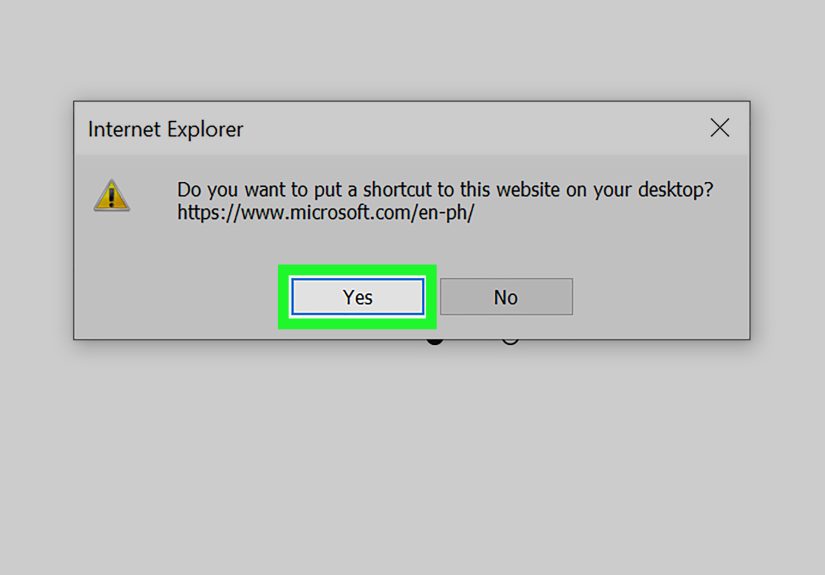
- Confirm any prompt asking if you want to place the shortcut on the desktop.
If “Create Shortcut” doesn’t appear, no problemIE menus vary. Use Method 1 or the universal Windows method below.
Method 3: Drag-and-drop the site icon to the desktop
In some IE setups, you can drag the small icon near the address bar (the site icon) directly onto the desktop. This is the fastest method when it workslike tossing your keys onto the counter the moment you walk in.
- Open the website in Internet Explorer.
- Resize the window so you can see part of your desktop behind it.
- Click and drag the site icon near the address bar onto the desktop.
- Release to drop it and create the shortcut.
How to add a desktop shortcut in Microsoft Edge
Microsoft Edge gives you multiple ways to create website shortcutsranging from quick-and-simple to fully “installed app” fancy. Pick the one that matches how you actually use the site.
Method 1: Drag the lock/site icon (fastest for a basic shortcut)
This creates a standard desktop URL shortcut. It’s quick, and it works for most sites.
- Open Microsoft Edge and go to the website.
- Resize Edge so you can see the desktop behind it.
- In the address bar, look for the lock icon (or the site info icon) on the left side of the URL.
- Click and drag that icon onto the desktop.
- Release to drop itWindows creates the shortcut.
Result: double-clicking that desktop icon opens the site in your default browser (usually Edge, unless you changed your default).
Method 2: Install the website as an app in Edge (best “daily driver” option)
If you want the site to behave like an app (separate window, dedicated taskbar icon, less tab chaos), install it as a web app. This is perfect for web tools you open constantlyemail, project boards, scheduling tools, dashboards, and chat platforms.
- Open Microsoft Edge and navigate to the website.
- Click the three dots menu (Settings and more) in the upper-right.
- Go to Apps (or More tools > Apps, depending on your Edge version).
- Select Install this site as an app.
- Rename it if you want (example: “Work Portal” instead of “CompanyName – Dashboard”).
- Click Install.
After installation, you can usually choose to pin it where you want (desktop, Start menu, taskbar). You can also manage installed apps in Edge at edge://apps.
Why this method rules:
- Opens in its own window (less “which tab is it?” drama).
- Feels app-like and can keep its own session separate from normal browsing.
- Often supports notifications and other app-ish behaviors (depending on the site).
Method 3: Create a shortcut using Windows “New > Shortcut” (the universal fallback)
This method doesn’t care what browser you use. If Windows is running, it works. It’s the duct tape of shortcut creationreliable, not glamorous, always there.
- Right-click an empty area on your desktop.
- Select New > Shortcut.
- In the location field, paste the website URL (example: https://www.example.com).
- Click Next.
- Name your shortcut (example: “Student Portal” or “Invoices”).
- Click Finish.
This creates a standard internet shortcut that opens in your default browser.
Make it open in Edge (even if Edge isn’t your default)
Sometimes you want one specific website to always open in Edgemaybe it’s a Microsoft 365 site, a legacy system using IE mode, or just the browser your school/work requires. You can create a shortcut that explicitly launches Edge with a specific URL.
Option A: Use the Edge “app install” method
Installing the site as an app in Edge is the simplest way to ensure Edge is used, because the “app” is managed by Edge itself. If you want the cleanest experience, this is usually the winner.
Option B: Create a custom shortcut that launches Edge with a URL
- Right-click the desktop and select New > Shortcut.
- In the location field, enter something like this (the exact Edge path can vary):
“msedge.exe” https://www.example.com - If Windows can’t find msedge.exe, you can point to the Edge shortcut you already have: right-click your existing Edge icon > Properties > copy the Target path, then add the URL at the end.
- Click Next, name it, and click Finish.
Tip: Add –new-window if you want it to always open a fresh window instead of reusing one:
“msedge.exe” –new-window https://www.example.com
Polish it up: rename it, change the icon, and keep your desktop from looking like a junk drawer
Rename the shortcut
- Right-click the shortcut.
- Select Rename.
- Give it a human-friendly name (example: “Time Sheets” instead of “Company Portal – Sign In”).
Change the icon (so it doesn’t all look like “Edge, Edge, Edge, and… Edge”)
Many URL shortcuts default to a generic browser icon. If you want the website’s favicon or a custom icon:
- Right-click the shortcut > Properties.
- Look for a Change Icon button (availability depends on shortcut type).
- For the most reliable “nice icon” result, install the site as an app in Edgeinstalled apps more often use a site-branded icon.
If you don’t see “Change Icon,” that’s not youit’s Windows being Windows. Installing as an app is usually the cleanest workaround.
Organize shortcuts like a person who has their life together
- Create a “Web Shortcuts” folder on the desktop and drag shortcuts into it.
- Pin your top 3–5 daily sites to the taskbar or Start menu instead of the desktop.
- Use app installs for your most-used web apps to reduce tab overload.
Troubleshooting: when shortcuts get dramatic
“My shortcut opens in the wrong browser.”
Standard URL shortcuts open in your default browser. If that’s not Edge (or not the one you want), you have three good options:
- Change your default browser in Windows settings.
- Install the site as an app in Edge (so Edge is always used).
- Create a custom shortcut that launches Edge with the URL (the “msedge.exe URL” method).
“My shortcut opens the site, but not in a separate window.”
A standard desktop URL shortcut typically opens as a tab (or reuses an existing window). If you want a dedicated window:
- Install the site as an app in Edge (best option).
- Create a custom Edge shortcut and add –new-window.
“The shortcut icon is ugly (or generic).”
This happens most often with basic .url shortcuts. Fixes:
- Install the site as an app in Edge to get a better icon more often.
- Rename the shortcut clearly so you can spot it even with a bland icon.
- Pin it to Start/Taskbar and rely on placement instead of icon beauty.
“I need IE for one legacy site, but I’m supposed to use Edge.”
If your organization requires a legacy web app that only behaves in Internet Explorer, Microsoft Edge’s IE mode is commonly used in managed environments. In that case, the best shortcut is often an Edge shortcut that opens the site, while Edge handles compatibility behind the scenes. If you don’t control the computer policies, your IT team may need to enable IE mode for that site.
Quick checklist: pick the best method for your situation
- Fastest basic shortcut: Drag the lock/site icon from the address bar to the desktop (Edge).
- Most reliable on any Windows PC: Desktop > New > Shortcut > paste URL.
- Most “app-like” and clean: Edge > Apps > Install this site as an app.
- Need Edge specifically: Install as app, or build a shortcut that launches Edge with the URL.
- Legacy IE site: Prefer Edge + IE mode (often requires IT policy).
of Real-World Experience: What People Run Into (And How to Win Anyway)
In real life, “create a desktop shortcut” sounds like a five-second taskuntil it collides with a messy desktop, a stubborn default browser setting, and a coworker who insists Internet Explorer “still works fine” because it worked fine in 2009. The good news: most shortcut problems aren’t complicatedthey’re just sneaky.
The most common surprise is that a basic website shortcut doesn’t “belong” to a browser. It belongs to Windows. That means if someone clicks a shiny new shortcut and it opens in the “wrong” browser, the shortcut didn’t betray anyoneWindows simply sent it to the default browser like a polite but confused receptionist. The easiest fix for a single site is installing it as an Edge app. That method sidesteps the default browser debate entirely because Edge manages the app window. This is why IT teams often recommend the “install as app” approach for critical web tools like ticketing systems, time tracking, or internal dashboards: fewer tabs, fewer misclicks, fewer “why did it open over there?” questions.
Another real-world wrinkle: people expect shortcuts to behave like bookmarks, but they’re more like doors. A bookmark remembers where a site lives. A shortcut is a specific door you can label, move, pin, and group. When someone keeps five different shortcuts to the same site (yes, it happens), it’s usually because they created them three different ways over time: drag-and-drop one day, New > Shortcut another day, and an “install app” icon later. The cure is simple: pick a standard. For “open in a tab,” use the universal Windows shortcut method. For “open like an app,” install as an app in Edge. Then delete the duplicates mercilessly. Your desktop deserves better.
Icon confusion is also a big deal in busy environments. If every shortcut looks like the Edge logo, people stop reading and start guessing. That’s when the wrong site gets opened in the middle of a meeting and everyone pretends they meant to do that. Installing as an app usually improves the icon situation because many sites provide a recognizable app icon, which makes shortcuts easier to spot at a glance. And if a site’s icon still looks generic, naming becomes your superpower“PAYROLL – DO NOT TOUCH” tends to get attention.
Finally, there’s the legacy issue: some organizations still rely on older web apps that behave badly outside Internet Explorer. The practical path today is usually Edge with IE mode, set up by policy. In those cases, the “best” shortcut isn’t an IE shortcutit’s an Edge shortcut to the site, because Edge can open it with compatibility rules behind the scenes. That reduces risk, keeps you supported, and makes the shortcut future-proof. In other words: you’re not just making a shortcutyou’re making a tiny decision that saves future-you from a help desk ticket.