Table of Contents >> Show >> Hide
- Quick Reality Check: When Downloading Captions Is (and Isn’t) Possible
- Vimeo Caption Files 101: Transcript vs. Captions vs. Subtitles
- Method 1: Download Captions/Transcript from Vimeo (If You Own the Video)
- Method 2: Download Captions/Subtitles from Vimeo On Demand (If You Purchased the Title)
- Method 3: Use the Vimeo API to Download Text Tracks (For Videos You’re Authorized to Manage)
- Working with Embedded Vimeo Videos: What You Can Do Without Owning the Video
- Convert Vimeo Captions to SRT (When You Need Editing-Friendly Subtitles)
- Troubleshooting: Why You Can’t Find the CC Download Button
- Accessibility Bonus: Why Captions Are Worth the Extra Effort
- Wrap-Up: The Cleanest Path to Download Vimeo CC Subtitles
- Real-World Experiences: What Usually Happens When People Try This (and How to Win Anyway)
You found a Vimeo video embedded on a page. You see the little CC button. You want the captions as a file
(like .VTT or .SRT) so you can edit them, translate them, archive them, or hand them to your video team
like a responsible adult. Totally reasonable.
Here’s the catch: “embedded” doesn’t automatically mean “downloadable.” Vimeo captions are text tracks, and whether you can download them
depends on who owns the video, what permissions you have, and how the uploader configured distribution. This guide walks through the legit, repeatable
ways to download closed captions (CC) and subtitles from Vimeoespecially when the video is embedded on another sitewithout turning your afternoon
into a detective novel.
Quick Reality Check: When Downloading Captions Is (and Isn’t) Possible
Before we get into steps, let’s save you from the most common trap: seeing captions doesn’t guarantee you have rights or access to download them.
In general:
-
If you uploaded the video (or you’re on the team/account that owns it):
You usually can download transcripts/captions via Vimeo’s settingsdepending on plan/features and how captions were added. -
If you purchased a Vimeo On Demand title:
Vimeo may allow downloading the caption/subtitle file alongside the video download (if enabled for that title). -
If it’s someone else’s embedded video:
Your best move is to request the caption file from the owner/publisher. They may have it in seconds, while you’ll have it in… never.
This article focuses on how to download CC subtitles from embedded Vimeo videos in ways that are consistent with normal product behavior:
the Vimeo interface, Vimeo On Demand download options, and the Vimeo API for videos you’re authorized to manage.
Vimeo Caption Files 101: Transcript vs. Captions vs. Subtitles
On Vimeo, you’ll run into a few related terms:
- Captions (CC): Typically includes dialogue plus non-speech info (like “music” or “door slams”). Great for accessibility.
- Subtitles: Often just the dialogue (commonly used for translation).
- Transcript: The text version of spoken content; may be downloadable as a transcript from Vimeo’s language/transcript tools.
Common Formats: WebVTT (.vtt) and SubRip (.srt)
Vimeo and the web ecosystem often use WebVTT (.vtt) for timed text tracks in browsers. The file is plain text and organized
into time-coded “cues” that tell the player what to display and when. SRT (.srt) is another popular subtitle formatalso plain text,
also time-codedwidely used in editing tools and caption workflows.
In practical terms: if you can download captions from Vimeo, you’ll usually get a .vtt or a transcript download, and you can convert formats if needed.
Method 1: Download Captions/Transcript from Vimeo (If You Own the Video)
If the embedded video is yours (or your organization’s), the simplest workflow is to go to the video in your Vimeo library and download the transcript or caption data from the
Languages area. Think of this as “use the front door,” not “climb through the window.”
Step-by-step (Owner/Team Access)
- Open the video in your Vimeo Library (not just the embedded page).
- Find the Languages panel in the video settings interface.
- Look for the language track (for example, “English”) and use the overflow menu (often a ⋮ icon) next to the transcript/caption entry.
- Select Download to export the transcript/caption content.
Notes that save headaches:
- Some transcript/caption download features may require specific Vimeo plan levels or feature availability. If you don’t see download options, check plan settings and feature access first.
- If you uploaded your own caption files (like VTT/SRT), you may be able to download them more directly than if captions were generated automatically.
- If captions are AI-generated, your download may be labeled as an AI transcript/caption track depending on your setup.
Method 2: Download Captions/Subtitles from Vimeo On Demand (If You Purchased the Title)
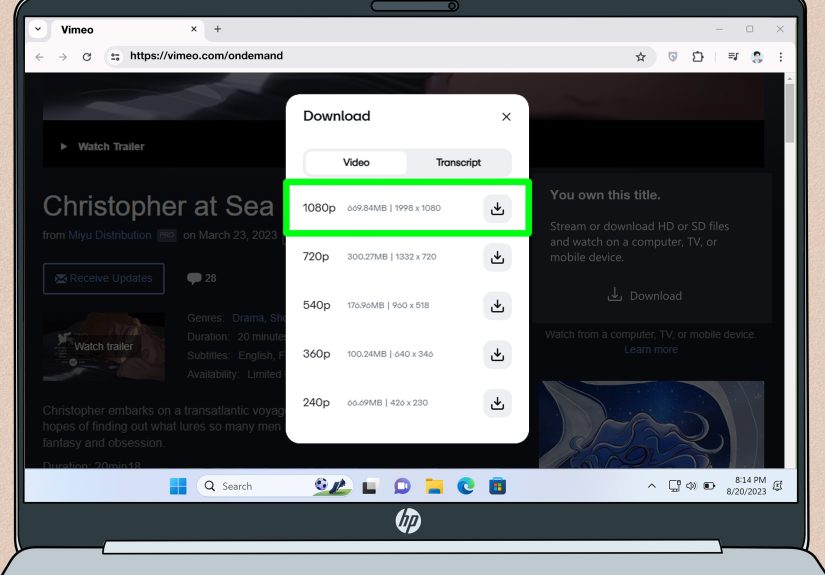
If the embedded Vimeo video is an On Demand title you purchased, Vimeo may let you download both the video and the caption/subtitle file togetherassuming the publisher enabled it.
Step-by-step (On Demand Purchases)
- Go to the title’s VOD (On Demand) page in your Vimeo account.
- Click Download.
- In the download window, choose the video file and the caption/subtitle file (if available).
If you can’t find a caption download option, it usually means the publisher didn’t include downloadable caption files (or downloads aren’t enabled for your purchase type).
Method 3: Use the Vimeo API to Download Text Tracks (For Videos You’re Authorized to Manage)
If you’re working in a production environmentcontent operations, e-learning, media teams, or “I have 200 embedded videos and a deadline” energythe Vimeo API can be the most scalable option.
Vimeo supports working with text tracks via API endpoints for videos you have permission to access.
When the API is the best choice
- You manage many videos and need a repeatable workflow.
- You need to pull captions for QA, translation vendors, or accessibility audits.
- You already use Postman, scripts, or internal tooling to manage Vimeo content.
High-level workflow
- Identify the Vimeo video ID (often visible in the Vimeo URL or embed URL).
- List the video’s text tracks via the API.
- Download the specific track using the track’s metadata (commonly via a provided link/URI or download field depending on the response).
Example: Listing text tracks (conceptual)
Below is a generic example of what a request might look like. The exact endpoint details and authentication depend on your Vimeo app and token permissions.
Use a secure access token with the correct scopes, and never expose it in client-side code.
Once you have the list, pick the text track for the language and type you want (for example: English captions vs. Spanish subtitles) and follow the response fields to retrieve the track content.
If you prefer GUIs, Postman collections for Vimeo endpoints can make this workflow less “curl-in-the-terminal” and more “click-the-button.”
Working with Embedded Vimeo Videos: What You Can Do Without Owning the Video
Let’s talk about the scenario that brought you here: the Vimeo video is embedded on a site you don’t control, but you can see captions playing in the embed.
Here’s the most honest answer: if you don’t own the Vimeo video and don’t have permission, you shouldn’t try to extract the caption file.
Captions are content. Even if they’re visible, the right way to get them is to ask the owner. Most creators are thrilled you want captionsbecause that means you care about accessibility and reach.
What you can do safely: confirm tracks exist (for your own site builds)
If you’re the developer or site owner embedding a Vimeo video you’re authorized to use, you can use the Vimeo Player SDK to detect which text tracks exist and enable a specific caption track for viewers.
This is not “downloading captions,” but it’s extremely useful for QA and troubleshooting (“Why does CC show on desktop but not on mobile?”).
Use this approach when you’re building or auditing your own embedded Vimeo implementation and need to confirm captions are properly attached and selectable.
Convert Vimeo Captions to SRT (When You Need Editing-Friendly Subtitles)
Many workflows start with WebVTT and end with SRTespecially if captions are headed to editors, translators, or certain platforms.
If you have a .vtt file you’re allowed to use, conversion is usually easy.
Option A: Convert with FFmpeg (common in pro workflows)
If FFmpeg complains, it’s usually because the VTT file has styling/regions or formatting quirks. In that case, try cleaning the file (remove unusual headers or styling blocks) or use a subtitle editor.
Option B: Use a subtitle editor (great for humans)
- Subtitle Edit or similar tools can open VTT and export to SRT while letting you fix timing or line breaks.
- Many online converters exist, but use cautioncaption files may contain sensitive content, and uploading them to random sites is not ideal for privacy or compliance.
Troubleshooting: Why You Can’t Find the CC Download Button
The embedded player shows CC, but Vimeo settings don’t show “Download”
- You may not be logged into the account that owns the video.
- You may not have the necessary team role/permissions.
- Your plan/features may not include transcript download for that video type.
No CC button in the embed at all
- Captions may not exist, or they may not be enabled for playback.
- The uploader may have restricted captions or disabled certain embed features.
- The video may have subtitles available only in specific contexts (like on Vimeo.com but not in an external embed configuration).
You need captions, but none exist
If your goal is accessibility or localization and the video doesn’t have captions, you have two realistic options:
(1) ask the owner for the caption file or (2) generate captions using a transcription service and upload the resulting VTT/SRT back to Vimeo.
Once uploaded, managing and downloading those files becomes much easier (and properly authorized).
Accessibility Bonus: Why Captions Are Worth the Extra Effort
Captions are not just a “nice-to-have.” They improve comprehension, help non-native speakers, support noisy/quiet viewing environments, and are a core part of accessible video design.
If you’re downloading captions from Vimeo for publishing elsewhere, you’re likely doing important workjust make sure you’re doing it with permission and good data hygiene.
Wrap-Up: The Cleanest Path to Download Vimeo CC Subtitles
To download CC subtitles from embedded Vimeo videos without chaos:
- Best option: If you own/manage the video, download via Vimeo’s Languages panel.
- On Demand: If it’s a purchase, check the VOD Download window for caption/subtitle files.
- At scale: Use the Vimeo API to list and retrieve text tracks for authorized videos.
- If you don’t own it: Ask the video owner for the caption file (fast, legal, and usually successful).
Real-World Experiences: What Usually Happens When People Try This (and How to Win Anyway)
In real workflows, “download the captions” sounds like a five-minute taskuntil it meets the three-headed dragon of permissions, platform settings, and file formats.
The most common experience is this: a team member spots an embedded Vimeo training video on an internal page, clicks CC, and assumes the caption file must be “somewhere in the embed.”
That assumption isn’t crazy, but it skips the part where Vimeo treats captions as managed assets tied to the video owner’s account.
The next thing that typically happens is a permission spiral. Someone tries to open the video on Vimeo, but they’re not logged into the right account.
Or they’re logged in, but only as a viewer, not a team member with editing access. Or they can see the video but the Languages area is missing options.
The fix is almost always organizational, not technical: get added to the Vimeo team with the correct role, or ask the owner to export the captions for you.
In practice, the “quickest technical solution” is often a Slack message that says, “Hey, can you download the English captions and send me the VTT?”
Another common experience is format surprise. The captions that look perfect in the Vimeo player download as WebVTT, and someone expects a neat SRT for an editor.
That’s where conversion comes in. Teams that do this often build a tiny checklist: download VTT → convert to SRT → spot-check timing and line breaks → deliver.
The spot-check matters more than people think, because line wrapping and punctuation can shift when captions are auto-generated.
A one-minute QA pass prevents the classic “Why does it look weird on mobile?” follow-up that arrives the day after launch.
If you work with courses, webinars, or product demos, multilingual captions become the next predictable bump.
Teams will often have English captions (for accessibility) and Spanish subtitles (for localization), but they’re labeled inconsistently.
The practical win here is naming discipline: keep a simple convention like “English (Captions)” vs. “Spanish (Subtitles)” and document which file is the “source of truth.”
When you later pull tracks through the Vimeo interface or API, that consistency turns a confusing list into a clean, searchable catalog.
The biggest “learn it once, save hours forever” experience is recognizing that embedded video pages are not the best place to manage assets.
Embeds are for playback. Libraries/settings (and APIs) are for management. Once teams internalize that, the work becomes boringin the best way.
Someone owns the video, captions live with that ownership, and downloads happen through the official tools. That’s how you get reliable results without breaking anything,
violating terms, or spending your afternoon starring in CSI: Subtitle Unit.
Finally, the most positive surprise people report is how much captions help beyond compliance.
Marketing teams reuse caption text for clip descriptions. Support teams turn transcripts into searchable help docs.
Training teams spot confusing sections because caption text exposes where people talk in circles.
So yes, downloading CC subtitles from embedded Vimeo videos can feel like a tiny technical chorebut in real content operations,
it’s often the first step in making video content more usable, accessible, and easier to scale.