Table of Contents >> Show >> Hide
- What Is an INSTALL.sh File?
- Before You Run It: A Quick Safety Checklist (Seriously)
- Step-by-Step: How to Execute INSTALL.sh in Linux Using Terminal
- Alternative Ways to Run INSTALL.sh (When ./ Doesn’t Work)
- How to Tell Which Interpreter the Script Wants (Shebang 101)
- Troubleshooting Common Errors (The Greatest Hits)
- Best Practices for Running INSTALL.sh Like a Pro
- Quick Example: A Typical INSTALL.sh Workflow
- Extra: Real-World Experiences and Lessons (500+ Words of “Yep, Been There” Energy)
- Conclusion
You’ve downloaded a Linux app, unzipped it, andlike a tiny jump-scarethere it is:
INSTALL.sh. You double-click it. Nothing happens. You try install.sh.
Still nothing. You whisper, “Linux, please,” and your computer responds with:
Permission denied.
Don’t worry. Running INSTALL.sh from the terminal is usually straightforwardas long as you follow
a few smart steps to avoid common errors and (more importantly) avoid accidentally running something sketchy.
This guide walks you through what an .sh installer is, how to run it safely, what commands to use,
and how to troubleshoot the usual “why won’t you just install?” drama.
What Is an INSTALL.sh File?
An INSTALL.sh file is typically a shell scriptmost often written for Bashthat automates
installation tasks. Depending on the project, it might:
- Check your OS and CPU architecture
- Install dependencies (or tell you what’s missing)
- Copy files into system directories
- Create shortcuts, desktop entries, or system services
- Run build steps like
./configure,make, andmake install
Some scripts are clean and professional. Some are… “creative.” Your job is to run it correctly and safely.
Before You Run It: A Quick Safety Checklist (Seriously)
Executing a script is basically telling your computer: “Hey, do what this text file says.”
That can be totally fineespecially from reputable projectsbut it’s worth taking 60 seconds to do a quick inspection.
1) Make sure it came from a source you trust
- Prefer official project sites, well-known repos, or respected package sources.
- If it’s a random download site with 37 flashing buttons, back away slowly.
2) Read the script (at least the top part)
From the folder containing INSTALL.sh, run:
Look for obvious red flags like suspicious networking commands, strange file wipes, or anything that feels “too powerful”
for an installer. You don’t need to be a security engineerjust be curious.
3) Check whether it’s actually a shell script
You’ll often see output like “Bourne-Again shell script” or “POSIX shell script.”
If it’s not a script (or it’s a binary pretending to be one), pause and investigate.
4) If available, verify integrity (hashes/signatures)
Many reputable projects publish checksums or signatures. If you have a checksum file, you can check it like this:
Some projects also provide GPG signatures; verifying those takes a bit more setup (you’ll need the correct public key),
but it’s a strong authenticity signal when done correctly.
Step-by-Step: How to Execute INSTALL.sh in Linux Using Terminal
Step 1: Open a terminal and go to the file’s directory
Use cd to move into the folder containing INSTALL.sh. For example, if it’s in Downloads:
Confirm it’s there:
Step 2: Give it execute permission (if needed)
If the script isn’t executable, Linux won’t run it directly. Make it executable:
Then confirm permissions:
You’re looking for an x in the permission string (something like -rwxr-xr-x).
Step 3: Run it with ./
The most common (and correct) way:
That ./ matters because many Linux systems don’t run programs from the current directory unless you explicitly say so.
It’s a safety feature, not a personal attack.
Alternative Ways to Run INSTALL.sh (When ./ Doesn’t Work)
Option A: Run it explicitly with Bash
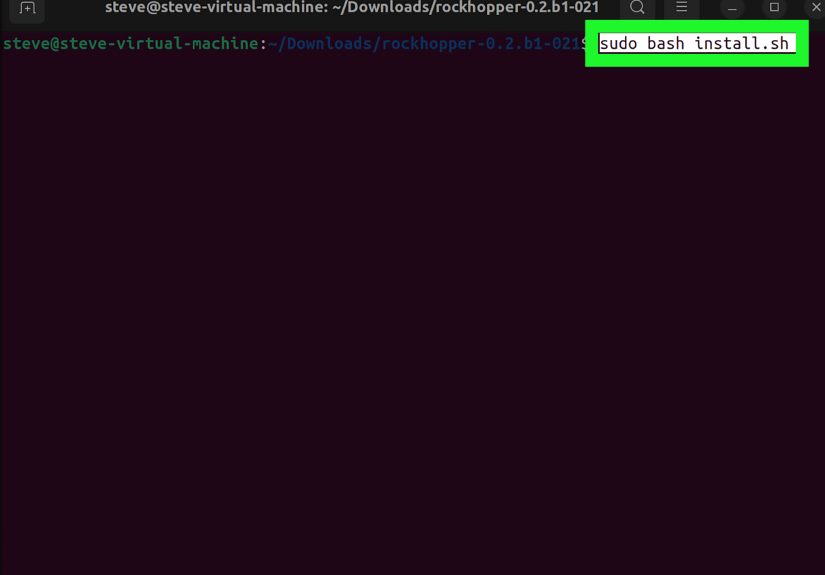
If the script doesn’t need execute permissions (or if you just want to be explicit), you can run:
This method is handy if permissions are weird or you’re testing. It also bypasses reliance on the script’s shebang line.
Option B: Use sh (only if the script is POSIX-compatible)
Be careful here: sh can be a different shell than Bash on many systems, and scripts written for Bash may break
if you run them with sh. If you see Bash-specific syntax inside, use bash.
Option C: Run with elevated privileges (only if necessary)
Some installers need to write into system directories like /usr/local or /opt.
If the script is trustworthy and clearly requires admin permissions, you might use:
If you can, prefer installers that only use sudo for the steps that truly need it. Running an entire script as root
is powerfulgreat when needed, terrible when abused.
How to Tell Which Interpreter the Script Wants (Shebang 101)
Many scripts start with a line like:
or:
That first line is the shebang. It tells the system which interpreter should execute the script.
If the shebang points to something that doesn’t exist on your system, you’ll get “bad interpreter” errors.
Check the first line quickly:
Troubleshooting Common Errors (The Greatest Hits)
Error: “Permission denied”
Typical cause: The script isn’t executable.
Fix:
If you still get permission issues on certain systems, security policies like SELinux can also be involved, especially on
enterprise-focused distributions.
Error: “command not found” when running INSTALL.sh
Typical cause: You typed INSTALL.sh without ./ and the current directory isn’t in your PATH.
Fix:
Error: “bad interpreter: No such file or directory”
Typical causes:
- The shebang points to the wrong path (like
#!bin/bashinstead of#!/bin/bash). - Windows line endings (CRLF) are sneaking in and showing up as
^M.
Fixes:
Error: “/bin/bash^M: bad interpreter”
Typical cause: The script was edited or created on Windows and has CRLF line endings.
Fix:
Error: Missing dependency (like gcc, make, python, or libraries)
Some installers compile from source or expect tools to exist. Usually the script prints what it needs.
If it doesn’t, look for README or INSTALL notes in the folder.
Tip: if the script calls make and you don’t have build tools installed, you’ll need your distro’s build essentials
package set (the name varies by distribution).
“It runs, but I have no idea what it’s doing”
You can run scripts in “trace mode” to see commands as they execute:
Or save output to a log file for calmer troubleshooting later:
Best Practices for Running INSTALL.sh Like a Pro
Use the least risky installation method available
- If there’s an official package or repo for your distro, that’s often easier to update and remove cleanly.
- If you must use a script installer, keep it in a dedicated folder and log what it changes.
Prefer running locally stored scripts over piping from the internet
It’s tempting to copy-paste a one-liner you found online. A safer habit is:
Downloading and inspecting isn’t glamorous, but it’s the difference between “installed a tool” and “installed a surprise.”
Use a sandbox when you’re unsure
If you’re testing unknown software, consider trying it in a virtual machine or container first.
It’s not always necessary, but it’s a great habit for cautious installs.
Know when sudo is appropriate
If an installer needs admin privileges, it should be clear why (installing into protected system paths, adding services, etc.).
If it asks for sudo to do something like “download a wallpaper,” that’s… suspicious.
Quick Example: A Typical INSTALL.sh Workflow
Here’s what a “normal” terminal flow often looks like after extracting a download:
If the script tells you to install dependencies, do that first, then rerun it. If it fails, run bash -x INSTALL.sh
and check the log output.
Extra: Real-World Experiences and Lessons (500+ Words of “Yep, Been There” Energy)
Most people’s first experience with INSTALL.sh is a mix of confidence and confusion: confidence because it’s “just one file,”
and confusion because Linux politely refuses to run it until you do the correct handshake.
One of the most common “aha” moments is realizing that ./ isn’t decoration. Plenty of folks type INSTALL.sh,
see “command not found,” and assume the file is brokenwhen the real issue is that the current directory typically isn’t in the system PATH.
Linux is basically saying: “I don’t run random stuff from wherever you happen to be standing.” It’s security, not sass.
The second classic moment is the “permission denied” wall. It feels personal the first timelike your own computer is grounding you.
But that’s just the execute bit doing its job. Once you’ve used chmod +x a few times and can read
-rwxr-xr-x like it’s a weather report, you’ll wonder how you ever lived without file permissions.
Then there’s the line-ending saga. If you ever see /bin/bash^M, congratulations: you’ve discovered CRLF line endings the hard way.
This often happens when scripts are edited on Windows or passed through tools that “helpfully” change line endings. The fix
(dos2unix) is simple, but the lesson sticks: text formatting matters to shells, and the shell is not impressed by invisible characters.
Another frequent experience: running an installer that works on one distro but fails on another. The script may assume certain package names,
directory structures, or default shells. That’s why reading the top of the script can save you a headachemany well-written installers include
comments like “Tested on Ubuntu 22.04” or “Requires Bash 4+.” If it’s written for Bash and you run it with sh, it might fail in ways
that look mysterious until you realize you used the wrong interpreter.
People also tend to learnsometimes abruptlythat “installer” can mean different things. Some INSTALL.sh scripts are fancy wrappers
around compilation steps (configure, make, make install). Others are simple copy operations into /opt.
If it compiles from source, it may require build tools and headers you don’t have. You’ll see errors about missing compilers or libraries,
and the solution usually isn’t “run it harder,” it’s “install prerequisites first.” The best installers print a dependency list;
the worst ones fail silently and leave you staring into the terminal like it owes you an explanation.
Finally, there’s the big grown-up lesson: be careful with root. Many users start by running everything with sudo because it “fixes”
permission errors. Sometimes it doesbut it can also create new problems like incorrect file ownership in your home directory, messy installs that
are harder to remove, or worst-case security risks if the script does something unexpected. The better habit is to run as a normal user first,
escalate only when the script truly needs it, and keep a log. If your future self ever asks, “What did that installer change?” you’ll be glad you
captured output to install.log.
In short: most INSTALL.sh issues aren’t “Linux being weird.” They’re Linux being explicit. Once you learn the patterns
execute permissions, correct interpreter, sane line endings, and cautious privilegeyou’ll run installers confidently without turning your terminal
session into an episode of “Guess That Error Message.”
Conclusion
To execute an INSTALL.sh file in Linux using the terminal, the usual path is:
navigate to the folder, inspect the script, make it executable with chmod +x, and run it with ./INSTALL.sh.
If you hit errors, check permissions, verify the shebang, fix Windows line endings, and rerun with tracing (bash -x) for clarity.
The terminal isn’t trying to ruin your dayit’s trying to keep your system predictable. Once you know the rules, you’ll be installing like a calm,
powerful wizard instead of a panicked raccoon mashing keys.