Table of Contents >> Show >> Hide
- What “Your Location” Means on a Computer (Quick Reality Check)
- How to Find Your Location on Google Maps on PC or Mac (14 Steps)
- Use a modern browser (and update it if it’s ancient)
- Connect to a strong network (yes, Wi-Fi matterseven on a desktop)
- Temporarily pause VPNs, proxies, or “teleportation” tools
- Turn on Location Services in your operating system (Windows or macOS)
- Make sure your browser is allowed to use location
- Open Google Maps in a fresh tab
- Click the “Your location” button (the little target icon)
- When prompted, click “Allow” (not “Block,” unless you enjoy extra steps)
- If you already blocked it, fix the site permission
- Refresh the page and click “Your location” again
- Look for the blue dot (and the accuracy circle)
- Confirm the exact spot with “What’s here?”
- Copy your coordinates or address for sharing
- Use your location (directions, nearby places, and saving spots)
- How Google Maps Figures Out Your Location on PC or Mac
- Troubleshooting: When the Blue Dot Is Missing or Wrong
- Privacy Notes (Because “Find My Location” Shouldn’t Mean “Find My Secrets”)
- Real-World Experiences and Tips (The Extra Stuff That Saves Your Sanity)
- Conclusion
Ever opened Google Maps on a computer and thought, “Cool… where am I?” (It’s okay. It happens to the best of usespecially
when your coffee kicks in after you start driving.) On a PC or Mac, Google Maps can still show your current location,
but it needs two things: permission and a decent signal to work with.
This guide walks you through 14 clear steps to find your location on Google Maps using a desktop browser, plus how to
copy coordinates, confirm accuracy, and fix the “blue dot disappeared like a magician” problem.
What “Your Location” Means on a Computer (Quick Reality Check)
On phones, Google Maps often uses GPS. On a laptop or desktop, your “location” is usually estimated using signals like nearby Wi-Fi networks,
your IP address, and device/browser location services. Translation: it can be impressively accurateor it can place you three neighborhoods away
like it’s trying to start a long-distance relationship.
The good news: most accuracy issues are fixable in a couple of minutes once you know where the permission settings are hiding.
How to Find Your Location on Google Maps on PC or Mac (14 Steps)
-
Use a modern browser (and update it if it’s ancient)
Google Maps works best on up-to-date versions of Chrome, Edge, Firefox, and Safari. If Maps loads slowly, buttons don’t respond,
or prompts never appear, updating your browser can instantly fix the weirdness. -
Connect to a strong network (yes, Wi-Fi matterseven on a desktop)
For more accurate location on computers, Wi-Fi can help your device estimate where you are. If you’re on a wired connection,
Maps may rely more heavily on IP-based location (which can be less precise). -
Temporarily pause VPNs, proxies, or “teleportation” tools
VPNs and some privacy tools can make Google Maps think you’re somewhere else because your internet traffic looks like it’s coming from
a different region. If Maps is confidently wrong, try turning the VPN off for a minute and re-check. -
Turn on Location Services in your operating system (Windows or macOS)
On Windows: go to Settings → Privacy & security → Location and turn on Location services.
On Mac: go to System Settings → Privacy & Security → Location Services and turn Location Services on.
If Location Services are off at the system level, your browser can’t magically guess your locationno matter how politely Google Maps asks.
-
Make sure your browser is allowed to use location
Even if Location Services are on, your browser still needs permission. On macOS, you may need to allow location access for the specific browser
(Safari/Chrome/Firefox) in Location Services settings. -
Open Google Maps in a fresh tab
In your browser, go to Google Maps. If you have multiple tabs open from earlier, a fresh tab reduces the chance you’re fighting old permissions,
stale cache, or “that one tab” that refuses to behave. -
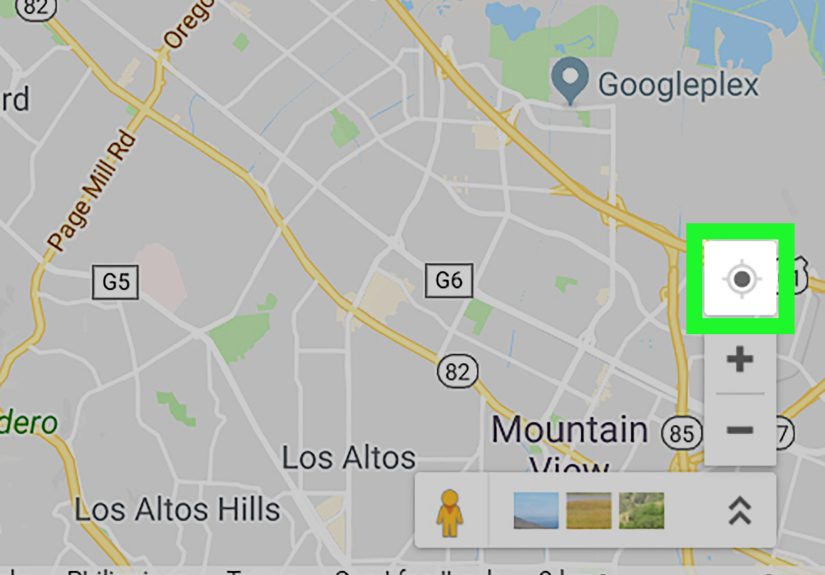
Click the “Your location” button (the little target icon)
On Google Maps (web), look for the target/crosshair iconusually in the lower-right area of the map. Click it.
This is the “Find my location” moment. -
When prompted, click “Allow” (not “Block,” unless you enjoy extra steps)
Your browser should pop up a permission request asking to know your location. Click Allow.
If you click Block, Maps may still loadbut it won’t show your live position. -
If you already blocked it, fix the site permission
Here’s the “undo the oops” part:
- Chrome: Settings → Privacy and security → Site settings → Location → allow Maps, or change it from the lock icon near the address bar.
- Edge: Settings → Site permissions → Location → allow Maps (or use the lock icon controls).
- Firefox: Click the site info/lock icon → adjust permissions for Location (or use the Permissions panel/site settings).
- Safari (Mac): Check macOS Location Services first; then review Safari’s website permissions if prompts never appear.
-
Refresh the page and click “Your location” again
After changing permissions, refresh the Google Maps tab. Then click the target icon again.
This re-triggers Maps to request location and re-center the view. -
Look for the blue dot (and the accuracy circle)
If everything worked, you’ll see a blue dot showing your current position. Often there’s a lighter circle around it,
which hints at accuracybigger circle means “approximate,” smaller means “pretty confident.” -
Confirm the exact spot with “What’s here?”
Want the precise address or coordinates? Right-click (or Control-click on Mac) on the spot where your blue dot is (or where you believe you are),
then choose “What’s here?”. A card appears at the bottom with details like an address and latitude/longitude. -
Copy your coordinates or address for sharing
In the info card, you can copy the coordinates (latitude/longitude) or the address. This is perfect for meeting up, deliveries, trailheads,
and any situation where “I’m near the big tree” isn’t cutting it. -
Use your location (directions, nearby places, and saving spots)
Now that Maps knows where you are, use it like a pro:
- Directions: Click Directions and set your starting point as your current location.
- Nearby searches: Try “coffee near me” or “pharmacy near me.”
- Save a place: If you’re signed in, you can save or label places so you don’t have to remember that “parking lot of destiny.”
How Google Maps Figures Out Your Location on PC or Mac
When you click “Your location” on a computer, your browser may use the web’s Geolocation features, which work only after you grant permission.
The browser then estimates location using signals available on that deviceoften Wi-Fi network info and IP-based clues, and sometimes additional
system-level location data when available.
That’s why the same laptop might be extremely accurate at home (steady Wi-Fi + consistent network signals) but less accurate in a hotel, a large office,
or a public hotspot environment where networks overlap like a spaghetti bowl.
Troubleshooting: When the Blue Dot Is Missing or Wrong
Problem: No prompt appears (no chance to click “Allow”)
- Check whether you previously blocked location for Maps in your browser settings.
- Confirm Location Services are enabled at the OS level (Windows/macOS).
- Try a different browser to confirm it’s not a browser-specific permission issue.
- Open a private/incognito window only if you know it won’t auto-block location permissions.
Problem: The location is “close-ish,” but not correct
- Turn Wi-Fi on (even if you’re using Ethernet) to improve location estimation.
- Move closer to a window or open area if you’re in a dense building.
- Disable VPN/proxy tools and re-check.
- Refresh the Maps tab, then re-click the “Your location” target icon.
Problem: It worked yesterday, but not today
- Browsers and operating systems sometimes reset permissions after updatesre-check site permissions.
- Clear site data for Google Maps (not your whole browsing history unless you enjoy chaos).
- Restart the browser to force permissions to reload cleanly.
Privacy Notes (Because “Find My Location” Shouldn’t Mean “Find My Secrets”)
Location is useful, but it’s also personal. If you only need location once, you can allow it temporarily (where supported) or revoke it afterward.
Your browser’s site permissions settings let you change your mind laterbecause future-you deserves options.
If you’re on a shared computer, consider signing out of your Google account when finished and double-checking that location permissions are set the way
you want them. Convenience is great. Surprise location sharing is not.
Real-World Experiences and Tips (The Extra Stuff That Saves Your Sanity)
In everyday life, finding your location on Google Maps from a computer usually happens for very practical reasonsmeeting someone, confirming a pickup spot,
or figuring out where you are after stepping out of a train station that looks exactly like five other stations. One common scenario: you’re on a laptop in a
hotel or Airbnb, and Maps insists you’re “nearby”… but nearby is doing a lot of work. That’s often because your laptop is using network-based location,
and the hotel’s internet might route traffic in a way that makes your IP address look like it belongs to a different area. The quick fix? Turn on Wi-Fi (even if
you’re wired), pause your VPN, and click the target icon again. Suddenly the blue dot stops improvising.
Another frequent moment: you’re trying to give someone your exact spotlike a park entrance, trailhead, festival gate, or “the correct side of the giant mall
where rideshare drivers don’t accidentally summon you to another dimension.” This is where the “What’s here?” trick shines. Instead of sending a
vague “I’m around the fountain,” you can right-click the map, pull up the info card, and copy coordinates or an address. It’s also helpful for deliveries to places
without clean street addresses (campgrounds, large venues, certain rural areas). Coordinates may feel nerdy, but they work when normal descriptions fail.
People also run into permission puzzles all the time. The most common: someone clicks “Block” onceusually in a hurrythen wonders why Maps can’t find them later.
On a phone, apps often remind you again. On desktop, the browser tends to remember your choice like it’s carving it into stone tablets. If Maps isn’t showing the blue dot,
it’s rarely “broken.” It’s usually permissions. Checking the lock icon next to the web address and switching Location back to Allow fixes it fast.
Finally, here’s a pro move for accuracy checks: don’t trust a single glance. Zoom in and compare what Maps says to what you can verifynearby streets, landmarks,
or a known intersection. If the accuracy circle is huge, treat it like a weather forecast, not a sworn statement. When you need precision, refresh, retry, and consider
moving to a spot with stronger signals. Google Maps is powerful, but it’s still working with the information your computer is willing (and allowed) to provide.
Conclusion
Finding your location on Google Maps on a PC or Mac is mostly a permissions-and-settings puzzle: enable Location Services on your computer, allow location access in your
browser, and use the “Your location” target icon to drop that famous blue dot onto the map. Once it’s working, you can confirm your exact spot with “What’s here?” and
copy an address or coordinates in seconds. If Maps is wrong, it’s usually because your network (or VPN) is confusing the estimateso a few small tweaks can make a big
difference.