Table of Contents >> Show >> Hide
- On this page
- What “Insert Row” Really Does (So You Don’t Break Your Sheet)
- PC (Windows): The Best Shortcut to Insert Rows
- Mac: The Best Shortcut to Insert Rows
- How to Insert Multiple Rows in One Move
- Excel Tables: Inserting Rows Without Wrecking Your Layout
- Formatting, Formulas, and “Why Did My Colors Change?”
- Troubleshooting: When the Shortcut Doesn’t Work
- Quick Cheat Sheet
- Real-World Experiences: Row Insertion Lessons Learned the Hard Way
- Conclusion
Inserting a new row in Excel should feel like snapping your fingersnot like auditioning for a role in
Spreadsheet: The Musical. If you’ve ever right-clicked, hunted for “Insert,” mis-clicked, sighed,
and then considered switching careers to artisanal bread baking… welcome. This guide will show you the
fastest keyboard shortcuts to insert one row (or a whole stack of rows) on Windows PCs and Macs, plus
the little gotchas that make shortcuts “mysteriously” stop working at the worst possible moment.
We’ll keep it practical, a little nerdy (in a good way), and just funny enough that you won’t fall asleep
on your keyboardbecause if you do, Excel will absolutely fill a column with “;;;;;;;;;;;;;;;;;;”.
What “Insert Row” Really Does (So You Don’t Break Your Sheet)
When you insert a row in Excel, you’re not just “making space.” Excel shifts cells down and tries to keep
your worksheet logic intactmoving data, nudging formulas, and updating references so calculations still
point to the right places. In other words: Excel is doing the spreadsheet equivalent of moving apartments
while keeping your houseplants alive.
The key detail: Excel behaves differently depending on what you selected. If you select an
entire row, Excel inserts a full sheet row. If you only select a few cells, Excel may open an Insert dialog
(or insert cells and shift things down) instead of adding a full row. That’s not Excel being pettyokay, it is
a littlebut it’s also Excel being precise.
Rule of thumb
- Select the row if you want a full row inserted.
- Select multiple rows if you want multiple rows inserted (Excel will match the count).
- Select a cell if you want Excel to ask how to shift cells (useful sometimes, chaotic other times).
PC (Windows): The Best Shortcut to Insert Rows
On a Windows PC, the main event is the Insert shortcut that opens the Insert action for cellsand inserts
rows instantly when a full row is selected.
Fastest method (works in most Excel desktop versions)
- Click any cell in the row where you want a new row to appear above (or click the row number on the left).
-
Select the entire row using:
Shift + Space
(this highlights the whole row) -
Insert the row with:
Ctrl + Shift + +
(the plus sign). On many keyboards, that’s Ctrl + Shift + = because + shares the = key.
Result: Excel inserts a new blank row above your selected row. No menu diving. No right-click
gymnastics. Just instant space.
Ribbon “KeyTip” method (surprisingly fast once memorized)
If you like shortcuts that feel like secret cheat codes, use the Ribbon KeyTips:
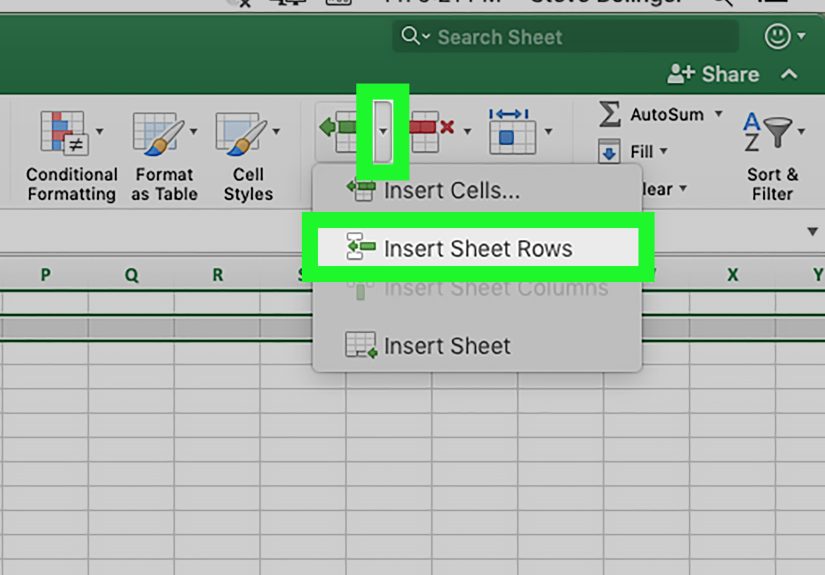
- Alt, then H (Home), then I (Insert), then R (Insert Sheet Rows)
This is great when your keyboard layout makes the plus sign awkward, or when you want consistency across
different PCs.
Pro tip: avoid “Insert Cells” surprises
If you press Ctrl + Shift + + while only a few cells are selected (not the whole row),
Excel may show an Insert dialog asking how to shift cells. That’s not wrongit’s just not what you meant.
Select the full row first (Shift + Space) and the shortcut becomes a one-step row insert.
Mac: The Best Shortcut to Insert Rows
Excel on Mac can be wonderfully fast… once you learn which key combo your version actually listens to.
The good news: modern Excel for Mac supports a clean shortcut for inserting rows, especially when the full row is selected.
Fastest method (common in modern Excel for Mac)
- Click a cell in the row where you want the new row inserted above.
- Select the full row with Shift + Space.
-
Insert the row with ⌘ (Command) + Shift + +.
On a US keyboard, + is typically Shift + =, so it may feel like ⌘ + Shift + =.
Result: a new row appears above the selected row. Your spreadsheet breathes. Your stress level drops.
Your coffee stays hot.
If your Mac shortcut behaves “weird”
Some Mac setups interpret the shortcut differently depending on selection:
- If a full row is selected, you’ll usually get a full row inserted.
- If only cells are selected, Excel may insert cells and shift content down (or ask what to shift).
And if you’re thinking, “Cool, but mine doesn’t work,” don’t panicjump to the troubleshooting section.
Mac keyboards, Excel versions, and regional layouts can turn a simple plus sign into a minor quest.
Mouse fallback (still fast, still civilized)
If you need a no-drama option: select the row, then Control-click the row number and choose
Insert. It’s not as flashy as a shortcut, but it’s reliable when your keys are acting possessed.
How to Insert Multiple Rows in One Move
The fastest Excel users aren’t inserting one row at a time. They insert a whole block in a single action,
like spreadsheet architects creating room for future greatness.
Insert multiple rows (PC or Mac)
- Select the same number of existing rows as the number of new rows you want to add.
- Use your insert-row shortcut (Windows: Ctrl + Shift + +; Mac: ⌘ + Shift + +).
Example: Want to insert 3 new rows above row 10? Select rows 10–12, then run the shortcut.
Excel will insert 3 blank rows above your selection.
What about non-adjacent rows?
On Windows, inserting rows can even work with non-contiguous selections in some cases. Practically though,
it’s easiest (and safest) to insert blocks using contiguous row selectionsespecially if the worksheet has
formulas, filters, or structured table logic that you don’t want to surprise.
Excel Tables: Inserting Rows Without Wrecking Your Layout
If your data is formatted as an Excel Table (the kind with filter arrows in headers),
inserting rows can be even smootherbecause tables are designed to expand.
The easiest “table grows automatically” trick
If you want to add a row to the end of a table, click the last cell in the last row and press
Tab. Excel will create a new row and keep the table formatting consistent.
Insert a table row above a specific spot
You can still use the row-insert shortcut inside a table, but behavior depends on exactly what’s selected:
- If you select a table row (Shift + Space while inside the table), inserting typically adds a table row.
- If you’re one row below where you want the new row, inserting may add the row in the table area without shifting unrelated sheet data.
Translation: tables are polite. They try to expand “in place” instead of bulldozing nearby contentone of the
reasons tables are so good for lists, logs, and anything you’ll keep updating.
Browser note
Excel shortcuts can be more limited in Excel for the web. If you’re in a browser and the shortcut isn’t working,
try the Ribbon Insert commands or right-click insert instead.
Formatting, Formulas, and “Why Did My Colors Change?”
Inserting a row isn’t just about the row. It’s about everything the row touches: formatting, formulas, and the
visual harmony of your carefully color-coded masterpiece.
Formatting usually transfers automatically
When you insert a row, Excel commonly transfers formatting from nearby rows to keep the sheet consistent.
That’s helpful… unless your “nearby row” is the one you formatted during an ill-advised neon phase.
After inserting, look for the small Insert Options button that appears near the inserted area.
It lets you choose whether to keep the formatting, match surrounding formatting, or remove formatting.
Formulas usually update references automatically
When you insert rows, Excel generally adjusts cell references so formulas keep pointing to the right data.
This is one of those Excel superpowers that you only appreciate after you’ve tried doing the same thing in a plain text table.
One more sanity-saving habit
If your workbook is important (budget, payroll, project plan, your fantasy football spreadsheetyou know who you are),
insert a row, then quickly scan:
- Totals and subtotals
- Any formulas near the insert point
- Charts referencing the region
Excel is smart, but it’s not psychic. (Yet.)
Troubleshooting: When the Shortcut Doesn’t Work
If your shortcut doesn’t insert a row, it’s usually not “broken.” It’s usually one of these classic Excel plot twists.
1) You’re editing a cell
If the cursor is inside a cell (you’re typing or editing), Excel often won’t run structural shortcuts.
Press Esc to exit edit mode, then try again.
2) You didn’t select the full row
Remember the rule: full row selected = full row inserted. Use Shift + Space first,
then the insert shortcut.
3) Your keyboard is arguing about what “plus” means
On many keyboards, + is not a standalone key. It’s Shift + =. So the shortcut may feel like:
- Windows: Ctrl + Shift + = (because that produces +)
- Mac: ⌘ + Shift + = (same idea)
If someone told you “use =” and it didn’t work, try the actual plus sign combo. This tiny detail trips up a lot of people.
4) You hit the shortcut and got an Insert dialog instead
That usually means Excel thinks you’re inserting cells, not rows. Choose Entire row in the dialog,
or cancel and select the full row before using the shortcut again.
5) You get: “Cannot shift objects off sheet”
This error can pop up when Excel can’t shift cells because of objects (like shapes, images, or hidden objects) near the edge.
One common fix is adjusting Excel’s display setting for objects (so they’re shown) and then moving/removing the offending object.
In some cases, toggling object display with a shortcut can help reveal what’s in the way.
6) The sheet is protected or permissions are limited
If the worksheet is protected (or you’re in a shared environment with limited edit rights), inserting rows may be blocked.
If you can’t right-click insert either, it’s likely a permission/protection issuenot a shortcut issue.
Quick Cheat Sheet
| Task | Windows (PC) | Mac |
|---|---|---|
| Select entire row | Shift + Space | Shift + Space |
| Insert row (with row selected) | Ctrl + Shift + + (often Ctrl + Shift + =) | ⌘ + Shift + + (often ⌘ + Shift + =) |
| Insert sheet row via Ribbon KeyTips | Alt, H, I, R | Use menu/Control-click Insert (KeyTips vary by Mac setup) |
| Add new row at end of an Excel Table | Tab (in last cell) | Tab (in last cell) |
Real-World Experiences: Row Insertion Lessons Learned the Hard Way
Let’s get honest: most of us don’t learn Excel shortcuts because we’re disciplined productivity monks.
We learn them because we’ve had that moment where someone says, “Can you add a few rows?” and suddenly
you’re doing 47 right-clicks while an entire meeting watches your cursor drift like a lost balloon.
That’s when the shortcut becomes less “nice to have” and more “please save me from public embarrassment.”
One of the most common real-life scenarios is the late-arriving data problem. You build a list,
you format it perfectly, you add totals, you even give it a cute header like “Q2 Pipeline (FINAL FINAL v3).”
Then a coworker appears with “just two more items” that need to be inserted right in the middlebecause of course they do.
If you insert rows the slow way, you risk breaking your flow and your formatting. If you insert rows with
Shift + Space followed by the insert shortcut, you make space instantly and keep your brain in the zone.
Another lesson: multiple rows are your friend. People often insert one row, paste one thing,
insert one row, paste one thing… which is basically the spreadsheet version of carrying groceries one grape at a time.
Selecting the exact number of rows you need and inserting them all at once is faster and reduces mistakes.
Fewer steps means fewer chances to insert in the wrong place and quietly ruin the day of whoever depends on your data.
Tables deserve their own story. Switching a list into an Excel Table is like upgrading from a bicycle to a car.
Suddenly, adding a row at the end is as simple as pressing Tab in the last cell. In real workflowsinventory logs,
ticket trackers, contact lists, daily metricsthat tiny behavior saves time constantly. It also encourages better habits:
structured headers, consistent formatting, and fewer “mystery blank rows” that break filters.
The weirdest “experience-based” Excel truth? Many shortcut problems aren’t Excel problemsthey’re
keyboard layout problems. The plus sign is the usual suspect. People will swear they pressed “the plus key,”
but on their keyboard, plus is a special combo. Or they press the right keys while still editing a cell, and Excel does nothing,
and then they press harder (as if Excel responds to intimidation). The best fix is always the same: exit edit mode, select the full row,
then use the shortcut slowly once. If it works, speed up. If it doesn’t, switch to the Ribbon KeyTips or Control-click Insert and keep moving.
Finally: if you ever run into “Cannot shift objects off sheet,” don’t take it personally. Excel is basically saying,
“I would love to insert a row, but there’s a tiny hidden object parked in the way like it owns the place.”
Once you learn that objects and display settings can block inserts, you stop spiraling and start troubleshooting like a pro.
And that’s the real Excel upgrade: not just knowing the shortcuts, but knowing what to do when Excel throws a tantrum.
Conclusion
If you remember only one thing, make it this: select the row, then insert. On Windows,
that’s usually Shift + Space then Ctrl + Shift + +. On Mac, it’s typically
Shift + Space then ⌘ + Shift + +. From there, inserting multiple rows, working with tables,
and keeping formatting under control all become easierand your spreadsheet stops feeling like it’s actively trying to escape.