Table of Contents >> Show >> Hide
- Why Saving a Scratch Project Matters More Than You Think
- What a Scratch Project Saves As in 2022
- How to Save a Scratch Project Online
- How to Save a Scratch Project to Your Computer
- How to Open a Saved Scratch Project Later
- How to Make a Copy of a Scratch Project
- How Scratch Saving Worked in Scratch Desktop
- What to Do If Scratch Won’t Save
- Common Mistakes Beginners Make When Saving Scratch Projects
- Best Tips for Saving Scratch Projects Safely
- Quick FAQ: How to Save a Scratch Project (2022)
- Real-World Experiences with Saving Scratch Projects
- Conclusion
If you made something cool in Scratch in 2022a game, an animation, a talking sandwich, or a cat that refuses to obey gravitythe very next thing you needed to know was how to save it properly. Because nothing ruins the coding vibe faster than closing a tab and realizing your masterpiece just vanished into the digital void.
This guide explains exactly how to save a Scratch project in the 2022 version of Scratch, including how to save online, how to download a backup to your computer, how to make a copy before experimenting, and what to do if Scratch acts like saving is suddenly an optional lifestyle choice. We’ll keep it practical, beginner-friendly, and just a little funnybecause saving your work should not feel like a boss battle.
Why Saving a Scratch Project Matters More Than You Think
Scratch is designed to be easy for beginners, but project management is still a real thing. If you are signed in, Scratch can save your work online to your account. If you are not signed in, or if your internet connection gets flaky, your project can be at risk unless you download a local copy.
That is why smart Scratch users in 2022 usually relied on two layers of protection:
- Online saving through a Scratch account
- Offline backup by downloading the project as an .sb3 file
Think of it like wearing both a belt and suspenders. Is it dramatic? Yes. Is it effective? Also yes.
What a Scratch Project Saves As in 2022
When you save a Scratch project to your computer, it is typically downloaded as an .sb3 file. That file format stores your code, sprites, costumes, sounds, and project data in one package. In plain English, it is the portable version of your projectthe one you can keep, move, upload later, or use as a backup if the browser decides to become emotionally unavailable.
If you ever need to reopen that file, you can use Load from your computer inside Scratch and bring the project back into the editor.
How to Save a Scratch Project Online
Step 1: Sign In to Your Scratch Account
If you want Scratch to save your work to the website, sign in first. In 2022, this was the simplest way to keep your project connected to your account so you could return to it later, share it, or edit it from another device.
If you are not signed in, Scratch may still let you build a project, but saving it online is another story. No account means no cloud-like safety net.
Step 2: Name Your Project
Before you save, give the project a real name. Not “Untitled-938,” not “thingy,” and definitely not “final-final-actually-final.” A clear title helps you find the project later and makes your Scratch dashboard look less like a mystery novel.
Good examples include:
- Maze Game Level 1
- Dancing Robot Animation
- Math Quiz for Class
Step 3: Click “Save now”
In the 2022 Scratch editor, you could manually save your project by opening the File menu and selecting Save now. On many projects, Scratch also autosaved changes while you worked, but relying on autosave alone is like trusting one potato chip to satisfy your hunger. It is optimistic, but not wise.
Use Save now whenever you:
- Finish an important change
- Add new sprites, sounds, or costumes
- Fix a bug that nearly made you question your life choices
- Are about to leave the page or close the browser
Step 4: Confirm It Actually Saved
Do not just click save and assume all is well. Look for confirmation in the editor that the project has been saved. If the browser freezes, your internet drops, or Scratch shows an error, download the project to your computer immediately. Hope is nice, but backups are nicer.
How to Save a Scratch Project to Your Computer
Saving locally is the part many beginners skipuntil the day they really, really wish they had not.
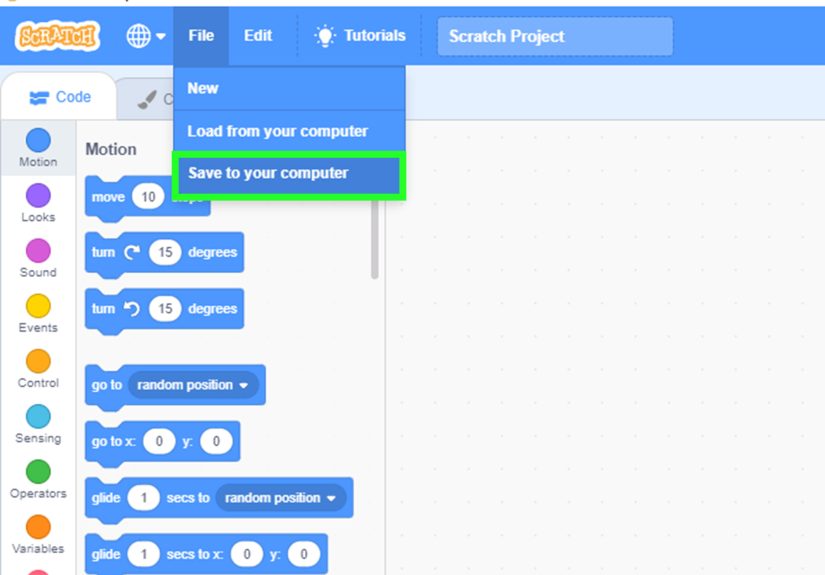
Step-by-Step: Save to Your Computer
- Open your project in the Scratch editor.
- Click the File menu.
- Select Save to your computer.
- Choose where you want the file to go.
- Keep the file in .sb3 format.
- Click Save.
That downloaded file is your backup copy. You can store it in Downloads, move it to a school folder, copy it to a USB drive, or save multiple versions if you like to play it safe. And honestly, when it comes to Scratch projects, playing it safe is kind of beautiful.
When You Should Use “Save to Your Computer”
This option is especially useful when:
- You are working on a school assignment
- You want a backup before major edits
- Your internet connection is unreliable
- You use Scratch Desktop or plan to work offline
- You want to send the file to a teacher, friend, or another device
How to Open a Saved Scratch Project Later
Downloaded your project yesterday and now want it back? No problem. Scratch does not make this hard.
Step-by-Step: Load from Your Computer
- Open Scratch.
- Start a new project or open the editor.
- Click the File menu.
- Select Load from your computer.
- Choose your saved .sb3 file.
- Open it and continue editing.
This is also how many people moved projects from Scratch Desktop into the online editor in 2022. Save the file locally first, then upload it back into Scratch when you are ready to continue or share it online.
How to Make a Copy of a Scratch Project
Sometimes you do not want to overwrite your original project. Maybe you are testing a new level, changing art, translating the game, or adding code that might either work brilliantly or detonate your logic.
That is where Save as a copy comes in.
Why “Save as a Copy” Is So Useful
Using Save as a copy creates a separate version of your project. It is a smart move for version control, especially for beginners who are still experimenting.
Examples:
- Space Runner v1
- Space Runner v2 with Sound
- Space Runner Boss Level Test
This keeps you from wrecking your original project while trying something bold. And in Scratch, bold ideas are great. Unrecoverable mistakes? Less great.
How Scratch Saving Worked in Scratch Desktop
In 2022, many users also worked in the downloadable Scratch app, often called Scratch Desktop. The workflow was slightly different from the website.
With Scratch Desktop, your project is generally saved to your computer rather than to an online account. That means you need to be more intentional about where the file goes and what you name it. There is no magical internet safety blanket quietly cleaning up after you.
Best Practices for Scratch Desktop
- Save your file after every major change
- Use clear file names
- Keep projects in one folder
- Back up important work to cloud storage or a USB drive
If you later want to publish that project on the Scratch website, upload the .sb3 file through the online editor using Load from your computer.
What to Do If Scratch Won’t Save
Ah yes, the classic plot twist: you click save, and Scratch says, “No, I don’t think I will.” If that happens, do not panic. Mild annoyance is allowed. Full keyboard opera is not required.
Try These Fixes
- Check your internet connection
- Try Save now again
- Download the project with Save to your computer
- Refresh only after you have a backup
- Log out and back in if the save issue continues
- Use a different browser if the editor behaves strangely
If you are working on something important, the safest emergency move is almost always the same: download the .sb3 file immediately. That protects your work while you figure out the online issue.
Common Mistakes Beginners Make When Saving Scratch Projects
1. Trusting Autosave Too Much
Autosave is helpful, but manual saving is better when the stakes are high. If you just built a complicated scoring system that finally works, click save like you mean it.
2. Forgetting to Sign In
You can spend a surprising amount of time building before realizing the project is not connected to your account. Ouch.
3. Never Downloading a Backup
If your only copy lives in one browser tab, that is not a strategy. That is optimism wearing a tiny hat.
4. Saving Over the Wrong Version
Use version names when testing new features. It makes life easier and regret less dramatic.
5. Losing Track of the File Location
If you save everything to random folders, future-you will need detective skills. Make one Scratch folder and keep your projects there.
Best Tips for Saving Scratch Projects Safely
- Use Save now after every important change
- Download a local backup as an .sb3 file
- Use Save as a copy before big experiments
- Keep files organized in one folder
- Name projects clearly
- Back up school or competition projects to more than one place
Quick FAQ: How to Save a Scratch Project (2022)
Can I save a Scratch project without an account?
Yes. You can save it to your computer as an .sb3 file. But if you want the project stored online in your Scratch account, you need to sign in.
What file type does Scratch use?
Scratch 3 projects are commonly saved as .sb3 files.
Can I reopen a saved Scratch file?
Yes. Use File > Load from your computer and select the saved .sb3 file.
Should I save online and offline?
Absolutely. That is the safest approach, especially for schoolwork or larger projects.
What if Scratch freezes while saving?
If possible, save the project to your computer before refreshing or closing anything. Protect the file first. Troubleshoot second.
Real-World Experiences with Saving Scratch Projects
One of the most common experiences Scratch users had in 2022 was learning about saving the hard way. A student would build a simple maze game, add custom sprites, record sound effects, and spend an hour getting one tiny character to stop walking through walls like a ghost with no respect for boundaries. Then the browser would close, the page would refresh, or the internet would hiccup. Suddenly, the project was goneor at least partly gone. After that happens once, the lesson sticks forever: saving is not a boring extra step; it is part of the creative process.
Teachers also saw this pattern all the time. In many classrooms, students were excited to jump into coding and far less excited to organize files. Some named their projects “Untitled,” downloaded three identical versions into random folders, and then had no idea which one was the latest. Others assumed Scratch had saved everything automatically because the editor looked calm and friendly. That is why many educators started teaching saving habits right alongside sprites, motion blocks, and loops. “Click Save now” became as important as “click the green flag.”
Another common experience involved moving between home and school. A student might start a project on the Scratch website at school, then want to continue it on a home laptop later. The easiest solution was often to save the project to the computer as an .sb3 file, email it to themselves, place it in cloud storage, or move it with a USB drive. Then at home, they could open Scratch and use Load from your computer. It was not glamorous, but it worked. And when you are trying to finish a project before class tomorrow, “not glamorous, but it worked” is basically a love poem.
Some users preferred Scratch Desktop because it let them work offline, which was especially helpful in places with spotty internet. But that came with another lesson: offline work demands more discipline. Since there is no automatic online account save quietly helping in the background, users had to remember to save files manually and keep them organized. Many learned to create a dedicated Scratch folder with subfolders for games, animations, and school assignments. Once they did that, life got dramatically easier.
Versioning was another game-changer. More experienced Scratch users rarely kept just one copy of an important project. Instead, they created versions before major changes: Game v1, Game v2, Game boss fight test, Game with new soundtrack. This habit saved them from disaster when a “small improvement” accidentally broke the scoring system, corrupted the pacing, or turned a once-beautiful platformer into a carnival of bugs. Keeping versions made experimentation safer, and it encouraged creativity because people were less afraid of messing things up.
There was also the emotional side of saving, which sounds dramatic until you have spent two hours drawing costumes pixel by pixel. Scratch projects often represent real effort, imagination, and pride. For kids, students, and beginners, a lost project does not just mean lost code; it can feel like lost progress and lost confidence. On the flip side, successfully saving, backing up, reopening, and sharing a project creates a strong sense of control. It tells the creator, “This is mine. I made it, I kept it, and I can come back to it.” That feeling matters.
In the end, saving a Scratch project in 2022 was not difficult, but it rewarded good habits. The people who had the smoothest experience were not necessarily the best coders. They were the ones who named files clearly, clicked Save now regularly, downloaded .sb3 backups, and made copies before trying risky changes. In other words, they treated their creativity like it was worth protectingwhich it absolutely was.
Conclusion
If you are wondering how to save a Scratch project in 2022, the answer is simple: save online when signed in, save locally as an .sb3 backup, and make copies before major edits. That combination gives you flexibility, protection, and peace of mind. Whether you are building a classroom assignment, a goofy animation, or the next great cat-powered adventure game, the smartest coding move is often the least flashy one: save your work before the internet gets any funny ideas.