Table of Contents >> Show >> Hide
- Why You Might Need to Split a PDF
- Online vs. Offline PDF Splitters: Which Should You Use?
- The 4 Best Free Tools to Split PDF Files (Online and Offline)
- How to Split PDFs with Built-In Tools on Your Computer
- Security, Privacy, and Legal Tips When Splitting PDFs
- Real-World Experiences and Tips for Splitting PDFs
- 1. Name your split files like a sane future you will read them
- 2. Use splitting as an excuse to declutter your PDFs
- 3. Keep an “originals” folder you never touch
- 4. Match the tool to the job, not the other way around
- 5. Beware of hidden limits and “almost free” tools
- 6. Think about security before there’s a problem
- Conclusion: Splitting PDFs Doesn’t Have to Be Complicated
PDFs are like the burritos of the document world: everything is wrapped up
tightly in one neat package. That’s great until you only need pages 3–5 and
maybe page 12, and suddenly the “burrito” is working against you. The good
news? You don’t need to buy expensive software or be a tech wizard to split
PDF files. There are plenty of free tools that let you split PDFs online or
offline in just a few clicks.
In this guide, we’ll walk through four reliable, free tools to split PDF
files, compare online vs. offline options, and share real-world tips so you
don’t run into hidden limits, watermarks, or privacy headaches.
Why You Might Need to Split a PDF
Splitting PDFs is one of those things you don’t think about until you
absolutely need it. Common scenarios include:
- Sending only a few pages of a long report to a client or coworker.
- Extracting a single chapter from an e-book or manual for easier reading.
- Separating invoices or statements by month or customer.
- Cutting out pages with sensitive information before sharing a file.
- Creating handouts or worksheets from a large teaching or training PDF.
Whether you’re managing schoolwork, business documents, or just trying to
organize your digital life, knowing how to split PDFs online or offline
saves time, storage, and stress.
Online vs. Offline PDF Splitters: Which Should You Use?
Before we dive into specific tools, it helps to decide whether an online or
offline splitter makes more sense for your situation.
When Online PDF Split Tools Make Sense
Online tools are ideal when:
- You’re on a shared or work computer and can’t install software.
- You just need a quick one-time split, not a full PDF editor.
- Your file isn’t extremely sensitive (e.g., public reports, generic forms).
- You’re working across different devices like Windows, Mac, and mobile.
Most online services offer a drag-and-drop interface. You upload your PDF,
choose which pages to split out, and download the result. Many also bundle
other tools like merge, compress, and convert, turning them into one-stop
PDF workstations.
When Offline PDF Software Is the Better Choice
Offline tools shine when:
- Your PDFs contain confidential or business-critical information.
- You want to avoid uploading documents to third-party servers.
- You often work with very large PDFs that might hit upload limits.
- You need to split PDFs regularly and want more control and speed.
Desktop apps process everything locally on your machine. This is usually
better for privacy, more stable for large files, and more efficient for
heavy use.
The 4 Best Free Tools to Split PDF Files (Online and Offline)
Let’s look at four free tools you can use today: three online services and
one offline desktop app. All of them have a free tier that’s enough for
basic PDF splitting.
1. Smallpdf: Fast, User-Friendly Online PDF Splitter
Best for: People who want a clean, simple PDF splitter that
works in any browser.
Smallpdf is a popular online PDF toolkit with a dedicated “Split PDF” tool.
You can either extract specific pages or split a document into multiple
smaller files. The interface is extremely beginner-friendly: drag, drop,
click, done.
How to split a PDF with Smallpdf
- Go to the Smallpdf website and open the “Split PDF” tool.
- Drag and drop your PDF or upload it from your device or cloud storage.
-
Choose whether you want to:
- Extract specific pages (for example, pages 2, 5–7), or
- Split the document into several smaller PDFs.
- Confirm your selection and let the tool process the file.
- Download the split PDF(s) to your computer or save to a cloud service.
Pros
- Clean, intuitive interface that works on web, mobile, and desktop apps.
- Includes other useful tools like merge, compress, convert, and e-sign.
- No installation needed for basic web use.
Cons
- Free plan typically limits the number of tasks you can run per day.
- Very large files or batch jobs may require a paid plan.
2. iLovePDF: Flexible Online Splitting with Page Ranges
Best for: Users who often need to split PDFs into multiple
page ranges.
iLovePDF is another all-in-one online PDF service with a strong “Split PDF”
feature. You can break a document into individual pages, extract only the
pages you want, or split it by custom ranges (for example, 1–4, 5–10, 11–15).
How to split a PDF with iLovePDF
- Open the iLovePDF site and choose the “Split PDF” tool.
- Upload your PDF from your computer, Google Drive, or Dropbox.
-
Pick your mode:
- Split by page ranges to create separate PDFs for specific sections.
- Extract pages if you only want a few pages from the file.
- Click to split, then download the new PDFs or save to the cloud.
Pros
- Very flexible page range options.
- Lots of extra PDF tools in the same place.
- Convenient cloud integrations.
Cons
- Free plan may have limits on file size, daily tasks, or processing speed.
- Some advanced features are behind a paid plan.
3. Adobe Acrobat Online: Trusted Brand, Free Split Tool
Best for: Users who want a big-name, reputable tool and
already have (or don’t mind creating) an Adobe account.
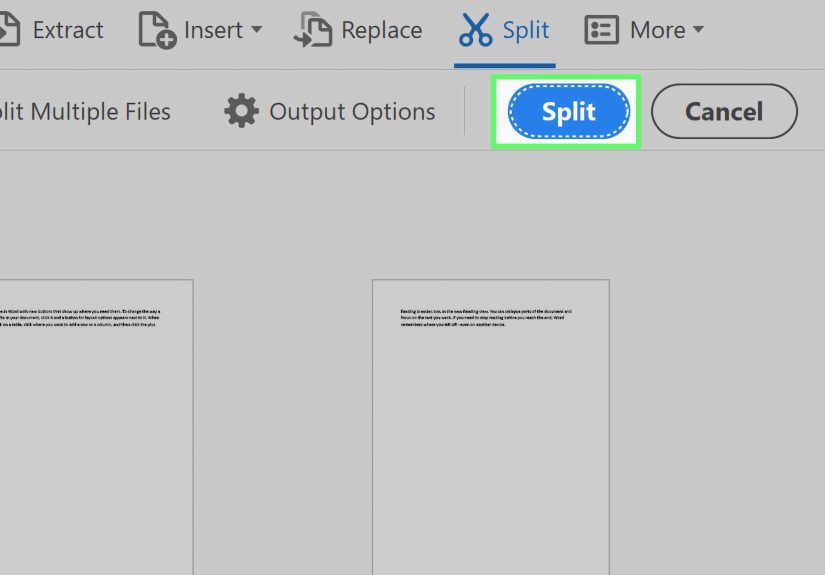
Adobe Acrobat’s online “Split PDF” tool lets you upload a PDF and divide it
into multiple smaller documents. You can insert virtual “divider” lines to
determine where the split will happen or choose page ranges to extract.
How to split a PDF with Adobe Acrobat online
- Visit Adobe’s Acrobat online “Split PDF” page.
- Upload your PDF (there is usually an upper page or size limit).
-
Choose how you want to split:
- By number of pages per document, or
- By inserting dividers at specific points.
- Sign in with an Adobe account (a free account usually works for basic tasks).
- Download your split PDFs or save them to cloud storage.
Pros
- Backed by Adobe, the original creator of the PDF format.
- Good for users already in the Acrobat ecosystem.
- Integrates with other Adobe tools and cloud storage.
Cons
- Sign-in is required, even for basic usage.
- Some features and higher limits require a paid Acrobat subscription.
4. PDFsam Basic: Powerful Offline Splitter for Windows, Mac, and Linux
Best for: Privacy-conscious users and people who frequently
work with large or sensitive PDFs.
PDFsam Basic (the “sam” stands for “split and merge”) is a free, open-source
desktop application. Unlike online tools, it works entirely offline. That
means your PDFs never leave your computer, which is a big plus if you’re
handling contracts, financial data, or internal company documents.
How to split a PDF with PDFsam Basic
- Download and install PDFsam Basic from the official site for your OS.
- Open the app and select the Split module.
- Choose the PDF you want to split.
-
Pick your split method:
- Split after every page.
- Split after specific page numbers (for example, after pages 5, 10, 20).
- Split by file size (useful for email or upload limits).
- Choose an output folder and click to run the split.
Pros
- Fully offline: great for privacy and large files.
- Free and open source, with no watermarking.
- Includes merge, rotate, extract, and other PDF operations.
Cons
- Requires installation, unlike online tools.
- Interface is functional but not as “pretty” as some web apps.
How to Split PDFs with Built-In Tools on Your Computer
Beyond dedicated apps, modern operating systems also offer simple ways to
split PDFs without extra software. These aren’t full-featured solutions, but
they’re handy in a pinch.
On a Mac: Preview and Quick Actions
macOS includes Preview, a surprisingly capable PDF viewer.
You can drag pages from the thumbnail sidebar to your desktop to create a
new PDF that contains only those pages. You can also duplicate the file and
delete pages you don’t need, effectively “splitting” the original.
Newer versions of macOS also offer a Finder Quick Action
called “Split PDF” on some systems. You select a multi-page PDF, right-click,
choose Quick Actions > Split PDF, and macOS generates separate
files for each page in a folder. It’s basic, but extremely convenient if
it’s available on your machine.
On Windows: Microsoft Edge and Print to PDF Workarounds
On Windows, you can open a PDF in Microsoft Edge and “print” selected pages
to the built-in Microsoft Print to PDF printer. Here’s how:
- Right-click your PDF and choose Open with > Microsoft Edge.
- Click the print icon (or press Ctrl + P).
- Select Microsoft Print to PDF as the printer.
-
Under Pages, enter the range you want (for example,
1–3 or 5, 7–9). - Click Print, then choose a filename. The result is a new PDF containing only those pages.
This method isn’t as flexible as using Smallpdf or PDFsam, but it’s built in
and works even on locked-down work machines where you can’t install anything.
Security, Privacy, and Legal Tips When Splitting PDFs
Not all PDFs are created equal. Splitting a vacation itinerary is one thing;
splitting a confidential legal agreement is another. Here are a few
important reminders:
-
Think before you upload. If a PDF contains passwords,
financial data, medical information, or sensitive internal documents, use
an offline tool like PDFsam Basic instead of a web service whenever
possible. -
Check a tool’s privacy policy. Reputable services explain
how long they keep your files and whether they’re used for any other
purpose. Some tools auto-delete files after a short period. -
Respect password protection and copyright. If a PDF is
password-protected or clearly marked as restricted, don’t split or share
it unless you have the right to do so. -
Watch out for watermarks and limits. Free plans sometimes
add watermarks, limit page counts, or cap the number of tasks you can run
daily. If you’re splitting documents all day long, a desktop app or a
modestly priced subscription may be worth it.
Real-World Experiences and Tips for Splitting PDFs
Once you’ve used a few of these tools in the real world, you start to pick
up little habits and hacks that make document life easier. Here are some
practical lessons from day-to-day PDF splitting.
1. Name your split files like a sane future you will read them
Most tools will happily spit out “document_part1.pdf,” “document_part2.pdf,”
and so on. That’s fine for five minutes. Two weeks later, when you’re
searching for just the “Q4 sales charts,” those generic names become a
guessing game.
Get into the habit of renaming your split files immediately with something
descriptive like Client-ACME_Contract_Pages-1-5.pdf or
Training-Deck_Module-3.pdf. It takes ten extra seconds and saves
you lots of scrolling and swearing later.
2. Use splitting as an excuse to declutter your PDFs
Splitting isn’t just about breaking things up; it’s also a great moment to
declutter. If you have a massive PDF with old appendices or outdated pages,
split out the part you still need and archive or delete the rest. Over
time, this keeps your file library lean instead of turning into a digital
junk drawer.
3. Keep an “originals” folder you never touch
One of the easiest ways to get into trouble is to start splitting and
overwriting the same master file over and over. Instead, create a folder
called something like _PDF_Originals and store untouched
copies there. Whenever you need to split, copy the original into a working
folder first.
That way, if you accidentally delete pages, split the wrong range, or save
over something, you can always go back to a clean version without panicking.
4. Match the tool to the job, not the other way around
Different tasks call for different tools:
-
Need to extract a couple of pages from a small PDF quickly while you’re on
a shared computer? An online tool like Smallpdf or iLovePDF is perfect. -
Working with 500-page reports full of sensitive internal data? Use an
offline solution like PDFsam Basic and keep everything local. -
Already in Adobe’s ecosystem and signed into an account all day? Acrobat’s
online splitter might be the most convenient because it integrates with
other tools you’re already using.
The goal is not to have one “perfect” PDF splitter, but to have a small
toolbox you’re comfortable with: one online option for quick jobs and one
offline app for heavy or sensitive work.
5. Beware of hidden limits and “almost free” tools
A lot of services advertise themselves as “free,” but the fine print says
otherwise: you might be limited to two tasks per day, or one file per hour,
or a small maximum file size. That doesn’t make them bad; it just means you
should know what you’re getting into.
If you only split PDFs occasionally, these limits are no big deal. If you
find yourself bumping into them weekly, though, that’s a sign you should
either install a desktop PDF tool or consider a low-cost subscription that
pays for itself in time saved.
6. Think about security before there’s a problem
It’s tempting to treat PDF splitting as a purely technical task, but there’s
always a security and privacy angle. Ask yourself:
- Would I be comfortable emailing this PDF to a stranger?
- Does it contain customer data, contracts, or internal strategy?
- Is it password-protected or clearly proprietary?
If the answer to any of those questions makes you hesitate, default to an
offline splitter and avoid uploading the file entirely. It’s easier to be
cautious at the start than to clean up a data leak later.
Conclusion: Splitting PDFs Doesn’t Have to Be Complicated
Splitting a PDF used to feel like a “power user” move reserved for people
with expensive software. Today, it’s something anyone can do with a web
browser or a free desktop app. Whether you prefer quick online tools like
Smallpdf and iLovePDF or offline workhorses like PDFsam Basic, you have
plenty of options to split PDF files safely and efficiently.
Start with one online and one offline tool from this list, practice on a
non-sensitive document, and build a simple system for naming and storing
your split files. Once you’ve done it a few times, splitting PDFs becomes
just another routine part of staying organizedlike cleaning out your inbox,
but with fewer unsubscribe links.