Table of Contents >> Show >> Hide
- Before You Flip Switches: Pick Your “Notification Personality”
- Method 1: Turn Off Notifications Inside the Messenger App (Fast + Flexible)
- Method 2: Turn Off Messenger Notifications on iPhone or iPad (Most Reliable)
- Method 3: Turn Off Messenger Notifications on Android (Best for Granular Control)
- Method 4: Turn Off Messenger Notifications on Desktop (Browser + Operating System)
- Troubleshooting: “I Turned Them Off… Why Am I Still Getting Notifications?”
- Quick Examples: The Best Setting for Common Situations
- Conclusion: Take Back Your Attention (Without Going Off the Grid)
- Real-World Experiences (): What It’s Like When You Actually Do This
Messenger notifications are like that one friend who “just has one quick thing” to sayevery five minutes. If you’re trying to focus, sleep, drive, or simply remember what silence sounds like, turning off (or dialing down) Messenger alerts can feel like upgrading your brain to premium.
This guide shows you the best ways to stop Facebook Messenger notifications on iPhone, Android, and desktopfrom “no more pings ever” to “only alert me when it’s actually important.” We’ll cover both the Messenger app settings and your device/browser controls, because sometimes you have to lock the front door and the back door.
Before You Flip Switches: Pick Your “Notification Personality”
Choose the outcome you want, then jump to the matching method below:
- I want total silence from Messenger. Turn off notifications at the phone/computer level (the “nuclear option”).
- I want to pause notifications for a while. Use Messenger’s built-in “turn off for X time” setting.
- I only want certain chats to stop yelling at me. Mute individual conversations or group chats.
- I hate pop-ups and previews (but badges are fine). Disable previews, banners, or sounds while keeping the app usable.
- Desktop pop-ups are the worst. Block Messenger site notifications in your browser (or OS settings for the desktop app).
Pro tip: If you have Messenger on multiple devices (phone, tablet, laptop), you may need to turn things off in more than one place. Otherwise, your phone gets quiet… and your laptop starts doing the notification equivalent of interpretive dance.
Method 1: Turn Off Notifications Inside the Messenger App (Fast + Flexible)
This is the best first stop because it lets you pause Messenger alerts without affecting your other apps. The menu names can vary slightly by version, but the general path is very consistent.
Pause all Messenger notifications (for a set time)
- Open Messenger.
- Tap your profile picture (usually top-left).
- Tap Notifications and sounds (or similar).
- Toggle notifications Off.
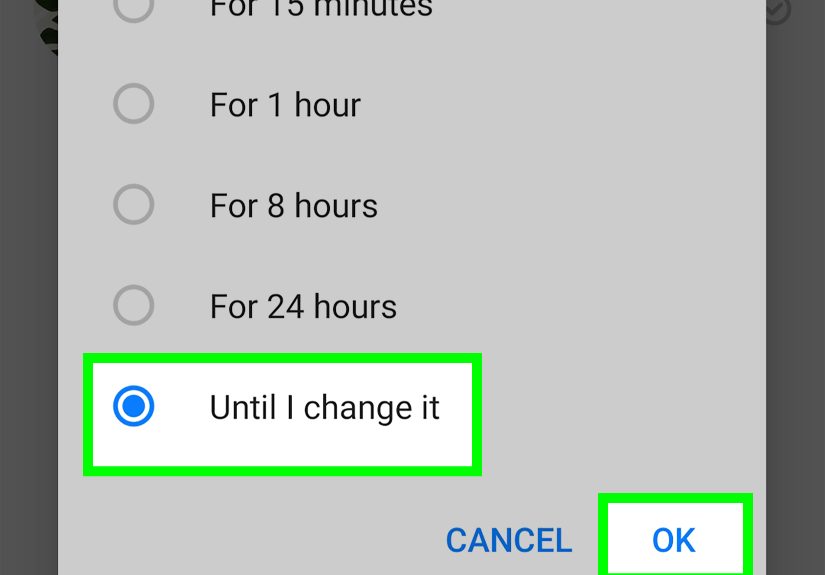
- Pick how long you want them off (for example: a few hours, overnight, or until you turn them back on).
Why this is handy: it’s the “I’m in a meeting / studying / trying to watch a movie without 14 interruptions” optionwithout permanently changing your phone settings.
Turn off previews, sounds, and other “extra loud” behavior
If you don’t mind getting notifications but hate the style of notifications (preview text on your lock screen, loud dings, or buzzing like a tiny angry bee), look for settings such as:
- Notification previews (turn off to hide message content in alerts)
- Sounds (turn off to stop the “ding” while still showing banners/badges)
- In-app sounds (some versions separate in-app noises from system notifications)
Think of this as putting Messenger on “polite mode.” It can still tap you on the shoulderjust without screaming your group chat’s latest drama across the room.
Mute a specific conversation or group chat (targeted peace)
If only one chat is the problem (you know the one), muting is perfect. You keep notifications for everyone else, but that chat goes into a time-out.
- Open Messenger and go to Chats.
- Press and hold the conversation (or swipe/long-press depending on your device).
- Tap Mute (or Mute notifications).
- Choose how long to mute it.
This is especially useful for group chats where 17 people are “just reacting” with emojis, which somehow becomes 117 notifications. (Why is there a “flame” reaction? No one knows. Yet we suffer.)
Mute notifications from a business chat (sales pings, begone)
Business chats can be helpfuluntil they become “friendly reminders” every day forever. Many Messenger versions let you open that conversation, tap the business/Page name or profile photo, then adjust Notifications for that specific chat.
Method 2: Turn Off Messenger Notifications on iPhone or iPad (Most Reliable)
If Messenger keeps sneaking notifications through (or you want guaranteed silence), iOS settings are the most direct. This also lets you choose exactly how notifications appear: lock screen, banners, badges, sounds, and previews.
Option A: Turn off everything from Messenger
- Open Settings.
- Tap Notifications.
- Find and tap Messenger.
- Turn off Allow Notifications.
That’s it. No banners, no lock-screen alerts, no sounds. Messenger can still receive messages; it just won’t announce them like a town crier.
Option B: Keep notifications, but remove the annoying parts
On the same iOS Messenger notification screen, you can fine-tune what you allow:
- Sounds: turn off if you want silence but still want banners/badges.
- Badges: turn off if the red number gives you stress sweats.
- Previews: set to “When Unlocked” or “Never” if you don’t want message content showing.
- Notification style: disable Lock Screen or Banners if you only want a quieter Notification Center presence.
Option C: Use Focus / Do Not Disturb for “work hours” silence
If you only need quiet at certain times (work, sleep, gym, “I’m pretending I’m off-grid”), iPhone Focus modes can silence notifications temporarily. This approach is great if you don’t want to forget you turned Messenger off for a week and then wonder why nobody loves you anymore.
Method 3: Turn Off Messenger Notifications on Android (Best for Granular Control)
Android gives you extremely detailed control, including the ability to silence specific types of Messenger notifications (messages vs calls vs “other stuff”) using notification categories/channelsnames and layout vary by phone maker, but the ideas are the same.
Option A: Turn off all Messenger notifications
- Open your phone’s Settings.
- Tap Notifications (or Apps → Messenger → Notifications).
- Toggle Messenger notifications Off.
Option B: Make Messenger notifications silent (no sound/vibrate)
If you still want the notification to existjust quietlyAndroid typically lets you set an app’s notifications to “silent,” or turn off sound/vibration per category. This is the sweet spot for people who want awareness without interruption.
Option C: Turn off chat heads/bubbles (less screen chaos)
If Messenger bubble pop-ups are hijacking your screen, disable Chat Heads/Bubbles. Depending on your device, you can do this in Messenger settings or in Android’s notification/bubble settings.
Result: messages stay in Messenger, not floating over your apps like a digital clingy note.
Option D: Use Do Not Disturb to block interruptions temporarily
Android’s Do Not Disturb is great for “quiet time,” especially when you want to keep Messenger running but stop interruptions during sleep, meetings, or long drives. You can often allow exceptions (favorite contacts, repeated callers) so important stuff can still get through.
Method 4: Turn Off Messenger Notifications on Desktop (Browser + Operating System)
Desktop Messenger alerts usually come from one of two places: (1) browser notifications for messenger.com or facebook.com, or (2) the Messenger desktop app using OS notifications. The fix depends on where the notifications are coming from.
If you use Messenger in a web browser (Chrome, Edge, etc.)
Web notifications are permissions. If you allowed messenger.com to send notifications, your browser will happily keep delivering them until you revoke that permission.
Block Messenger notifications in Chrome
- Open messenger.com (or the tab that’s popping notifications).
- Click the site info icon near the address bar (often a lock).
- Find Notifications and set it to Block.
Block Messenger notifications in Microsoft Edge
- Open Edge Settings.
- Go to Site permissions → Notifications (or “All sites,” then pick the site).
- Set messenger.com/facebook.com notifications to Block.
If you use the Messenger desktop app (Windows or Mac)
You can turn off notifications at the operating system level, just like on a phone. This method is especially effective if you want to keep the app but stop banners and sounds.
Windows: quiet the app using Notifications / Do Not Disturb
- Per-app: Go to Settings → System → Notifications, then find Messenger and toggle it off (if listed).
- Temporary silence: Turn on Do Not Disturb so notifications go to Notification Center without popping up.
Mac: disable Messenger notifications in System Settings
- Open System Settings.
- Click Notifications.
- Select Messenger.
- Turn off Allow notifications (or change the alert style).
Troubleshooting: “I Turned Them Off… Why Am I Still Getting Notifications?”
If Messenger is still making noise, here are the most common reasonsand fixes:
- You turned off notifications in Messenger, but not in your phone settings (or vice versa).
Fix: Do both, especially if you want total silence. - You muted one chat, but another chat is the real culprit.
Fix: Mute the specific noisy conversation(s), especially group chats. - You blocked notifications on your phone, but your laptop browser is still allowed.
Fix: Revoke the browser permission for messenger.com/facebook.com. - Pop-ups/bubbles are confusing you into thinking notifications are “still on.”
Fix: Disable chat heads/bubbles while keeping other alerts the way you want. - You don’t actually want Messenger offyou want Messenger to chill.
Fix: Use “silent” notifications, turn off previews, or schedule Focus/DND so you’re not constantly on-call.
Last resort: If you truly want to stop notifications and stop using Messenger for a while, uninstalling the app (or logging out where possible) will also stop push alerts until you reinstall/sign in again.
Quick Examples: The Best Setting for Common Situations
You’re in meetings all day
Use Messenger’s temporary pause (turn off for X hours) plus your phone’s Focus/DND for extra insurance. You won’t miss everythingjust the noise.
You want privacy on a shared screen or lock screen
Turn off notification previews. Keep the alert, hide the content. Your phone stops airing your business like a billboard.
You only want to mute one chaotic group chat
Mute that conversation. Let your important chats stay on, and let the “planning a weekend trip” thread argue about snacks in peacewithout you.
Your desktop keeps popping notifications during work
Block messenger.com notifications in your browser, or disable Messenger notifications in Windows/macOS settings. Your computer should not be your manager.
Conclusion: Take Back Your Attention (Without Going Off the Grid)
Turning off Facebook Messenger notifications doesn’t have to be all-or-nothing. Start with Messenger’s built-in controls (pause all alerts or mute specific chats). If you want guaranteed quiet, use your device settings on iPhone or Android. And if desktop pop-ups are ruining your flow, block browser notifications or disable the Messenger app’s OS alerts.
The goal isn’t to miss every messageit’s to stop your day from being ruled by every buzz, ding, and pop-up. Your attention is valuable. Messenger can rent space in your phone, but it doesn’t get to own the whole building.
Real-World Experiences (): What It’s Like When You Actually Do This
Most people don’t turn off Messenger notifications because they hate messagesthey do it because they hate interruptions. The first time you silence Messenger, there’s a funny little emotional arc that happens. Step one: relief. Step two: suspicion. “Wait… why is it so quiet? Am I missing something important?” Step three: peace. Like the kind of peace where you realize you can finish a thought without your phone acting like a tiny air horn.
One common experience is the “meeting meltdown.” You walk into a meeting determined to look professional, and then your phone lights up with a preview that says something like, “WHO ATE THE LAST SLICE???” It’s never a calm message. Muting that one group chat instantly changes your life. You still have the chat for later, but you’re no longer receiving running commentary in real time. The best part? Nobody is notified that you muted them, so you don’t have to navigate the awkward social politics of “Why aren’t you responding??” You simply become blissfully unavailable during snack-related emergencies.
Another very real scenario is the “late-night doom ding.” You’re finally falling asleep anddinga message arrives that could absolutely wait until morning. This is where temporary pause settings shine. Turning notifications off for the night feels less dramatic than disabling them forever, and it prevents that spiral where you read one message, reply to be polite, and suddenly it’s 1:12 a.m. and you’re debating emoji tone like it’s foreign policy.
For Android users, the experience often becomes more strategic. Instead of turning everything off, people tend to make notifications silent. That way, the message is there when you check, but it doesn’t interrupt you. It’s like switching Messenger from “doorbell” to “mailbox.” You still get the mail. You’re just not being tackled by it. And once you discover you can disable bubbles/chat heads, your screen feels less like it’s being invaded by floating circles that demand attention while you’re trying to do literally anything else.
Desktop users typically have the most dramatic turnaround. Browser notifications can be sneaky because they pop up even when you’re not actively in Messenger. Blocking notifications for messenger.com in your browser is the moment you realize: “Oh, I’m not actually ‘busy.’ I’m just being interrupted a lot.” Suddenly, you can write, design, code, study, or spreadsheet in peace. Messages still existMessenger isn’t brokenyour computer just stops waving them in your face.
The final experience is the “healthy rebound.” After a week of quieter notifications, many people re-enable a few alertsbut intentionally. Maybe they allow badges (so they can check later) while keeping sounds off. Or they keep notifications on for close family while muting big group chats. The point is you move from reactive to deliberate. Messenger becomes a tool again, not a tiny slot machine in your pocket.