Table of Contents >> Show >> Hide
- First, let’s clear up what “remote access” really means on an iPhone
- 11 warning signs someone may be accessing your iPhone remotely
- 1. You see devices signed in to your Apple Account that are not yours
- 2. Your settings change and you did not change them
- 3. Your battery drains much faster than usual
- 4. Your iPhone gets hot while idle
- 5. Your data usage suddenly spikes
- 6. You notice unfamiliar apps, weird browser behavior, or pop-ups
- 7. Your camera or microphone seems active when it should not be
- 8. Your contacts receive messages you did not send
- 9. Your iPhone behaves oddly when you are not using it
- 10. You find a configuration profile, MDM enrollment, or VPN you do not recognize
- 11. You receive security prompts or verification codes you did not request
- How to check your iPhone for remote access, step by step
- What to do immediately if you think someone is accessing your iPhone
- How to avoid false alarms
- What people commonly experience when they suspect remote iPhone access
- Final thoughts
- SEO Tags
If you have that weird gut feeling that your iPhone is being accessed remotely, welcome to one of the least fun clubs on the internet. The good news is that iPhones are not usually easy targets for random movie-style hackers in dark hoodies typing at 900 words per minute while green code rains down the screen. The bad news is that unauthorized access can still happen, and when it does, it often looks less like Hollywood and more like a handful of suspicious little clues you almost talk yourself out of noticing.
Maybe your battery suddenly drops like it is training for the Olympics. Maybe your iPhone gets warm while it is doing absolutely nothing. Maybe settings change on their own, your Apple account shows a device you do not recognize, or your location seems a little too easy for someone else to know. None of those signs automatically prove remote access, but together they can point to a real privacy problem.
In this guide, we will break down what “remote access” usually means on an iPhone, the most common warning signs, how to check your device step by step, and what to do next if something feels off. Think of it as digital detective work, but with fewer fedoras and more settings menus.
First, let’s clear up what “remote access” really means on an iPhone
When people say, “Someone is remotely accessing my iPhone,” they are usually describing one of four situations:
- Your Apple Account is compromised. Someone signed in to your account, can see synced data, track location through shared features, or access services tied to your account.
- Your iPhone has unsafe sharing settings. Location sharing, photo sharing, calendar access, microphone access, or other permissions may be giving someone visibility they should not have.
- Your device is enrolled in management software. A configuration profile or mobile device management setup can give an organization administrative control over parts of the phone.
- A malicious or suspicious app is spying on activity. This is often described as spyware or stalkerware, and it is more likely when someone had physical access to the device, knew your passcode, or tricked you into installing something sketchy.
That distinction matters. A glitchy phone is not the same as a hacked phone. And a hacked Apple account is not the same as full device takeover. On iPhones, account exposure and permission abuse are often more realistic than total “I own your whole phone now” compromise.
11 warning signs someone may be accessing your iPhone remotely
1. You see devices signed in to your Apple Account that are not yours
This is one of the biggest red flags. If you open your Apple Account settings and notice an iPhone, iPad, Mac, or browser session you do not recognize, somebody else may be signed in. That does not always mean they are live-controlling your phone, but it can mean they have access to synced data, backups, messages, photos, or location-related services connected to your account.
2. Your settings change and you did not change them
If location settings, privacy permissions, trusted phone numbers, passwords, account recovery details, or notification preferences suddenly look different, do not shrug it off. Random settings do not usually wake up one morning and decide to reinvent themselves. Unexpected changes can suggest another person had access to your account or device.
3. Your battery drains much faster than usual
Battery drain alone is not proof of spying. Aging batteries, buggy apps, and weak signal strength can all wreck your battery life. But if the drop is sudden, dramatic, and paired with other odd behavior, background monitoring, high network activity, or a rogue app may be involved. Think of it as a clue, not a conviction.
4. Your iPhone gets hot while idle
If your phone feels warm when it is just sitting there minding its own business, that can signal background processes running harder than expected. It may be a bad app, a stuck backup, or heavy location activity. It may also be a sign that something is continuously collecting or transmitting data.
5. Your data usage suddenly spikes
Spyware, excessive tracking, and suspicious apps often need to send data somewhere. If your cellular usage jumps and your habits did not change, it is worth investigating. A phone that is secretly sharing location, audio, screenshots, or other activity tends to leave a trail in data usage.
6. You notice unfamiliar apps, weird browser behavior, or pop-ups
An unknown app you do not remember installing is a huge “excuse me?” moment. The same goes for constant pop-ups, redirects, fake virus warnings, spammy calendars, or browser pages trying to get you to call “support.” These are common signs of scam pages, malicious profiles, or unsafe web activity. Real security alerts do not need to yell at you in all caps like a haunted vending machine.
7. Your camera or microphone seems active when it should not be
If you see camera or microphone indicators appearing when you are not using those features, pay attention. A legitimate app may be the cause, but you should verify which app had permission and whether it actually needed it. Unexpected access to the camera or microphone is one of those signs that deserves immediate side-eye.
8. Your contacts receive messages you did not send
If friends ask why you texted them a shady link or sent a bizarre message you never wrote, that can point to account compromise, a malicious app, or social account abuse. It might not always be your iPhone itself, but it is still a serious sign that something connected to your device or accounts needs attention.
9. Your iPhone behaves oddly when you are not using it
Screen waking on its own, apps opening unexpectedly, strange restarts, or a phone that feels busy while idle can all signal trouble. Again, not every weird behavior means hacking. But if your phone acts like it has a second job you never approved, investigate.
10. You find a configuration profile, MDM enrollment, or VPN you do not recognize
This is one of the most overlooked checks. Configuration profiles and mobile device management tools can control settings, install restrictions, manage networks, and in some cases remotely wipe or lock a device. If you see a profile or management setup that does not belong to your employer, school, or organization, that is a serious warning sign.
11. You receive security prompts or verification codes you did not request
Password reset notices, two-factor codes, trusted device alerts, or account change confirmations can all mean someone is trying to get into your account right now. Even if they fail, repeated prompts mean you should act before they get lucky.
How to check your iPhone for remote access, step by step
Check your Apple Account device list
Go to Settings > [your name] and scroll through the device list. Look for anything unfamiliar. If you see a device that is not yours, remove it. This is one of the fastest ways to catch account-level access.
Use Safety Check if your iPhone supports it
Go to Settings > Privacy & Security > Safety Check. This tool is especially useful if you are worried that someone close to you may have access through shared permissions, shared location, or account connections. Safety Check lets you quickly review and reset who can see what.
Review privacy permissions
Open Settings > Privacy & Security and inspect access to:
- Location Services
- Microphone
- Camera
- Contacts
- Photos
- Bluetooth
- Local Network
If an app has access it clearly does not need, revoke it. A flashlight app does not need your microphone. A wallpaper app does not need to know where you buy coffee. Some apps behave like nosy neighbors with a clipboard.
Turn on App Privacy Report
Go to Settings > Privacy & Security > App Privacy Report. This can help you see how often apps are using permissions like location, camera, and microphone, along with network activity. If one app seems unusually curious about your life, that is a clue worth following.
Inspect VPN and device management
Go to Settings > General > VPN & Device Management. If you see a configuration profile, management profile, or VPN you do not recognize, do not ignore it. If you know it is not from work, school, or a service you intentionally installed, remove it or get expert help before leaving it in place.
Check battery and data usage
For battery, go to Settings > Battery and review which apps are consuming the most power. For data usage, go to Settings > Cellular and inspect which apps are chewing through data. A suspicious app that is high on both lists deserves a very uncomfortable interview.
Look for apps you did not install
Scroll through your app library and home screens. Remove anything unfamiliar. Also review browser extensions, safari website permissions, spam calendars, and any app that suddenly requested too many permissions.
Install iOS updates
Go to Settings > General > Software Update. If an update is available, install it. Security patches exist for a reason, and that reason is usually not “because your phone was too peaceful.”
What to do immediately if you think someone is accessing your iPhone
- Change your iPhone passcode. If someone knew or guessed it, this cuts off a major path back in.
- Change your Apple Account password. Then review trusted devices and phone numbers.
- Remove unknown devices from your account. Do not leave mystery hardware hanging around like an uninvited houseguest.
- Delete suspicious apps, profiles, and VPNs. If you do not trust it, it should not stay.
- Review sharing settings. Check Find My, shared albums, calendars, notes, family access, and location sharing.
- Enable stronger protections. Use two-factor authentication where available and consider Lockdown Mode if you believe you may be targeted by advanced spyware or highly motivated attackers.
- Restart, then reassess. Sometimes a reboot clears temporary weirdness. If the strange behavior returns, take it more seriously.
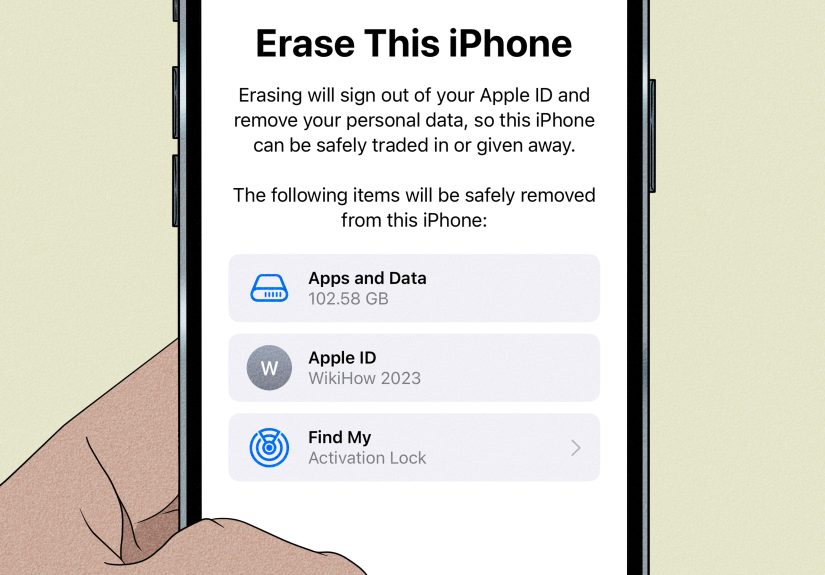
- Back up important data and consider a full erase if needed. When in doubt, a clean reset can be the cleanest path back to peace of mind.
If you believe the threat comes from a controlling partner, ex-partner, roommate, or anyone with past physical access to your phone, move carefully. In that situation, digital safety and personal safety often overlap. You may want help from a trusted person or support organization before making obvious changes that could alert the other person.
How to avoid false alarms
Not every creepy symptom is a hack. Here are a few common lookalikes:
- Battery aging: Old batteries drain faster, period.
- Poor signal: Phones work harder in weak coverage and get warmer.
- iOS updates and indexing: After updates, phones may run hot or drain faster for a while.
- Greedy apps: A badly coded social app can mimic malware symptoms without being malware.
- Spam calendars and scam pages: Annoying, yes. Proof of full compromise, not necessarily.
That is why patterns matter more than single symptoms. One weird pop-up is annoying. A weird pop-up plus a mystery profile plus higher data use plus unknown account activity is a very different story.
What people commonly experience when they suspect remote iPhone access
The following examples are composite scenarios based on common real-world patterns people report when dealing with suspicious iPhone activity.
One of the most common experiences starts small. A person notices their battery has become terrible almost overnight. At first, they blame age, cold weather, or “too much TikTok,” which is fair. Then the phone feels warm even when it has been sitting face-down on a table for twenty minutes. A little later, they open battery settings and notice an app they barely use somehow dominating the chart. That does not always mean spyware, but it often becomes the moment when suspicion turns into a real checkup.
Another common experience is social rather than technical. Someone knows things they should not know. They bring up places you visited, conversations you had, or appointments you never shared. The iPhone itself may not be flashing neon warnings, but the pattern feels wrong. In many cases, the issue turns out to be shared location settings, a compromised Apple account, access to backups, or permissions granted during a relationship and forgotten afterward. It feels spooky because it is intimate, not because it is flashy.
There is also the “my phone is acting haunted” version. The screen wakes unexpectedly. Safari opens to odd pages. Pop-ups appear. The phone lags. Apps crash. Maybe the user receives verification codes they never requested, or a message says an account was signed in from a new device. This experience is especially stressful because the person starts questioning everything. Was that normal? Did I click something? Am I overreacting? That uncertainty is part of why iPhone privacy problems can be so unsettling. The clues are often small enough to dismiss individually and alarming enough to feel huge when combined.
Some people discover the issue through management settings. They open VPN & Device Management for an unrelated reason and find a profile they do not remember installing. Suddenly the problem has a shape. Maybe it came from a fake work setup, a sketchy website, or an old school or employer connection that should have been removed long ago. In that moment, the concern stops being abstract. It becomes practical: what does this profile control, and why is it here?
And then there is the most human experience of all: embarrassment. People often feel silly for worrying that someone might be accessing their iPhone remotely. They tell themselves they are being dramatic. But digital privacy problems are real, and they often begin with exactly the sort of weird little inconsistencies people try to explain away. If your instincts are telling you something is off, the right response is not panic. It is evidence. Check the account, check the permissions, check the profiles, check the data usage, and check the devices signed in to your account.
In other words, trust your instincts, but verify them with settings instead of spiraling with screenshots and caffeine. A calm, methodical review will usually tell you whether you are dealing with a bug, a bad app, a scam attempt, or a real access problem. And if it is a real problem, acting early can shut the door before it gets worse.
Final thoughts
If you are trying to figure out how to tell if someone is accessing your iPhone remotely, the most important thing to remember is this: remote access usually leaves fingerprints. They may not be dramatic, but they are there. Unexpected account devices, changed settings, strange permissions, mystery profiles, abnormal battery drain, suspicious data usage, and unexplained camera or microphone access are all signals worth checking.
The smartest move is not to panic and not to ignore it. Audit your Apple Account, review privacy permissions, inspect device management, update iOS, and lock things down if anything looks wrong. iPhones are designed with strong security, but security still works best when the person holding the phone pays attention. Preferably before a suspicious app starts acting like it pays rent.