Table of Contents >> Show >> Hide
- What Is Google Web & App Activity?
- What Happens When You Turn Off Web & App Activity?
- Way 1: Turn Off Google Web & App Activity on a Computer
- Way 2: Turn Off Google Web & App Activity on Android
- Way 3: Turn Off Google Web & App Activity on iPhone or iPad
- Optional Middle Ground: Use Auto-Delete Instead
- Common Mistakes to Avoid
- Should You Turn Off Google Web & App Activity?
- Extra Tips for Better Google Privacy
- Final Thoughts
- Experiences People Commonly Have After Turning Off Google Web & App Activity
If Google’s Web & App Activity setting has ever made you feel like your account has a surprisingly good memory, you are not alone. Searches, Maps activity, app interactions, and other bits of Google-related behavior can all end up tied to your account to create a more personalized experience. Helpful? Sometimes. Slightly spooky? Also yes.
The good news is that you do not need a computer science degree, a privacy-themed cape, or a dramatic “I am reclaiming my data!” speech to change it. Whether you are on a desktop, Android phone, or iPhone, you can turn off Google Web & App Activity in just a few minutes. This guide breaks down three easy ways to do it, explains what changes after you switch it off, and shows you how to avoid the classic mistake of thinking one privacy toggle magically handles everything.
If your goal is better privacy, less tracking, fewer personalized recommendations, or simply a cleaner digital footprint, this is the walkthrough you want.
What Is Google Web & App Activity?
Google Web & App Activity is an account setting that saves activity from Google services to your Google Account. In plain English, it can store things like Google Search activity, interactions with Google apps, and related account activity that helps Google personalize results, recommendations, and app experiences.
Depending on your settings, it may also include Chrome history and activity from sites, apps, and devices that use Google services. In some cases, voice and audio activity can be included too. That is why this setting matters more than most people realize. It is not just about search history. It can be one of the main switches behind how personalized your Google experience feels across devices.
Think of it like the master scrapbook for a chunk of your Google life. If that scrapbook feels a little too detailed for comfort, turning the feature off is a perfectly reasonable move.
What Happens When You Turn Off Web & App Activity?
Before you flip the switch, it helps to know what actually changes. Turning off Web & App Activity generally stops Google from saving future activity of that type to your account. That means your future searches and app interactions are less likely to feed that running log.
What changes right away
- Future Google activity tied to this setting stops being saved to your account.
- Your experience may become a little less personalized in Google Search, Maps, Assistant, and other Google services.
- You may see fewer “wow, that is weirdly specific” recommendations.
What does not automatically change
- Previously saved activity is not always erased unless you choose Turn off and delete activity or delete it manually.
- Your browser may still keep local browsing history.
- Other Google settings, such as Location History or YouTube History, are separate controls.
- Ad settings and device-level privacy settings are also separate.
That last point is important. Turning off Web & App Activity is powerful, but it is not the universal remote for every privacy setting on Earth. It is more like muting one major channel in Google’s personalization system.
Way 1: Turn Off Google Web & App Activity on a Computer
This is the easiest method for many people because the full account controls are easy to see on a bigger screen. If you are using a laptop or desktop, start here.
Steps for desktop or laptop
- Open your browser and sign in to your Google Account.
- Go to Manage your Google Account.
- Click Data & privacy.
- Scroll to History settings.
- Click Web & App Activity.
- Toggle it off.
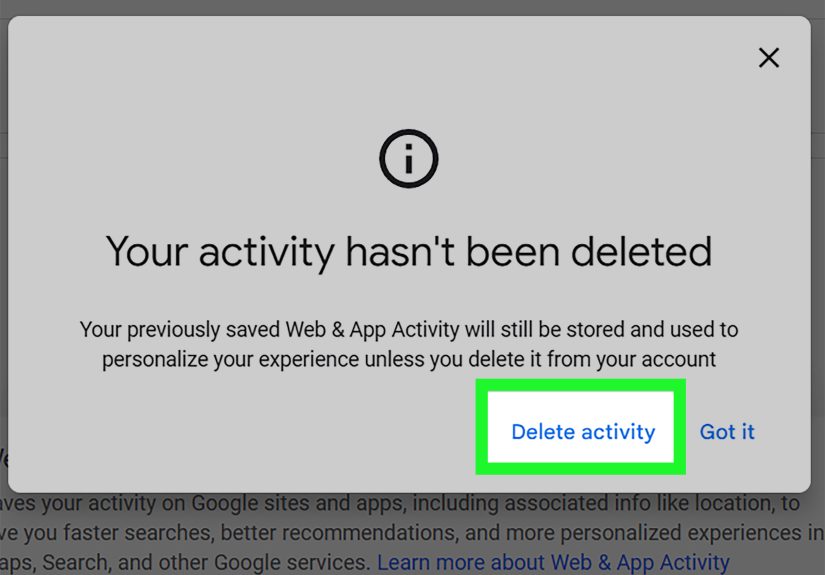
- Choose either Turn off or Turn off and delete activity.
If you pick Turn off, Google should stop saving future activity covered by this setting. If you choose Turn off and delete activity, you get the privacy win plus some cleanup. That option is usually the better pick if your goal is not only to stop future saving but also to reduce what is already stored.
Why desktop is great for this
Desktop gives you a clearer view of your account dashboard, which makes it easier to check neighboring settings like Location History, YouTube History, and ad personalization. In other words, it is easier to go from “I should tweak one privacy setting” to “I have become the manager of my own digital kingdom.”
Best use case
Use this method if you share a family computer, manage multiple Google accounts, or simply prefer seeing everything in one place without squinting at a phone screen like you are decoding a treasure map.
Way 2: Turn Off Google Web & App Activity on Android
Android makes this pretty convenient because Google account settings are built directly into the system settings menu. If your phone is nearby, you can do the whole thing without opening a desktop browser.
Steps for Android phones and tablets
- Open the Settings app on your Android device.
- Tap Google.
- Tap Manage your Google Account.
- Open the Data & privacy tab.
- Under History settings, tap Web & App Activity.
- Turn the setting off.
- Select Turn off or Turn off and delete activity.
On some devices, the wording or layout may look slightly different depending on Android version or recent interface updates. Do not panic. You are still looking for the same core path: Google account, Data & privacy, then History settings.
Android-specific tip
If your phone is signed in with more than one Google account, double-check that you are editing the right one. This is one of the most common causes of the “I turned it off and somehow nothing changed” problem. Many people discover they updated the account for YouTube or Play Store while their main Search activity lives somewhere else.
When this method makes the most sense
Use Android settings when your phone is your main device and you want the fastest route. It is especially useful if you rarely log into your Google account from a computer.
Way 3: Turn Off Google Web & App Activity on iPhone or iPad
Even though this is a Google setting, iPhone and iPad users can still change it easily. You usually do it through the Google account controls page rather than a deep iOS settings path.
Steps for iPhone and iPad
- Open a browser or supported Google app and sign in to your Google Account.
- Go to your Google Account controls or the Activity controls page.
- Tap Data & privacy if needed.
- Find History settings.
- Tap Web & App Activity.
- Turn it off.
- Choose Turn off or Turn off and delete activity.
This method is especially handy for people who use Google apps heavily on iPhone, like Search, Maps, Gmail, or Chrome, but do not want that activity continuously feeding account-level personalization.
What iPhone users should remember
Turning off Web & App Activity in your Google Account is not the same as adjusting Apple privacy settings. They work side by side, not as a single magic setting. If you want maximum privacy, review both your Google account controls and iPhone privacy permissions.
Optional Middle Ground: Use Auto-Delete Instead
Maybe you are not ready to shut the whole thing down. Fair enough. Some people like the convenience of personalized search suggestions but do not want years of activity hanging around like digital attic boxes nobody asked for.
In that case, consider Auto-delete. Google offers an option to automatically remove saved activity after a set time period. This can be a good compromise if you want some personalization without a permanent archive.
How to enable auto-delete
- Open your Google Account.
- Go to Data & privacy.
- Under History settings, tap or click Web & App Activity.
- Select Auto-delete.
- Choose your preferred retention period and confirm.
This approach is often ideal for users who want a “less clutter, still useful” setup. It is privacy with a practical streak.
Common Mistakes to Avoid
1. Confusing browser history with Google activity
Deleting your browser history does not necessarily remove Web & App Activity stored in your Google Account. Those are related, but not identical. If you want both gone, handle both separately.
2. Forgetting old activity may still exist
If you only tap Turn off, older entries may still remain in My Activity. Choose the delete option too if you want a cleaner slate.
3. Ignoring other privacy settings
Location History, YouTube History, ad personalization, browser sync, and device permissions all affect privacy in different ways. Web & App Activity is a major control, but not the only one.
4. Using the wrong Google account
This one deserves dramatic music. If you have multiple Google accounts, make sure you are editing the right one. Otherwise, you may turn off activity on your “junk email for coupons” account while your main account keeps logging away like nothing happened.
Should You Turn Off Google Web & App Activity?
That depends on what you care about most.
Turn it off if: privacy matters more to you than personalization, you share devices, you do not like long-term activity logs, or you simply want tighter control over what your account remembers.
Leave it on or use auto-delete if: you like customized search results, rely on Google suggestions, or want convenience without fully cutting off history-based features.
There is no universally correct choice. Some people love having Google remember everything short of their favorite sandwich order. Others would prefer a digital relationship with much stronger boundaries. Both are valid.
Extra Tips for Better Google Privacy
- Review Location History separately.
- Check YouTube History if you do not want watch behavior saved.
- Look at Ad settings and personalized ads controls.
- Delete old data in My Activity.
- Consider requiring an extra verification step to view full activity history.
- Check Chrome sync settings if you use Chrome across devices.
These small changes add up. Privacy is rarely one giant switch. It is usually a handful of sensible tweaks that quietly make your account less chatty.
Final Thoughts
If you have been meaning to turn off Google Web & App Activity, the process is refreshingly straightforward once you know where to look. On a computer, you can do it from your Google Account dashboard. On Android, it lives inside system settings under Google account controls. On iPhone or iPad, it is just as manageable through the Google account activity controls page.
The most important thing to remember is this: turning the setting off is only half the story. If you want a stronger privacy reset, choose the option to delete activity too, and review related settings like Location History, YouTube History, and ad personalization. That is how you move from “I changed one setting” to “I actually cleaned up my privacy setup.”
In other words, do not just tap the toggle and walk away like you are exiting an action movie. Check the surrounding controls too. Your future self will thank you, and your Google account will stop acting like the world’s nosiest journal.
Experiences People Commonly Have After Turning Off Google Web & App Activity
One of the most common experiences people describe after turning off Google Web & App Activity is a weird little sense of relief. Not fireworks. Not a dramatic orchestral swell. Just that quiet feeling of, “Okay, my account does not need to remember every random thing I searched at 1:14 a.m.” For many users, that alone makes the change worth it.
People who share devices often notice the biggest benefit first. If a family computer, tablet, or even a shared Android device is involved, turning off this setting can reduce the chance that one person’s searches shape another person’s recommendations. Without that history piling up, Google feels a little less like a roommate who keeps borrowing everyone’s notes and mixing them together.
Another common experience is discovering how many Google settings are connected without being exactly the same. A lot of users expect that turning off Web & App Activity will erase everything instantly and everywhere. Then they realize browser history may still exist, YouTube has its own history controls, and location-related data has separate settings too. That can feel annoying at first, but it usually leads to a more informed privacy setup. Once people understand the system, they tend to make smarter choices instead of relying on one giant “fix everything” button that does not really exist.
Some users also notice a drop in personalization. Search suggestions may feel less tailored. Recommendations may become a bit more generic. For people who love convenience, this can be a downside. But for privacy-focused users, it often feels like a fair trade. They would rather get a slightly less psychic search engine than keep feeding an always-growing activity log.
There is also the multiple-account problem, which shows up a lot in real-world use. Someone thinks they turned off tracking, but later finds activity still showing up. The culprit is often simple: they were signed into the wrong Google account. This happens all the time on Android phones, shared browsers, and devices with one account for Gmail, another for YouTube, and a third for app downloads. Once people realize this, they usually become much more careful about checking the profile icon before changing any privacy setting.
For iPhone users, the experience is often less about confusion and more about surprise. Many assume Apple privacy tools cover everything they do on the device. Then they remember that Google account data is managed separately. Once they change the setting on the Google side, they feel more in control because they are no longer assuming one company’s settings automatically manage another company’s data practices.
Some users choose not to turn Web & App Activity off completely and instead switch to auto-delete. Their experience tends to be a practical one: enough personalization to keep Google useful, but less long-term storage hanging around. That middle-ground setup is especially popular with people who want convenience but dislike the idea of years of search and app behavior sitting in one account timeline.
Overall, the experience is usually not dramatic. It is not the kind of change that transforms your device overnight. It is more subtle than that. But subtle can be powerful. People often end up feeling more deliberate, more informed, and more comfortable with how their account works. And honestly, in a world full of settings nobody asked for and dashboards nobody enjoys, that is a pretty satisfying result.