Table of Contents >> Show >> Hide
- Before You Mute: Know What Kind of “Group Text” You’re In
- Option 1: Mute the Group Inside Google Messages (SMS/MMS/RCS)
- Option 2: Mute the Group Inside Samsung Messages (Galaxy Phones)
- Option 3: Silence Just That Group Using Android’s Conversation Notification Controls
- Option 4: Use Do Not Disturb (or Modes) to Quiet the Noise Without Missing Emergencies
- Quick Troubleshooting If Muting “Doesn’t Work”
- FAQ: The Questions People Ask Right After They Mute
- of “Mute” Experiences You’ll Probably Recognize
- Conclusion
Group texts are wonderfuluntil they become a 24/7 notification treadmill. One minute it’s “Dinner at 7?” and the next
it’s 86 messages about whether hot dogs are sandwiches (they’re not… and yet here we are).
The good news: you don’t have to leave the group (and trigger the social equivalent of slamming a door). You can simply
mute the group chat text on Android so your phone stops auditioning for a percussion section.
Below are four easy, reliable ways to mute group text notificationswhether you’re using Google Messages,
Samsung Messages, or Android’s built-in notification controls. I’ll also share troubleshooting tips (because Android loves
variety) and a 500-word “you’re not alone” experiences section at the end.
Before You Mute: Know What Kind of “Group Text” You’re In
On Android, “group chat text” can mean a few different things:
- SMS/MMS group text: The classic carrier-based group message. Works on any phone, but features can be basic.
-
RCS group chat: A modern, data-based upgrade often handled by Google Messages. It can include read receipts,
typing indicators, and richer media (when supported). - App-based group chats: WhatsApp, Telegram, Facebook Messenger, Google Chat, etc. These have their own mute buttons inside the app.
Why this matters: the mute setting might live inside the messaging app, inside Android’s system notification settings,
or both. If one path feels like a scavenger hunt, you’ll use another option below and still win.
Option 1: Mute the Group Inside Google Messages (SMS/MMS/RCS)
If your Android phone uses Google Messages as the default texting app (common on Pixel and many other Android devices),
you can mute a specific group conversation without muting all texts.
How to mute a group text in Google Messages
- Open Messages.
- Tap the group conversation you want to silence.
-
Tap the three-dot menu (top right) or tap the group name / info at the top
(the exact layout varies by version). - Select Details or Group details.
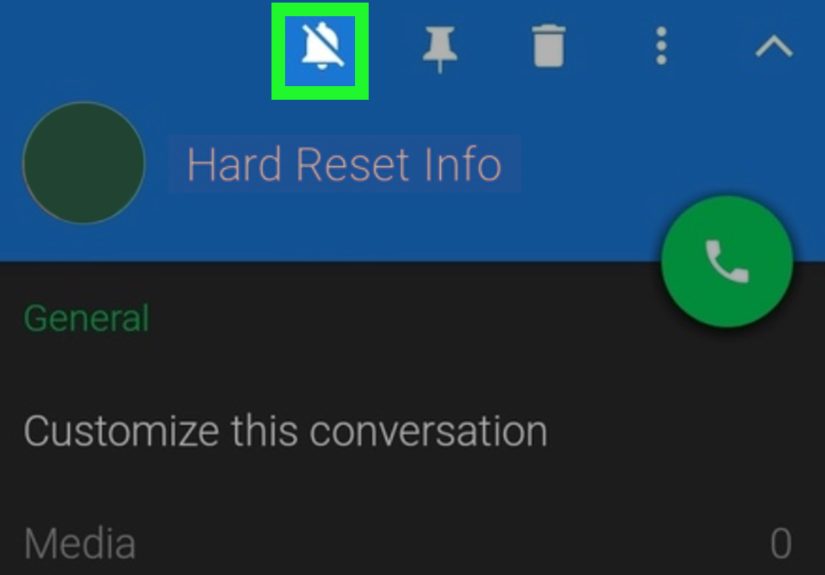
- Tap Notifications.
-
Choose Silent (or disable “Allow notifications” if your version offers a direct toggle).
Your group chat still receives messages; it just stops yelling about them.
What “Silent” actually means (and why it can feel confusing)
In many Android builds, “Silent” means no sound and no vibration, but the notification may still appear quietly
in your notification shade. That’s not Android being passive-aggressiveit’s Android being… Android. If you want it to stop
appearing entirely, jump to Option 3 for deeper system controls.
Example: The “Fantasy Football at 2 A.M.” fix
Let’s say you’re in a group chat where one person believes sleep is a myth invented by mattress companies. Set that conversation
to Silent. Now you can check the messages laterwhen you’re awake and emotionally prepared.
Option 2: Mute the Group Inside Samsung Messages (Galaxy Phones)
If you have a Samsung Galaxy and you’re using Samsung Messages (or a carrier-flavored Messages app), you can usually mute
a group thread with a per-conversation notification setting.
How to mute a group text in Samsung Messages
- Open Samsung Messages.
- Open the group conversation.
- Tap the menu (often the three dots).
- Look for Notifications or Custom notifications.
- Set the notification to Silent or turn off Allow notifications for that conversation (wording varies).
Samsung’s menus sometimes hide the best controls one tap deeper than you expect. If you don’t see a simple “Mute” button,
look for anything labeled Notifications, Alert type, Sound, or Custom.
(Android phone makers love synonyms.)
Why this option is great
Muting inside the app is the most “set it and forget it” approach. It also stays tied to that specific thread, so your other texts
(like delivery updates or actual emergencies) can still notify you normally.
Option 3: Silence Just That Group Using Android’s Conversation Notification Controls
Starting with Android 11 and continuing through newer versions, Android treats many messages as conversations.
That means you can often mute a specific chat directly from the notification itselfno digging through app menus required.
Mute from the notification shade (fastest method)
- Wait for a notification from the noisy group (it won’t be long).
- Swipe down to open the notification shade.
- Press and hold the group chat notification.
-
Choose Silent (or tap the gear icon for more options).
On some phones you can also fully turn it Off for that conversation.
Go deeper: Conversation settings inside Android notifications
If your phone shows conversation controls, you may see options like:
Priority, Default, or Silent.
“Priority” is the VIP lane; “Silent” is the library; “Default” is… normal chaos.
Hidden-but-useful setting: “Hide silent notifications”
If you muted a thread but it still appears quietly in the status bar, Android may have a setting like
Hide silent notifications in status bar. Turning that on can make silent group chats feel truly invisible
(without blocking them).
This option is perfect when your messaging app’s mute feature feels half-baked. Android’s system settings can override (or refine)
what the app is doing.
Option 4: Use Do Not Disturb (or Modes) to Quiet the Noise Without Missing Emergencies
If group chats are only part of the problemand you want peace during work, sleep, or “I can’t even right now” hoursuse
Do Not Disturb or Modes. You can silence messages broadly, then allow exceptions for the people who matter.
Stock Android (Pixel and many others): Do Not Disturb / Modes
- Open Settings.
- Tap Modes (or Sound & vibration > Do Not Disturb).
-
Under Notification filters, choose what’s allowed:
- People: allow calls/messages from starred contacts, contacts only, or nobody.
- Apps: allow notifications from specific apps (like your banking app) while silencing everything else.
- Schedules: auto-enable during work hours or at bedtime.
- Optionally set Duration so DND turns off automatically (great for meetings).
Samsung Galaxy: Modes and Routines + Do Not Disturb
- Open Settings.
- Tap Modes and Routines (or go to Notifications / Sounds, depending on model).
- Choose Do Not Disturb.
-
Set exceptions:
- Calls and messages: allow from favorites/starred contacts.
- App notifications: allow key apps.
- Hide notifications: control what appears on screen while DND is active.
- Add a schedule so it turns on automatically during sleep or focus time.
When this option is the best choice
Use DND/Modes when you need a time-based solution:
you don’t want to permanently mute a group, but you do want your phone to calm down during work, dinner, bedtime, or “I’m watching a movie and I swear if this group chat pings me again…”
Quick Troubleshooting If Muting “Doesn’t Work”
If you muted the group and it’s still bothering you, it’s usually one of these situations:
1) You silenced sound, but not the notification itself
“Silent” often removes sound/vibration but still shows a quiet notification. If you want zero presence, use
Option 3 and disable that conversation’s notifications more aggressively.
2) The group chat is in a different app than you think
A WhatsApp group, Google Chat space, or Facebook Messenger thread won’t be controlled the same way as SMS/RCS.
If the chat lives in an app, open that app and use its built-in Mute notifications feature.
3) Notification categories are overriding your choices
Android apps can split notifications into categories (for example: “Incoming messages,” “Bubbles,” “Other”).
If muting feels inconsistent, go to Settings > Notifications > App notifications
> select your messaging app and verify the relevant category is set the way you want.
4) You’re getting alerts on another device
If you use a smartwatch or a connected web client, it may still mirror notifications. Check notification settings on the wearable,
and confirm the conversation is muted on the phone itself.
FAQ: The Questions People Ask Right After They Mute
Will I still receive the messages?
Yes. Muting stops the interruptions, not the messages. The chat will keep updating quietly in the background.
Can other people tell I muted the group?
Typically, no. Muting is a private, local setting on your phone. No “User has entered Silent Monk Mode” banner is sent to the group.
Can I mute a group text temporarily?
Many messaging apps and Android versions offer timed controls through Do Not Disturb duration or scheduled Modes.
Some newer rollouts also add “mute for a duration” style options inside messaging appsif you see it, it’s the best of both worlds.
Does muting stop vibration too?
Usually, yesif you set the conversation to Silent. But vibration can be controlled separately on some devices.
If your phone still vibrates, open the conversation’s Notifications settings and confirm vibration is disabled for that thread.
of “Mute” Experiences You’ll Probably Recognize
Let’s talk about the part nobody admits out loud: muting a group chat feels weirdly emotional. Not because you’re fragilebecause
group chats are a social ecosystem. There are roles. There are rituals. There is always one person who reacts to every single message
with three laughing emojis, even when nothing is funny.
A classic scenario: the family group chat. It starts innocent (“Happy birthday, Aunt Linda!”) and spirals into
42 photos of someone’s casserole from slightly different angles. You don’t want to miss the important stufflike “We changed the
dinner location”but you also don’t need a live documentary of shredded cheese. Muting the thread in Google Messages (Option 1)
is the healthiest middle ground: you’re still present, just not on-call.
Then there’s the work group text that was created for “quick updates” and somehow became a second Slack. It’s 9:12 p.m.
and someone is “just circling back” with a question that could absolutely wait until morning. This is where Do Not Disturb
shines (Option 4): set a schedule from, say, 7 p.m. to 7 a.m., allow calls from your favorites, and let everything else bounce off an
invisible force field. You wake up with your sanity intact and still have the messages waiting for you when you’re ready.
Friend groups have their own flavor. There’s the travel-planning chat where nobody agrees on dates, budgets, or whether camping is “fun”
or “just sleeping outside on purpose.” These chats arrive in burstsquiet for days, then suddenly a tidal wave of opinions at lunchtime.
Muting via the notification shade (Option 3) is perfect here: long-press the notification, set it to silent, and keep your day moving.
Later, when you’re not juggling life, you can scroll back and see what you missed without the constant pings.
And here’s the underrated truth: muting isn’t rudeit’s boundary-setting. Your phone should work for you, not the other way around.
Muting a group chat doesn’t mean you don’t care. It means you care about focus, sleep, and not launching your phone into the sun.
Pick the method that fits your situation: per-thread mute for chronic noise, Android system controls when apps won’t cooperate, and scheduled DND
when you need predictable quiet. Your future self (and your blood pressure) will thank you.
Conclusion
Muting a group chat text on Android is one of those tiny upgrades that makes your whole day feel smoother. Choose the option that matches your setup:
mute inside your messaging app, silence from the notification shade, or use Do Not Disturb/Modes for scheduled peace. You’ll still get the messages
you just won’t get interrupted by them. And that is the real luxury.