Table of Contents >> Show >> Hide
- Step 1: Identify Which U-verse Remote You Have (Because the Buttons Matter)
- Before You Program: A Quick Checklist That Saves Your Sanity
- Option 1: Use the On-Screen “Remote Control Setup” Tool (Easiest for Most People)
- Option 2: Program an S10 (Standard) U-verse Remote with a Manufacturer Code
- Option 3: Program an S10 Remote Using Auto Code Search (No Code List Required)
- Option 4: Program an S20/S30 U-verse Remote (TV and Audio)
- Enter programming mode (S20/S30)
- Method A: “Top Ten Brand Setup” style programming (fast for common TV brands)
- Method B: Automatic code search (for brands not in the “Top Ten” list)
- Method C: Direct code entry (precise, best when you have the code list)
- Popular audio devices by brand (S20/S30 shortcut)
- Option 5: Program a Point Anywhere Remote (A30/A20)
- Make the Volume Buttons Do What You Actually Want
- How to Reset Your U-verse Remote (When Everything Gets Weird)
- Troubleshooting (Because Remotes Love Drama)
- 500-Word Experiences: What It’s Actually Like to Program an AT&T U-verse Remote Control
Your AT&T U-verse remote can be a tiny hero: one click, and your TV turns on, your soundbar wakes up,
and you feel like the ruler of your living room kingdom. Or it can be a tiny villain: the volume buttons
control the wrong device, the power button does nothing, and you start bargaining with the universe.
The good news: programming a U-verse remote is usually a five-minute jobas long as you use the right
steps for the right remote model. This guide walks you through the most common AT&T U-verse remotes
(S10, S20/S30, and the “Point Anywhere” remotes) with multiple programming methods, real-world tips,
and troubleshooting that doesn’t assume you enjoy pain.
Step 1: Identify Which U-verse Remote You Have (Because the Buttons Matter)
AT&T U-verse remotes look similar at a glance, but the programming button combos can be totally different.
Before you do anything dramatic (like entering random codes until the remote achieves sentience), take 20 seconds
to identify your model.
-
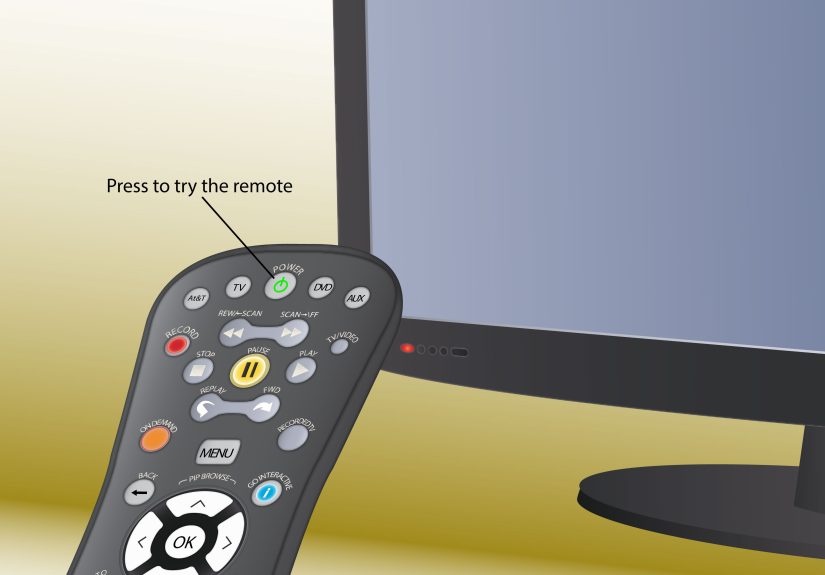
S10 / “Standard” / Silver-style remotes: Usually have mode buttons like AT&T, TV, DVD, AUX.
Programming commonly uses a mode button + OK (manual code) or mode button + Enter (auto search). -
S20 / S30 remotes: Often use OK + Menu to enter programming mode, then keys like
On Demand (TV) and Interactive (Audio). -
Point Anywhere remotes (A30/A20): Can control the U-verse receiver without perfect line-of-sight,
but still need normal “point at the TV” behavior for TV/audio programming. These typically use OK + Menu
and may involve arrow keys flashing plus audible beeps.
If you’re unsure, you can still proceed: the on-screen U-verse “Remote Control Setup” tool (covered next) is
designed to guide you based on what you select on your TV.
Before You Program: A Quick Checklist That Saves Your Sanity
- Put fresh batteries in the remote. Weak batteries can make programming fail or “sort of work” in maddening ways.
- Turn on the device you’re programming (TV, soundbar, receiver, DVD/Blu-ray).
- Stand close and aim correctly. For TV/audio programming, assume you need line-of-sight.
- Decide what you want: Do you want the U-verse remote to control TV power + TV volume, or soundbar volume, or both?
- Expect two rounds sometimes. It’s normal to program power successfully, then tweak volume control separately.
Option 1: Use the On-Screen “Remote Control Setup” Tool (Easiest for Most People)
If you like instructions that appear on your TV screen (instead of interpretive blinking-light puzzles),
use the built-in U-verse setup tool. It’s especially helpful if you don’t know your remote model or you’re
trying to control an audio device like a soundbar.
- Turn on your TV and your U-verse receiver.
- On the U-verse remote, press Menu.
- Select Help > Information > Remote Control Setup.
- Select your remote model from the list.
-
Choose a setup method:
- Top Ten Brand Setup (fast for popular brands)
- Automatic Code Search (remote searches codes)
- Manual Setup (you enter a code)
If you’re programming a soundbar and the TV keeps stealing volume control, this on-screen tool can be the cleanest
path because it helps you pick “TV” vs “Audio Device” up front.
Option 2: Program an S10 (Standard) U-verse Remote with a Manufacturer Code
Manual code entry is best when you want predictable results (and fewer “hold this button and hope” moments).
The only catch is you need the correct code for your TV or audio device brand.
Manual code programming steps (S10-style)
- Turn on the TV (or device) you want to control.
- Find the correct setup code for your brand (many brands have multiple codesmake a short list).
-
Press and hold the mode key you want to program (TV, DVD, or AUX)
and the OK key together for about 1 second, then release.
The mode keys should flash to confirm programming mode. - Enter the 4-digit device code using the number pad.
- The chosen mode key should give a longer flash to confirm the code was accepted.
- Point the remote at the device and press Power to test. If it doesn’t work, try the next code for your brand.
Practical tip: If you only care about volume, test Volume Up, Volume Down, and Mute
after power works. Some codes turn the TV off but won’t change volume (or vice versa). Remote programming is like dating:
success requires more than one checkbox.
Option 3: Program an S10 Remote Using Auto Code Search (No Code List Required)
Auto code search is the “let’s try everything until your TV reacts” method. It’s perfect for older TVs,
off-brand sets, or when you don’t feel like hunting through code lists.
Auto code search steps (S10-style)
- Turn on the device you want to program and aim the remote at it.
-
Press and hold the device mode button (TV/DVD/AUX) and the Enter button together
for about 1 second, then release. The remote should indicate you’re in programming mode. -
Press the Scan/FF button repeatedly (pause briefly between presses) until the device turns off.
If you think you went past the correct code, press Rew/Scan repeatedly and test again. - Test Volume and Mute. If something isn’t right, press Scan/FF again until it behaves.
- Press Enter to save the code. The mode key should flash to confirm.
What this feels like in real life: You’ll press Scan/FF, your TV will stubbornly stay on,
you’ll press again, nothing… again, nothing… and then suddenly the TV turns off and you look around like
you just performed magic. That’s normal.
Option 4: Program an S20/S30 U-verse Remote (TV and Audio)
The S20 and S30 remotes share the same functionality (the S30 is commonly backlit). These remotes use a different
“enter programming mode” combo, and they offer a few different programming paths depending on whether you’re setting up a TV
or an audio device.
Enter programming mode (S20/S30)
Press and hold OK and Menu together for about 3 seconds until the Power key flashes red twice.
Method A: “Top Ten Brand Setup” style programming (fast for common TV brands)
- Enter programming mode (OK + Menu).
- Press On Demand to program the TV.
- While pointing at the TV, press and hold the number key that corresponds to your TV brand.
- Release the key as soon as the TV turns off.
- Press Power to turn the TV back on, then test volume and mute.
Method B: Automatic code search (for brands not in the “Top Ten” list)
- Enter programming mode (OK + Menu).
- Press On Demand for TV programming, or Interactive for audio device programming.
- Press and hold Fast Forward while pointing at your device until it responds (TV turns off or audio mutes).
-
When the device responds:
- TV: Release Fast Forward as soon as the TV turns off, then press Power to turn it back on.
- Audio: Release when the device mutes, then press Mute to unmute and test volume.
- If power or volume isn’t right, repeat the process.
Method C: Direct code entry (precise, best when you have the code list)
- Enter programming mode (OK + Menu).
- Enter the first code listed for your brand (S20/S30 code lists are commonly 5-digit codes).
- Test Power and Volume. If it fails, repeat and try the next code for that brand.
Popular audio devices by brand (S20/S30 shortcut)
If you’re programming an audio device and want the quick “brand shortcut,” S20/S30 remotes can use a brand-number mapping
for popular audio brands (for example: Bose, Denon, LG, Onkyo, Panasonic, Philips, Pioneer, Samsung, Sony, Yamaha).
- Enter programming mode (OK + Menu).
- Press Interactive (for audio).
- Point at the audio device and press/hold the brand’s number key until the device mutes.
- Press Mute to unmute, then test Volume Up/Down.
Important: Once an audio device is programmed, volume control may default to that audio devicegreat if you want it,
confusing if you don’t. (We’ll fix “volume behavior” later in this guide.)
Option 5: Program a Point Anywhere Remote (A30/A20)
“Point Anywhere” is basically the remote saying, “I’m not like other remotes.” It may control your U-verse receiver without
perfect aiming, but when you’re programming a TV or soundbar, still assume you should face the device like you’re taking a polite selfie.
Brand programming (Point Anywhere style)
- Press and hold OK + Menu for about 3 seconds (you may see arrow keys flash and hear beeps).
- Press the device button you want to set up: TV, DVD, or AUX.
- Press and hold the number button for your brand while aiming at the device.
- Release when the TV/DVD turns off or the audio device mutes.
- Turn the device back on (Power) or unmute (Mute), then test volume.
Auto code search (Point Anywhere style)
- Enter programming mode (OK + Menu).
- Select the device button (TV/DVD/AUX).
- Press and hold FF until the device responds, then release.
- Test volume; repeat if needed.
Manual code entry (Point Anywhere style)
- Find the correct device code list for your Point Anywhere remote (commonly 5-digit codes).
- Enter programming mode (OK + Menu).
- Enter the first code for your brand, then test. Try the next code if needed.
Make the Volume Buttons Do What You Actually Want
The #1 complaint after “my remote won’t program” is “my volume is controlling the wrong thing.”
Usually this happens because you’ve successfully programmed both a TV and an audio device, and the remote picked a favorite.
Adjust volume control behavior on S20/S30 remotes
S20/S30 remotes include a built-in way to assign volume control to the device you prefer (TV, Audio device, or set-top box).
In general, you enter program mode, press Volume Up, then press the device key for the target device.
Real-world example: If you want volume to always control your soundbar, program the audio device first, then set volume control
to Audio. If you want the TV speakers to handle volume (even with a soundbar plugged in), set volume control to TV.
Power macro behavior (S20/S30)
If you want one press of Power to turn on/off multiple devices (receiver + TV + audio), S20/S30 remotes allow setting a power sequence.
This is great when it worksand “fun” when you accidentally program it to turn on everything except the device you wanted.
Go slowly, confirm each step, and test immediately.
How to Reset Your U-verse Remote (When Everything Gets Weird)
Resetting clears programming so you can start fresh. It’s also a lifesaver if your remote got “half programmed” and now thinks
your TV is a toaster.
Reset S10, Silver, and Point Anywhere remotes
- Press and hold AT&T + OK simultaneously.
- Release both keys (mode keys flash to confirm programming mode).
- Enter 900. The AT&T key gives a long flash to confirm reset.
Reset S20 and S30 remotes
- Press and hold Menu + OK simultaneously.
- Release both keys (remote flashes to confirm programming mode).
- Enter 981. The Power key flashes multiple times to confirm reset.
Troubleshooting (Because Remotes Love Drama)
The TV turns off during setup, but volume doesn’t work
- Try the next code for your TV brand (many brands have multiple codes).
- Use auto code search and keep scanning until volume behaves correctly, then save.
- If you have a soundbar, confirm whether the remote is sending volume to the TV or the audio device.
Auto code search “skipped” the right code
- On S10-style remotes, use the rewind/scan-back function to step backward through codes, then retest.
- Go slowersome devices need a pause to respond.
Nothing happens when I press buttons
- Replace batteries and confirm they’re seated correctly.
- Check for line-of-sight issues and bright light/IR interference.
- If you’re still stuck, restart the U-verse receiver and verify cables/TV input settings.
Programming keeps timing out
- Have your code list ready before entering programming mode.
- Don’t pause too long between stepsmany remotes exit programming mode after short inactivity.
500-Word Experiences: What It’s Actually Like to Program an AT&T U-verse Remote Control
Let’s be honest: “program your remote” sounds like something you’d do with a laptop, a command line, and a smug sense of accomplishment.
In reality, it’s you standing three feet from a TV, holding your remote like it’s a sacred artifact, whispering, “Please… just mute.”
The first time most people try, they pick the wrong method. Manual code entry is fastif you already have the right code. But if you’re missing
the code list, you end up playing “guess the numbers” while the remote silently judges you. That’s when automatic code search becomes the hero.
It’s slower, but it doesn’t require you to know whether your TV is technically a “Hisense” or a “HISENSE-but-spelled-like-a-sneezed-password.”
The trick is patience. Tap, pause, watch. Tap, pause, watch. The moment your TV shuts off, you’ll feel like you just won a tiny Olympic event.
The most common real-life snag is volume control. People program the TV successfully, celebrate, and then realize the volume buttons
are controlling the U-verse receiver (or nothing at all). Or they program a soundbar and suddenly the TV volume never changes again. This isn’t a failure;
it’s just “volume routing.” Decide what you want: TV speakers or external audio. If you use a soundbar every day, set volume to the audio device and
forget about it. If you only use the soundbar on movie night, keep volume on the TV so you’re not troubleshooting every Tuesday at 7:12 PM for no reason.
Another experience-based tip: if you’re programming power, test it three times in a row. The first time, your TV might turn off because you hit the correct
code. The second time might fail if the device needs a slightly different command timing. That’s why it’s smart to test Power, Volume, Mute, and even Input
(if supported) before you lock anything in.
Finally, keep a “remote note” in your phone: your TV brand, audio brand, and the code that worked. Future-you will thank present-you, especially after a battery
change, a reset, or the moment your remote mysteriously forgets everything and decides it only speaks “DVD player.”