Table of Contents >> Show >> Hide
- What Happens When You Uninstall Discord?
- Before You Uninstall Discord
- Way 1: Uninstall Discord Using Built-In System Tools
- Way 2: Completely Remove Discord and Its Leftover Files
- Which Method Should You Use?
- Common Problems When Uninstalling Discord
- Does Uninstalling Discord Improve Performance?
- Can You Use Discord Without Installing the App?
- Extra Experiences and Practical Lessons From Uninstalling Discord
- Conclusion
- SEO Metadata
Discord is fantastic when you need voice chat, group messages, or a place to debate whether pineapple belongs on pizza. But when the app starts acting up, hogging space, refusing to update, or simply outstays its welcome, it is time to show it the digital exit door. The good news is that uninstalling Discord on a PC or Mac is usually simple. The better news is that if Discord decides to be dramatic, there is a second method that removes leftover files too.
In this guide, you will learn how to uninstall Discord on PC or Mac using two reliable methods. The first uses your computer’s built-in uninstall tools. The second is a more complete cleanup for stubborn installs, corrupted files, or those annoying moments when Discord looks uninstalled but somehow keeps haunting your machine.
What Happens When You Uninstall Discord?
Before you send Discord to the recycling afterlife, here is the important part: uninstalling the desktop app removes the software from your computer, but it does not erase your Discord account. Your servers, direct messages, friends list, and account settings live with your account, not only on that specific device. So if you reinstall Discord later or use the web version, your account should still be there waiting for you like nothing happened.
What can remain behind are local files such as cache, update data, and application support folders. That is why some people uninstall Discord, reinstall it, and then discover the exact same weird bug is still partying in the background. If that sounds familiar, Method 2 is the fix.
Before You Uninstall Discord
Take one minute to do a little housekeeping first:
- Quit Discord completely before uninstalling it.
- On Windows, check the system tray and Task Manager for any Discord processes still running.
- On Mac, quit Discord and confirm it is not still active in Activity Monitor.
- If you use Discord for work, school, gaming groups, or community management, make sure you know your login details before removing the app.
Now let us get into the two ways to remove Discord.
Way 1: Uninstall Discord Using Built-In System Tools
This is the easiest and most common method. If Discord is behaving normally and you just want it gone, this is where to start.
How to Uninstall Discord on a Windows PC
- Close Discord completely. Right-click the Discord icon in the system tray and choose Quit Discord. Then open Task Manager and end any Discord tasks still running.
- Open Windows Settings. Click Start, then go to Settings > Apps > Installed apps on newer versions of Windows.
- Find Discord. Scroll through the app list or use the search bar to locate Discord.
- Select Uninstall. Click the three-dot menu next to Discord and choose Uninstall.
- Follow the prompts. Windows will remove the app from your system.
- Restart your PC if needed. This is not always required, but it helps clear any lingering processes.
If you are more of an old-school Control Panel person, you can also uninstall Discord through Control Panel > Programs > Programs and Features, then select Discord and choose Uninstall. Same destination, slightly more vintage route.
How to Uninstall Discord on a Mac
- Quit Discord. Press Command + Q or right-click the app in the Dock and choose Quit.
- Open Finder. Go to the Applications folder.
- Look for an uninstaller. Some Mac apps include their own uninstaller inside the app folder. If Discord includes one, use it.
- If there is no uninstaller, drag Discord to the Trash. You can also right-click the app and choose Move to Trash.
- Empty the Trash. This permanently removes the app and frees up the storage space.
If Discord was installed from the App Store, you may also be able to remove it through Launchpad by clicking and holding the icon until it jiggles, then clicking the delete button. In real life, though, most people install Discord from the website, so Finder is usually the easiest method.
Way 2: Completely Remove Discord and Its Leftover Files
This method is for the tougher cases. Maybe Discord will not uninstall cleanly. Maybe it is stuck in an update loop. Maybe you are planning to reinstall it and want a genuinely fresh start instead of a fake fresh start wearing yesterday’s cache files.
How to Completely Remove Discord on Windows
- Quit Discord and end every Discord process. Check the system tray and Task Manager. If Discord is still running, Windows may refuse to remove certain files.
- Try the normal uninstall first. Go to Settings > Apps > Installed apps and uninstall Discord.
- Open the Run dialog. Press Windows + R.
- Type %appdata% and press Enter. Find the Discord folder and delete it.
- Open Run again. Press Windows + R once more.
- Type %localappdata% and press Enter. Find the Discord folder and delete it too.
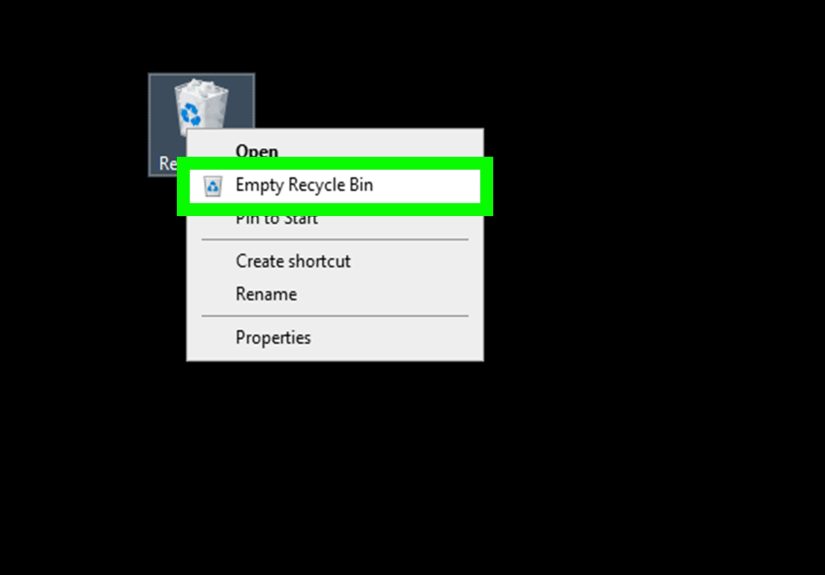
- Empty the Recycle Bin. That final step matters more than people think.
- Restart your PC. This clears out any leftover processes and locks on deleted files.
These folders often store local settings, cached content, update data, and other leftovers. If your Discord installation was corrupted or the app refused to reinstall properly, deleting those folders is often the magic trick.
If Windows still refuses to cooperate, there may be a damaged uninstall entry. In that case, you can use Microsoft’s program install and uninstall troubleshooter to repair removal problems. That is the software equivalent of calling in a professional cleaner after a house party.
How to Completely Remove Discord on Mac
- Quit Discord fully. Use Command + Q, then open Activity Monitor and end any remaining Discord processes.
- Delete the Discord app. Open Applications in Finder and move Discord to the Trash.
- Open Finder’s Go to Folder tool. In Finder, click Go > Go to Folder.
- Type ~/Library/Application Support and press Return. Look for the Discord folder and move it to the Trash.
- Open Go to Folder again. This time enter /Library/Application Support. If you see a Discord folder there, move it to the Trash too.
- Optionally check cache folders. If you want a deeper cleanup, inspect your user Library for cached Discord files and remove items clearly labeled for Discord.
- Empty the Trash.
- Restart your Mac.
This method is especially useful if Discord is stuck in an endless update cycle on macOS or refuses to launch after an update. A full cleanup gives you a clean slate instead of dragging buggy leftovers into the next installation.
Which Method Should You Use?
Use Way 1 if:
- You simply do not want Discord installed anymore.
- The app is working normally.
- You are not troubleshooting any major errors.
Use Way 2 if:
- Discord will not uninstall properly.
- You keep getting install or update errors.
- You plan to reinstall Discord and want a truly clean reinstall.
- The app feels broken, corrupted, or weirdly immortal.
Common Problems When Uninstalling Discord
Discord Is Still Running
This is the most common issue. If Windows or macOS says the file is in use, Discord is probably still running in the background. Quit it completely, then check Task Manager on Windows or Activity Monitor on Mac.
Discord Disappeared, but the Files Are Still There
That usually means you removed the main app but not the leftover folders. Use Method 2 to delete local data from AppData on Windows or Application Support on Mac.
Discord Won’t Reinstall After You Uninstall It
Old cache or support files may still be causing conflicts. Again, Method 2 is your best friend here. If your reinstall keeps failing, leftover files are often the hidden villain.
The Shortcut Is Gone, but Discord Still Shows Up Somewhere
Sometimes Start menu entries, Dock icons, or cached app references linger briefly after removal. A restart usually cleans that up. Your computer is not cursed. Probably.
Does Uninstalling Discord Improve Performance?
It can, depending on the situation. If Discord was launching at startup, running in the background, using memory for overlays, or storing a chunk of cache data, removing it can free up some system resources. You should not expect a miracle transformation where your laptop suddenly turns into a spaceship, but uninstalling apps you no longer use is still smart digital housekeeping.
If your goal is only to fix lag or glitches, you may not need to uninstall Discord completely. Sometimes clearing cache, turning off startup launch, or reinstalling the app is enough. But if Discord has become the technological version of a squeaky shopping cart wheel, a clean uninstall is often the fastest path back to peace.
Can You Use Discord Without Installing the App?
Yes. If you uninstall the desktop app but still want access to your servers and messages, you can use Discord in a web browser. That is handy if you want fewer installed apps, less background activity, or a quick backup plan while troubleshooting the desktop version.
Extra Experiences and Practical Lessons From Uninstalling Discord
One of the funniest things about uninstalling Discord is how often people assume it will be a one-click goodbye, only to find out the app left breadcrumbs all over the system like a tech-savvy raccoon. A lot of users start with the normal uninstall, see Discord disappear from the app list, and celebrate too early. Then they reinstall it, open it up, and somehow the same issue is still there. Same bug. Same glitch. Same chaos. That is usually the moment they realize local folders and cache files were still hanging around behind the curtain.
On Windows, a common experience is the dreaded “Discord is still running” problem. You think you closed it, but Discord is quietly lounging in the system tray like it pays rent. That is why checking Task Manager matters. Plenty of users waste time trying to delete folders that Windows refuses to touch simply because the process is still active in the background. Once those processes are ended, the cleanup suddenly becomes much less dramatic.
Mac users often run into a different kind of confusion. They drag Discord to the Trash, empty it, and assume the job is done. Technically, the app is gone. But if the goal is a clean reinstall after update problems, the hidden Library folders are where the real story lives. That is why experienced Mac users often go one step further and remove the Discord items from Application Support. It feels slightly more advanced, but it is not difficult once you know where to look.
Another real-world lesson is that uninstalling Discord does not have to be an anti-Discord statement. Sometimes people remove it because they want fewer distractions. Sometimes they are troubleshooting audio issues. Sometimes they are tired of startup apps turning an otherwise decent laptop into a sleepy potato. And sometimes they just need a break from pings, servers, and that one group chat that somehow has 947 unread messages before breakfast.
There is also a practical productivity angle here. If you work from home or study online, Discord can be both useful and wildly distracting. Uninstalling it from your computer for a while can be a simple way to reclaim focus. Then, if you still need access, the browser version becomes a lighter alternative. You get the essentials without the full app footprint.
In short, the experience of uninstalling Discord is usually smooth when you know which method to use. The built-in uninstall works for routine removal. The deeper cleanup works for corrupted installs and stubborn leftovers. Most frustration comes from not realizing there are really two layers to app removal: deleting the app itself and deleting the supporting files that may still affect future installs. Once you understand that difference, the whole process becomes much easier, much cleaner, and a lot less likely to make you mutter at your screen.
Conclusion
If you want to uninstall Discord on PC or Mac, the fastest route is to use your system’s built-in uninstall tools. That works well for most people. But if Discord refuses to uninstall, keeps breaking during updates, or leaves behind enough junk to qualify as emotional baggage, a full manual cleanup is the smarter move.
The bottom line is simple: Way 1 is for everyday uninstalls, and Way 2 is for complete removal of Discord and its leftover files. Pick the method that fits your situation, restart your computer, and enjoy the sweet silence of one less app running in the background.