Table of Contents >> Show >> Hide
- What “Fast Charging” Actually Means (In Plain English)
- Easy Way #1: Use the Right Charger and the Right Cable (Yes, Both)
- Easy Way #2: Turn On Fast-Charging Settings (and Make Sure You’re Using the Right Port)
- Easy Way #3: Optimize the Conditions (Because Heat = Slow Charging)
- If You Still Aren’t Getting Fast Charging: A 60-Second Troubleshooting Checklist
- Bonus: Choosing “Fast” vs “Safe” (You Can Have Both)
- Real-World Experiences: of “Yep, Been There” Fast-Charging Life Lessons
- Conclusion
Fast charging is one of those modern miracles that makes you feel like a responsible adultright up until you realize you’ve been
“fast charging” with a bargain-bin cable that’s basically a spaghetti noodle with dreams.
Here’s the good news: most “my phone won’t fast charge” problems have simple fixes. Fast charging isn’t magicit’s a negotiated deal
between your phone, your charger, and your cable. If any one of those shows up unprepared, everyone slows down like it’s a group project.
Below are three genuinely easy ways to enable fast chargingplus practical examples for iPhone and popular Android phones, a quick
troubleshooting checklist, and some real-world charging stories to keep things painfully relatable.
What “Fast Charging” Actually Means (In Plain English)
“Fast charging” usually means your phone can pull more power (watts) than standard charging by using a supported charging standard
(like USB Power Delivery, PPS, or Qualcomm Quick Charge) and a compatible cable. Your phone controls the process,
and it will slow down on purpose when:
- The battery gets warm (heat is the sworn enemy of speed).
- The battery reaches higher levels (charging naturally slows near the top).
- The charger/cable can’t supply what the phone is asking for.
So if you plug in and don’t see the “Fast charging / Super fast charging” message (on many Android phones), or you feel like your battery is moving
like a glacier, don’t panic. It’s usually a setup issuenot a conspiracy.
Easy Way #1: Use the Right Charger and the Right Cable (Yes, Both)
If you only do one thing from this article, do this: match your charger + cable to your phone’s fast-charging standard.
Fast charging is a three-part handshake:
- Your phone supports certain fast-charging standards and has a max charging speed.
- Your charger must support the right standard and provide enough wattage.
- Your cable must be rated to carry the power safely and efficiently.
A quick “charger math” refresher (with minimal trauma)
Power is measured in watts (W). In a simplified view: Watts = Volts × Amps. Fast-charging systems often raise voltage
(and/or manage current) to deliver more power without turning your phone into a pocket toaster.
Choose a charger that speaks your phone’s language
For many modern phones, the safest “universal” pick is a quality USB-C Power Delivery (USB-PD) wall charger from a reputable brand.
But there’s a catch: some phones reach top speed only with PPS (Programmable Power Supply), a feature under the USB-PD umbrella.
-
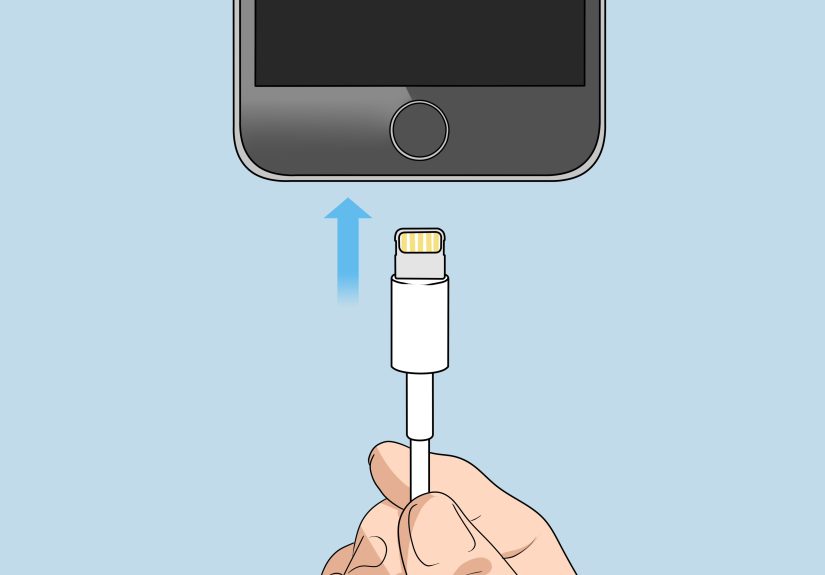
iPhone fast charging (modern models): Typically requires a USB-C Power Delivery charger and a USB-C to Lightning (or USB-C to USB-C
for USB-C iPhones) cable. Many iPhones can fast charge with a 20W+ USB-C PD adapter. -
Samsung “Super Fast Charging”: Often wants USB-PD PPS for best results. Some “Super Fast Charging 2.0” modes also require
a higher-rated cable (frequently a 5A e-marked USB-C cable) in addition to a higher-watt PPS charger. -
Google Pixel fast charging: Generally works well with USB-PD chargers, and many Pixel guidance docs emphasize using a PD
charger with sufficient wattage (often 18W+ for fast charging).
Don’t ignore the cable (it’s doing more than “existing”)
Cables matter because fast charging pushes more power. A cheap or worn cable can:
- Limit charging speed (bottleneck)
- Cause connection “flapping” (charging on/off)
- Heat up more than it should (which makes the phone slow down anyway)
Practical cable tips:
- Use USB-C to USB-C when possible for USB-PD fast charging.
- For higher-power modes, look for e-marked cables (often labeled 100W / 5A).
- If your cable is frayed, loose, or has a “favorite angle,” retire it with honors.
Real example setups (copy/paste into your brain)
- iPhone: 20W+ USB-C PD charger + Apple/MFi-certified cable (Lightning) or USB-C cable (USB-C iPhones).
- Samsung Galaxy: USB-C PD PPS charger (often 25W or 45W depending on model) + quality USB-C cable (sometimes 5A for max speed).
- Pixel: USB-C PD charger (commonly 18W+) + USB-C cable from a reputable brand.
One more sanity check: using a charger with a higher watt rating than your phone needs is usually fineyour phone typically pulls only what it can use.
Think of it like sitting next to an all-you-can-eat buffet: you may have access to 240W, but your phone is still going to take a polite portion.
Easy Way #2: Turn On Fast-Charging Settings (and Make Sure You’re Using the Right Port)
This one surprises people: many Android phones have fast charging toggles that can be turned off. Sometimes they’re off because:
you switched phones, restored from backup, updated software, or your device decided it needed a “wellness journey.”
Samsung Galaxy: check these charging toggles
On many Samsung models, you’ll find settings like:
- Fast charging (wired)
- Super fast charging (wired, usually tied to USB-PD PPS support)
- Fast wireless charging (wireless)
Typical path (may vary by model/software): Settings → Battery → Charging settings, then enable the relevant switches.
If those toggles are off, your phone may charge like it’s sipping through a straweven with a great charger.
Pixel and other Android phones: look for “Charging preferences”
Many Android devices include battery protection features like Adaptive Charging or battery health options that slow chargingespecially overnight.
These are helpful for longevity, but if you need speed right now, check:
- Battery settings for Adaptive/Optimized charging features
- Any “Battery protection” mode limiting charge speed or the top charge level
Important nuance: these features don’t always “disable” fast charging, but they can change the charging curve so it feels slower when you’re watching it.
iPhone: no “Fast Charging” togglehardware matters more
iPhones generally don’t give you a big “fast charging” on/off switch. If you want faster wired charging, it’s mainly about using a USB-C PD adapter
and a compatible cable. iOS will still manage heat and battery protection in the background.
Port matters: USB-C PD usually requires the USB-C port
If your charger has both USB-A and USB-C ports, don’t assume they’re equal. Many chargers deliver higher power and modern fast-charging standards
through USB-C. If you plug into the USB-A port with a USB-A to USB-C cable, you may get slower “legacy” charging even with the same brick.
Quick checks:
- Use the charger’s USB-C port when aiming for USB-PD fast charging.
- Avoid charging from low-power laptop ports, old hubs, or mystery adapters if you need speed.
- Try a different wall outlet (yes, really).
Easy Way #3: Optimize the Conditions (Because Heat = Slow Charging)
Fast charging is like sprinting: it works best when conditions are good. The moment your phone heats up, it will protect itself by slowing down.
This is normaland honestly, it’s your phone being the responsible one in the relationship.
Do these for an immediate speed boost
- Stop using the phone while charging: gaming + charging = heat + slow.
- Turn the screen off: the display is a power-hungry gremlin.
- Airplane Mode helps: it reduces background radio activity, which can reduce heat and power draw.
- Remove thick cases: especially if your phone gets warm while charging.
- Prefer wired over wireless when you need maximum speed (wireless is less efficient and can run warmer).
Know the “fast at first, slower later” reality
Most phones charge fastest at lower battery levels and slow down as they approach full. That’s why “0 to 50%” can be impressively quick, while
“80% to 100%” can feel like watching paint dry in real time.
If your goal is speed, aim for short, strategic charging sessions:
- 10–15 minutes before leaving the house
- Top-ups during breaks
- Charging from lower levels (when the phone accepts power more aggressively)
Keep it cool (literally)
Temperature is a big deal. Charging in a hot car, under a pillow, or next to a laptop exhaust vent is basically asking your phone to slow down.
If your phone throws a temperature warning, fast charging can pause or downshift dramatically.
“Cool” doesn’t mean “freezer.” It means:
- Room-temperature surfaces
- No direct sunlight
- Some airflow if you’re charging hard
If You Still Aren’t Getting Fast Charging: A 60-Second Troubleshooting Checklist
Before you declare your phone “broken forever” and start browsing new phones as emotional support, run this quick checklist:
1) Confirm your phone supports fast charging
Most modern smartphones do, but the maximum speed varies by model, region, and generation. Some models support only standard fast charging,
while others support higher “super fast” tiers.
2) Swap the cable first
Cables fail more often than chargers. Try a known-good cable from a reputable brandespecially if your current one is old, bent, or suspiciously lightweight.
3) Try a different charger (ideally USB-C PD, and PPS if your phone wants it)
If you’re on Samsung and chasing top speeds, use a PD PPS charger that matches the phone’s capability. For iPhone, use a USB-C PD adapter and a compatible cable.
4) Clean the charging port gently
Pocket lint is the silent villain of charging. A clogged port can prevent a solid connection, causing slower charging or disconnects.
Use gentle tools and avoid metal objects that can damage contacts.
5) Check battery/charging settings
On Android, verify fast charging toggles are on. Also review battery protection or adaptive charging features that can change charging behavior.
6) Watch for heat
If the phone is warm, it will slow down. Cool the environment, remove the case, and stop heavy use while charging.
Bonus: Choosing “Fast” vs “Safe” (You Can Have Both)
Good fast charging is designed to be safe when you use quality accessories. The real risks usually come from:
- Counterfeit chargers or sketchy no-name adapters with poor safety controls
- Damaged cables
- Charging in extreme heat
If you want speed without regret:
- Buy chargers from reputable brands and trusted retailers.
- Use cables rated for the power you’re pushing.
- Don’t smother your phone like it’s a sleepy kitten while it’s charging.
Real-World Experiences: of “Yep, Been There” Fast-Charging Life Lessons
I once watched my battery crawl from 12% to 14% in ten minutes and thought, “Wow, my phone has given up on life.” Turns out, I was using a random
USB-A port on a hotel alarm clockthe kind that exists purely so you can feel hope before it’s taken away. That’s the first fast-charging lesson:
not every port is a fast port. If you need speed, go wall charger + USB-C PD. The “mystery USB” ecosystem is where charging dreams go to retire.
Another classic: the airport panic charge. You’re at 9%, boarding starts in 20 minutes, and suddenly you discover your cable has developed
a new hobbydisconnecting whenever you breathe near it. You swap cables, and magically your phone goes from “charging” to “FAST charging.” This is why I now treat
cables like socks: they disappear, they fail, and you should always have an extra one that you actually trust.
Then there’s the “Why is my super fast charging not super fast?” momentusually on a Samsung device. You have a high-watt charger, a nice cable,
and the phone still acts like it’s politely sipping power. In my case, the fast-charging toggle was off. Off. A single switch turned my charging life from “slow simmer”
to “microwave on high.” Moral of the story: software settings can quietly sabotage your hardware like a raccoon in a pantry.
My favorite experience is the bed charging trap. You plug in at night, phone under a pillow (because you’re “cozy”), and you wake up to a battery that
did not, in fact, speedrun to 100%. The phone got warm, throttled charging, and spent the night doing its best impression of a cautious turtle. Once I started charging
on a cool nightstandscreen down, case offcharging became faster and more consistent. It’s not glamorous, but neither is showing up to work with 23% battery and a haunted stare.
Lastly, the “wireless is convenient, not always quick” lesson. Wireless charging is fantastic for topping up while you work, but if you’re trying to
recover from a low battery quickly, wired fast charging is still the champion. Wireless can generate more heat and waste more energy, so it may throttle sooner. I keep wireless
for “maintenance” and wired for “emergencies”kind of like how I keep salad for weekday lunches and pizza for emotional stability.
If you take anything from these stories, let it be this: fast charging isn’t one magical switch. It’s the combo of the right charger, the right cable, the right settings,
and a cool environment. Get those four working together, and your phone will charge like it finally remembered it has places to be.
Conclusion
Enabling fast charging is refreshingly straightforward:
- Use a compatible fast charger and a quality cable (USB-C PD is the common winner; PPS matters for some phones).
- Turn on fast-charging settings (especially on Android) and use the right port (USB-C is usually best).
- Optimize conditions: keep it cool, go wired when you need speed, and let the phone rest while it charges.
Do those, and you’ll spend less time chained to an outletand more time pretending you have your life together.