Table of Contents >> Show >> Hide
- Before You Start: The 60-Second SD Card Reality Check
- Way 1: Change Your Browser’s Download Location (When the Option Exists)
- Way 2: Use the Files App to Move Downloads to the SD Card (Fast, Reliable, Works Everywhere)
- Way 3: Save Attachments Straight to the SD Card (Email, Messaging Apps, and “Share/Save As” Menus)
- Way 4: Set Offline Media Downloads to the SD Card Inside Apps (Music, Podcasts, Video)
- Way 5: Download Offline Maps to the SD Card (Perfect for Trips and Spotty Signal)
- Way 6: Use SD Card Storage Features (Move Apps, Adoptable Storage, and “Make SD the Default” Where Available)
- Troubleshooting: When Your Phone Refuses to Download to the SD Card
- Wrapping It Up
- Extra: of Real-World Experiences (So You Don’t Feel Alone)
Your Android phone is basically a tiny apartment with one closet (internal storage). At first it feels roomy.
Then you download three podcasts, two “just one more episode” seasons, a few PDFs you swear you’ll read, and suddenly
your phone is yelling “Storage almost full” like it pays rent here.
If your Android device supports a microSD card, you can offload downloads to that card and keep internal storage
for apps and system stuff that actually needs to live there. The only catch? Android doesn’t always make it obvious
where downloads goespecially with newer privacy rulesso you need a few reliable tricks.
Below are six practical ways to download (or quickly reroute downloaded files) to an SD card, with clear steps,
real examples, and a few “why is this button missing?” fixes.
Before You Start: The 60-Second SD Card Reality Check
Do this once and you’ll save yourself a lot of “I swear I picked the SD card!” confusion later.
-
Confirm your phone actually sees the card: Open Settings → Storage.
You should see an SD card section. -
Decide Portable vs. Internal (Adoptable):
- Portable = acts like a removable drive for files (best for photos, downloads, media).
- Internal/Adoptable = card is encrypted and treated like internal storage (best for limited storage, but higher commitment).
-
Use a decent card: If your SD card is slow, downloads might take longer to write, and apps that store offline media can lag.
(A fast, name-brand card is your sanity’s best friend.) -
Create a simple folder system: On the SD card, make folders like
Downloads,Documents,Music Offline, andMaps.
Your future self will thank you.
Now, let’s get your downloads living their best life on the SD card.
Way 1: Change Your Browser’s Download Location (When the Option Exists)
This is the cleanest method: downloads go straight to the SD card without you doing the “download-then-move” shuffle.
Many Android browsers include a download location settingthough the exact menu can vary by device and Android version.
Chrome (and Chrome-based browsers)
- Open Chrome.
- Tap ⋮ (three dots) → Settings.
- Search for or open Downloads (or a similar “Downloads” section).
- Tap Download location.
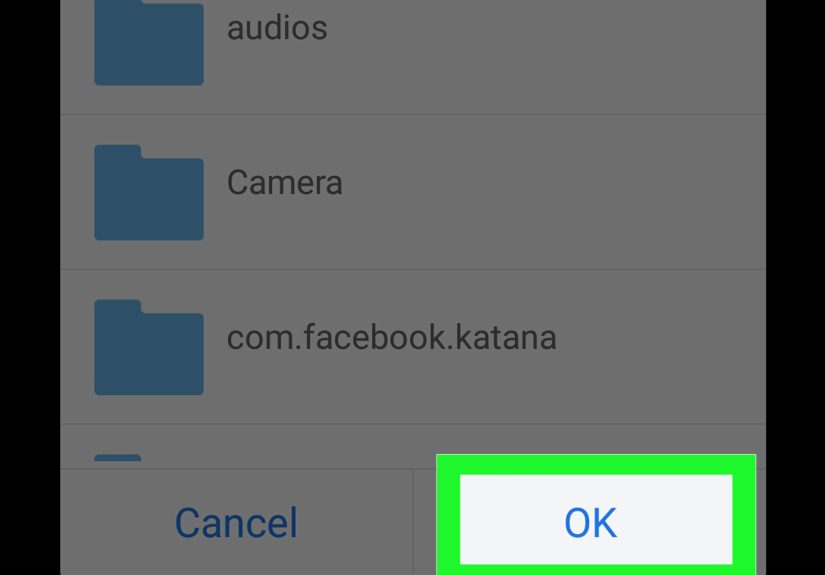
- Select your SD card or choose a folder on the SD card (like
SD card/Downloads).
Samsung Internet (common on Samsung phones)
Samsung Internet often includes a storage/download location option in its settings. If you don’t see “SD card” as a direct choice,
it may still let you pick a folder on the SD card via a file picker.
Real example: If you download weekly school PDFs (syllabi, reading packets, permission slips),
setting your browser to save them to SD card/Documents/School keeps your internal storage from becoming a paper hoarder.
If you don’t see a “Download location” option: Don’t panic. Some versions or device builds hide it,
and Android’s newer storage rules can limit direct SD writes. Skip ahead to Way 2 (move downloads fast) or Way 5 (app-based offline downloads).
Way 2: Use the Files App to Move Downloads to the SD Card (Fast, Reliable, Works Everywhere)
Even if an app insists on downloading to internal storage, you can usually move those files to the SD card in under a minute.
This is the universal workaroundand it’s honestly the most dependable across Android brands.
Option A: Files by Google (common on many phones)
- Open Files (Files by Google).
- Tap Browse (if needed).
- Go to Internal storage → Download (or the folder your app uses).
- Long-press the file(s) you want.
- Tap Move to (or Copy to).
- Select SD card → choose a folder → tap Move here.
Option B: “My Files” (Samsung) or another built-in file manager
Samsung phones commonly use My Files. The flow is similar: select files in internal storage, then move them to the SD card.
Pro tip: If you’re moving something important, use Copy first, open the copied file from the SD card to confirm it works,
then delete the original. That’s the digital version of “measure twice, cut once.”
Real example: You download a 1.2 GB video file from Google Drive for offline viewing.
Your phone saves it to internal storage, your storage warning pops up, and you immediately move it to SD card/Downloads/Videos.
Problem solvedno dramatic storage intervention required.
Way 3: Save Attachments Straight to the SD Card (Email, Messaging Apps, and “Share/Save As” Menus)
A huge chunk of “downloads” on Android are actually attachments: PDFs from email, images from messaging apps, documents from school portals,
and receipts you’ll definitely need the moment you delete them.
How it usually works
- Open the attachment (PDF, image, doc, etc.).
- Tap Download or Save.
- If you get a location picker, choose SD card and a folder.
- If it saves internally by default, tap Share or ⋮ and choose Save to device / Files,
then select the SD card folder.
Common places you’ll see a folder picker
- Gmail: downloading attachments sometimes lets you choose a location through the Android system picker.
- Google Drive: “Make available offline” is app-managed, but “Download” files often can be saved then moved.
- Messaging apps: “Save to device” frequently lands in internal storage; then use Way 2 to move.
Real example: You get a travel itinerary PDF and a bunch of QR-code tickets. Save them to
SD card/Documents/Trips. If your phone dies or storage fills up, at least your tickets aren’t stuck in the clutter zone.
Way 4: Set Offline Media Downloads to the SD Card Inside Apps (Music, Podcasts, Video)
This is where the SD card really shines: offline downloads inside apps can eat storage like a hungry bear in a donut shop.
Many media apps let you choose storage location in their settings.
Spotify (typical path)
- Open Spotify.
- Go to Settings.
- Find Storage (or Other → Storage depending on version).
- Select SD card as the download/storage location.
- If prompted, restart the app and re-download offline content.
YouTube Music / Podcast apps (general approach)
Look for settings like Downloads, Storage, or Offline.
If you can pick SD card storage, do it before downloadingmany apps won’t move existing offline files automatically.
Important note: Offline downloads in streaming apps are usually protected and stored inside the app’s own folder.
You typically can’t “pull the MP3s out” and play them in another app. That’s normal (and intended).
Real example: You’re heading on a long bus ride. You download a playlist, 10 podcast episodes,
and a few offline albums. Setting downloads to the SD card prevents your phone from becoming a storage hostage halfway through the trip.
Way 5: Download Offline Maps to the SD Card (Perfect for Trips and Spotty Signal)
Offline maps are one of the smartest uses of an SD cardespecially if you travel, commute through weak coverage zones,
or just don’t want navigation to turn into an interpretive dance when your signal drops.
Google Maps: set storage to SD card, then download
- Open Google Maps.
- Tap your profile icon → Offline maps.
- Tap Settings (usually a gear icon).
- Find Storage preferences (or storage location) and choose SD card.
- Go back and tap Select your own map, frame the area, then tap Download.
Heads-up: If you change storage location after downloading maps, you may need to download them again.
Also, offline maps have limits: you won’t get everything you’d see online (like live traffic details).
Real example: You’re driving to a rural area with unreliable service. Download the region to the SD card the night before,
and you won’t have to “guess the left turn” like you’re in a game show.
Way 6: Use SD Card Storage Features (Move Apps, Adoptable Storage, and “Make SD the Default” Where Available)
This is the heavy-duty approach: instead of micromanaging individual downloads, you make the SD card a bigger part of your phone’s default storage strategy.
Depending on your device, you may be able to (A) move certain apps to SD or (B) format the card as internal storage (adoptable storage).
A) Move eligible apps to SD card (varies by app/device)
- Open Settings → Apps.
- Select an app.
- Tap Storage.
- If available, tap Change and select SD card.
Reality check: Not all apps allow this. Many modern apps keep core pieces on internal storage,
and some devices hide the feature entirely. If you don’t see a “Change” option, it’s not youit’s the app/device policy.
B) Format the SD card as internal storage (Adoptable Storage)
If your phone supports it, adoptable storage merges the SD card into internal storage so more apps and data can live there.
It’s powerfulbut it comes with strings attached (like encrypted data and “please don’t remove the card unless you enjoy chaos”).
- Open Settings → Storage.
- Select your SD card.
- Open the menu (often ⋮) and look for Format as internal or Use as internal.
- Follow prompts (this erases the card), then choose whether to move content.
Know before you tap:
- It wipes the SD card. Back up first.
- It encrypts the card to your phone. You can’t just pop it into a laptop and browse files normally.
- Removing it can break apps and downloads. Adopted storage is meant to stay put.
- Speed matters. A slow SD card can make your phone feel sluggish.
Real example: You have a budget phone with limited internal storage. Adoptable storage lets you keep more apps installed,
and those apps’ downloaded content (offline media, cached files) has more breathing room.
Troubleshooting: When Your Phone Refuses to Download to the SD Card
Problem: “SD card” isn’t an option anywhere
- Your phone might not support SD cards. Some newer models skip the slot entirely.
- The card isn’t mounted or is corrupted. Check Settings → Storage. Try reinserting the card.
- The card format isn’t compatible. If your phone can’t read/write properly, back up and format the card from Android settings.
Problem: Downloads still go to internal storage
- The app ignores system settings. Many apps use their own download location. Check the app’s settings (Way 4 and 5).
- Android storage rules limit direct writes. Use Way 2 to move files after downloading.
- Permissions are missing. Some apps need file access permissions to write to external storage.
Problem: SD card is “full” but you don’t see files
- App-managed downloads are hidden in app folders. Streaming apps store offline content privately.
- Adoptable storage splits things behind the scenes. Storage may be encrypted and not visible like a normal folder tree.
If you want one “works on almost everything” strategy: download normally, then move with Files.
It’s not glamorous, but it’s dependablelike a good backpack.
Wrapping It Up
Downloading to an SD card on Android can be either delightfully simple or mysteriously complicatedsometimes on the same phone, on the same day.
The trick is knowing which lever to pull:
- Use browser settings when available (Way 1).
- Use the Files app to move downloads quickly when apps won’t cooperate (Way 2).
- Save attachments using the system folder picker or share-to-files flow (Way 3).
- Set offline media and offline maps to SD inside each app (Ways 4 and 5).
- Consider moving apps or adoptable storage if you need a bigger, permanent storage fix (Way 6).
Choose one or two methods that fit how you actually use your phone, and you’ll spend less time fighting storage warnings
and more time doing literally anything else. (Even reading those PDFs you downloaded. Maybe. Someday.)
Extra: of Real-World Experiences (So You Don’t Feel Alone)
People’s experiences with SD cards on Android tend to follow a classic three-act story: hope, confusion, victory. Sometimes the victory is quiet.
Sometimes it’s you whispering “Finally” at 1:00 a.m. while your phone re-downloads offline playlists for the third time.
One of the most common situations goes like this: someone buys a shiny new SD card, inserts it, and expects a magical “Save everything here forever”
button to appear. Instead, they download a filesay, a 600 MB lecture video or a chunky PDF bundleand internal storage still takes the hit.
The SD card sits there like an unused guest room. This is when the Files app becomes the hero: move the download once, create a neat folder,
and suddenly the SD card is actually doing its job.
Another frequent experience: offline media apps. People love the idea of downloading music and podcasts to the SD cardright up until they switch the
storage location and realize the app wants to re-download everything. It feels unfair, like moving to a new house and being told you can’t bring your couch,
only re-buy it. The good news is that once the app is pointed at the SD card, future downloads usually behave. The best tip from seasoned users is simple:
change storage location before you download a mountain of content, and keep your SD card inserted consistently so the app doesn’t get “amnesia.”
Offline maps are their own special category of satisfaction. People often discover offline maps after one painful trip where GPS turned into “best guess navigation.”
After that, downloading a region to the SD card feels like a superpowerespecially for commuters, travelers, or anyone who ends up in spotty coverage areas.
A common “aha” moment is realizing you can store big map areas on the SD card and keep internal storage free for apps and photos.
Then there’s adoptable storage: the “serious relationship” option. Users who try it often do so because their phone’s internal storage is genuinely tight.
When it works, it feels like upgrading your closet into a walk-in. But the stories also include cautionary notes: if the SD card is slow, the phone may feel slower.
If the card is removed, apps can misbehave. People who are happiest with adoptable storage typically have two things in common: a high-quality SD card and a commitment
to leaving it in place.
The most relatable experience of all? The moment you realize downloads aren’t one single thing. Browsers, email apps, streaming apps, and maps all have their own ideas
about “storage.” Once you accept that, everything gets easier: set locations where you can, move files where you can’t, and let the SD card quietly absorb the chaos.
It’s not glamorous, but it’s effectivelike labeling your kitchen drawers. Boring? Yes. Life-changing? Also yes.