Table of Contents >> Show >> Hide
- Quick Table of Contents
- What you need before you go live
- How OBS connects to Facebook Live (in plain English)
- Step-by-step: Set up OBS to stream on Facebook Live
- Step 1: Create a clean OBS “Profile” and “Scene Collection”
- Step 2: Build your scenes (the part viewers actually notice)
- Step 3: Set Video resolution and FPS in OBS
- Step 4: Configure Output settings (where streams are made or ruined)
- Step 5: Connect OBS to Facebook Live (two reliable methods)
- Step 6: Set up your Facebook Live Producer stream details
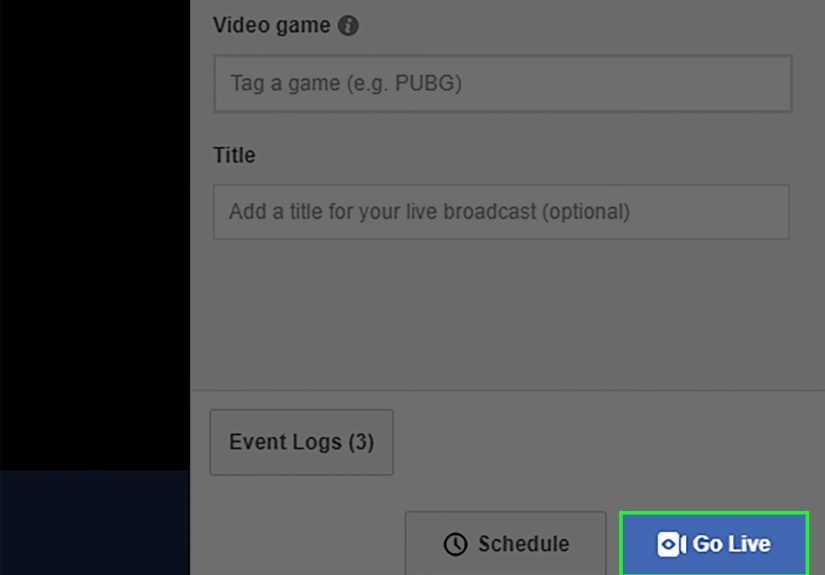
- Step 7: Go live (the two-click truth)
- Best OBS settings for Facebook Live (recommended presets)
- Pro tips for a smoother stream (and fewer panic sweats)
- Troubleshooting: Fix common Facebook Live + OBS issues
- FAQ
- Conclusion
- Real-world experiences: what actually happens on stream (and how to handle it)
You’ve got a camera. You’ve got something to say. And you’ve got a browser tab open to Facebook Live, daring you to click
Go Live like it’s a bungee jump. Good news: pairing OBS with Facebook Live is one of the best ways to look polished
without needing a full TV truckor selling a kidney for software.
This guide walks you through the whole setup: getting your Facebook stream key, configuring OBS the “Facebook-friendly” way
(hello, keyframe interval), building scenes that don’t scream “first day on the internet,” and troubleshooting the classic
problems (black screen, robot audio, buffering doom). We’ll keep it practical, specific, and just fun enough that you don’t
rage-quit midway through the encoder settings.
Quick Table of Contents
- What you need before you go live
- How OBS connects to Facebook Live (in plain English)
- Step-by-step: Set up OBS for Facebook Live
- Best OBS settings for Facebook Live (recommended presets)
- Pro tips for a smoother stream
- Troubleshooting: Fix common Facebook Live + OBS issues
- FAQ
- Real-world experiences: what actually happens on stream (and how to handle it)
What you need before you go live
1) The basics (the stuff you probably have)
- OBS Studio installed (latest version recommended).
- A Facebook destination: your profile, a Page you manage, a Group, or an Event (permissions matter).
- A webcam and mic (or capture card if you’re streaming a console).
- A stable internet connection, especially upload speed.
2) The less glamorous basics (that prevent buffering sadness)
-
Upload speed headroom: Aim for at least 2x your streaming bitrate. If you stream at 6 Mbps, having
12 Mbps upload gives you breathing room for Wi-Fi mood swings and background updates that randomly decide to happen now. -
A plan for your stream layout: Even a simple “camera + title + lower-third” is better than a raw webcam
shot that looks like a witness-protection interview. -
Quiet audio path: Good audio is half the stream. A $40 USB mic in a quiet room can beat a $400 camera in a
noisy kitchen.
How OBS connects to Facebook Live (in plain English)
OBS is your production studio. Facebook Live is your stage. To get from one to the other, Facebook gives you two key pieces
of information:
- Server URL (where OBS should send the video)
- Stream Key (the “password” that tells Facebook it’s really you)
Put those into OBS (or use the Facebook Live option built into OBS), hit Start Streaming, and Facebook will
show a preview inside Live Producer. Then you click Go Live on Facebook to actually publish the broadcast.
Think of it like turning on the oven (OBS) and then serving the meal (Facebook).
One important rule: treat your stream key like a house key. If someone gets it, they can potentially stream to your Facebook
destination. So don’t paste it into random chat rooms, and don’t put it on-screen during your “tutorial.”
Step-by-step: Set up OBS to stream on Facebook Live
Step 1: Create a clean OBS “Profile” and “Scene Collection”
In OBS, a Profile stores your technical settings (bitrate, resolution, encoder). A Scene Collection
stores your layout (camera, screen share, overlays). Creating a Facebook-specific Profile helps you avoid accidentally streaming
4K at 60 fps on hotel Wi-Fi. (Yes, people do this.)
- Open OBS → Profile → New → name it “Facebook Live”.
- OBS → Scene Collection → New → name it “Facebook Layout”.
Step 2: Build your scenes (the part viewers actually notice)
Start simple. Here are three reliable starter scenes:
- Starting Soon: A countdown + music (royalty-free!) + your logo/title.
- Main: Camera + mic + a lower-third name/title.
- Screen Share: Display capture or window capture + a small camera box.
Add sources by clicking the + under Sources:
- Video Capture Device for your webcam
- Audio Input Capture for your mic
- Display Capture for full screen share
- Window Capture for a single app
- Media Source for an intro video or looping background
- Image for logos
- Text for titles
Example: If you’re teaching Photoshop on stream, use Window Capture for Photoshop so your viewers
don’t see your entire desktop, your 47 open tabs, and that file named “final_v3_REAL_final.psd”.
Step 3: Set Video resolution and FPS in OBS
Go to Settings → Video:
- Base (Canvas) Resolution: typically your monitor resolution, or 1920×1080
- Output (Scaled) Resolution: choose 1280×720 or 1920×1080
- Common FPS Values: 30 for most streams, 60 for fast motion (gaming)
If you’re not sure, start with 720p at 30 fps. It looks good, streams smoothly, and is kinder to both your
computer and your audience’s internet connection.
Step 4: Configure Output settings (where streams are made or ruined)
Go to Settings → Output. Set Output Mode to Advanced for better control.
Under the Streaming tab, use:
- Encoder: Hardware encoder if available (NVENC / Quick Sync / AMF), otherwise x264
- Rate Control: CBR (Constant Bitrate)
- Bitrate: pick based on resolution (see presets below)
- Keyframe Interval: 2 seconds (Facebook-friendly)
- Preset: Quality (or “P5/P6” style settings for NVENC depending on your version)
- Profile: High
For audio, go to the Audio section (often in Output or Audio settings depending on your OBS version):
- Audio Codec: AAC
- Audio Bitrate: 128–192 Kbps is a solid range for most streams
- Sample Rate: 44.1 kHz or 48 kHz (pick one and keep it consistent)
Step 5: Connect OBS to Facebook Live (two reliable methods)
Method A: Use the built-in Facebook Live option in OBS
- In OBS: Settings → Stream
- Service: select Facebook Live
-
Click Get Stream Key (this opens Facebook Live Producer in a browser window, where you choose where you’re
going live and copy/confirm your key). - Back in OBS, confirm the stream key is filled and saved.
Method B: Use Custom RTMP/RTMPS (most control, works when “Service” options are finicky)
- Open Facebook Live Producer and choose Streaming software.
- Copy the Server URL and Stream Key.
- In OBS: Settings → Stream
- Service: choose Custom…
- Paste Server and Stream Key.
- Save.
Either way, the workflow is the same: start streaming from OBS, confirm you see a preview on Facebook, then click
Go Live on Facebook.
Step 6: Set up your Facebook Live Producer stream details
Inside Live Producer, you’ll set things viewers actually see:
- Title and Description (write like a human, include keywords naturally)
- Destination (Profile / Page / Group / Event)
- Privacy (Public, Friends, Only me, etc.)
- Category (helpful for discovery)
- Schedule (optional, but great for promotion)
Pro move: Do a private test stream first using “Only me” (or an unlisted-style test option if available in
your setup) to check audio levels, overlays, and whether your screen capture is showing the right windownot your email.
Step 7: Go live (the two-click truth)
- In OBS, click Start Streaming.
- In Facebook Live Producer, wait for the preview to appear and the stream health indicators to look stable.
- Click Go Live on Facebook.
When you’re done: click End Live Video on Facebook first, then Stop Streaming in OBS.
This “clean ending” helps avoid weird cutoffs and keeps your replay tidy.
Best OBS settings for Facebook Live (recommended presets)
Facebook Live supports a range of resolutions and bitrates, but most creators succeed by matching settings to their
internet and content type. Use these as starting points, then adjust based on OBS stats (dropped frames) and Facebook
stream health.
Recommended streaming presets
| Use case | Resolution | FPS | Video Bitrate (CBR) | Audio | Keyframe Interval |
|---|---|---|---|---|---|
| Talk shows, webinars, casual streams | 1280×720 | 30 | 3000–4500 Kbps | AAC 128–160 Kbps | 2 seconds |
| Higher clarity tutorials (screen text matters) | 1920×1080 | 30 | 4500–6000 Kbps | AAC 160–192 Kbps | 2 seconds |
| Fast-motion gaming (if your upload can handle it) | 1920×1080 | 60 | 6000–9000+ Kbps | AAC 160–192 Kbps | 2 seconds |
A simple “safe default” that works for most people
- 720p
- 30 fps
- 4500 Kbps CBR
- Keyframe interval: 2 seconds
- AAC audio: 128–160 Kbps
- Hardware encoder (if available)
Why it’s a safe default: it’s clear enough for faces and basic screen shares, and it’s less likely to melt CPUs, overload
upload bandwidth, or cause Facebook to label your stream “unstable.”
Pro tips for a smoother stream (and fewer panic sweats)
Use Facebook’s preview time like a cockpit checklist
Before you click Go Live, use the preview to confirm:
- Your mic is the right one (not “Laptop Fan (High Performance Mode)”).
- Audio meters move when you talk.
- Your overlays fit inside the frame (no cut-off lower-thirds).
- Your camera isn’t out of focus or filming from your chin like a horror movie angle.
Record locally as a backup
Internet hiccups happen. If your stream matters, enable recording in OBS (even at a decent local quality) so you can upload
highlights later. It’s also handy for making short clips.
Create hotkeys for scene switching
In OBS: Settings → Hotkeys. Assign keys for:
- Switch to “Starting Soon”
- Switch to “Main”
- Switch to “Screen Share”
- Mute/unmute mic
Hotkeys make you look like you have a producer. (Even if your producer is a stressed-out version of you holding a coffee.)
Don’t let background apps bully your stream
Close bandwidth hogs (cloud sync, game launchers, giant downloads). On Windows, consider enabling Game Mode if it helps
prioritize OBS, and keep GPU drivers reasonably updated.
Stay within Facebook’s technical guardrails
Facebook expects standard streaming formats (H.264 video, AAC audio, and a keyframe interval that stays within recommended
ranges). If you push wildly outside the guidelines, you’ll often see stream instability, buffering, or the stream ending
unexpectedly.
Troubleshooting: Fix common Facebook Live + OBS issues
Problem: Facebook shows “No signal” or no preview
- Check you clicked “Start Streaming” in OBS (it happens).
- Confirm the correct stream key (keys can change if you scheduled a different event).
- Wait 10–20 seconds; sometimes the preview takes a moment to show up.
- Try re-copying the Server URL/Stream Key from Live Producer and pasting again.
Problem: Dropped frames, buffering, or “stream unstable”
- Lower bitrate by 500–1500 Kbps and test again.
- Drop from 1080p to 720p (big stability win for many setups).
- Use a hardware encoder (NVENC / Quick Sync) if your GPU/CPU supports it.
- Switch from Wi-Fi to Ethernet if possible. Wi-Fi is greatuntil it isn’t.
- Close heavy apps (browser tabs can be sneakily expensive).
Problem: Black screen in OBS (especially during screen capture)
- Try Window Capture instead of Display Capture (or vice versa).
- On Windows laptops: the GPU switching can cause capture issuestry running OBS on the same GPU used by the captured app.
- For protected content (some streaming services): it may be blocked by DRM. OBS can’t capture what your system isn’t allowed to show.
Problem: Echo, robot audio, or delayed sound
- Mute extra audio sources (desktop audio + mic can cause doubling).
- Match sample rate across devices (44.1k or 48kpick one).
- Use OBS audio filters carefully (noise suppression is great; overdoing it can sound like you’re streaming from inside a soda can).
- If audio is out of sync, use the Sync Offset in Advanced Audio Properties.
Problem: Stream connects, then ends quickly
- Double-check Keyframe Interval (2 seconds is the safe setting).
- Make sure you’re using CBR and not a wild variable-bitrate mode.
- Lower bitrate if you’re near the edge of your upload capacity.
- Confirm the Facebook destination and permissions (Pages/Groups sometimes have restrictions).
FAQ
Do I need a new Facebook stream key every time?
Sometimes you can use a persistent stream key, and sometimes Facebook gives you an event-specific key (especially when
scheduling streams). If your saved key stops working, the fix is usually simple: grab the current key from Live Producer and
update OBS.
Can I stream to a Facebook Group using OBS?
Many creators stream to Groups using Live Producer options for Groups (availability depends on group settings and permissions).
If you don’t see the Group as a destination, you may need admin/mod approval or a different streaming option.
Should I choose 720p or 1080p?
If your stream is mostly talking-head content, 720p/30 is often perfect. If you’re teaching software and
tiny text matters, 1080p/30 can be worth itassuming your upload and computer can stay stable.
What’s the biggest “new streamer” mistake?
Chasing max quality settings instead of stable settings. Viewers forgive “not 4K.” They do not forgive buffering every 12
seconds.
Conclusion
Streaming to Facebook Live with OBS isn’t hardbut it does reward a little prep. Get your scenes clean, match Facebook’s
encoding expectations (especially keyframe interval and bitrate), test privately before you go public, and always prioritize
stability over “perfect.” Once your setup is dialed in, you’ll spend less time wrestling settings and more time doing what
live video is actually for: connecting with real humans (who may or may not roast you in the comments).
Real-world experiences: what actually happens on stream (and how to handle it)
Let’s talk about the part no one brags about on social media: the first few streams can feel like hosting a live TV
show while also being the camera operator, audio engineer, lighting crew, and emergency tech support. That’s normal. And
honestly, it’s kind of a rite of passage.
The most common “real life” moment is the preview trap: OBS is streaming, Facebook shows a preview, and you
think you’re liveexcept you haven’t clicked Go Live yet. This is why experienced streamers build a tiny habit:
they say out loud, “I’m in preview, not live,” like a pilot reading a checklist. If you’re doing a show with guests, tell
them too, so they don’t launch into their best story while you’re still adjusting the mic.
Another classic is the audio confidence problem. At first, it’s tempting to crank your mic gain until the
meters are happily slamming into the red. Red looks energetic! Red is also distortion. A better “experienced streamer”
approach is boring but effective: keep your voice peaking around the yellow range, add gentle noise suppression, and do a
10-second test recording locally. If it sounds clean in the recording, it’ll usually sound clean live. Your audience will
thank you, and your replay won’t sound like a raccoon running a podcast.
Then there’s the bitrate reality check. Many creators start by picking a bitrate that looks great on paper
and then discover the internet doesn’t care about their dreams. The practical fix is to treat your first streams like
calibration: start at 720p/30 with a moderate bitrate, watch for dropped frames in OBS Stats, and only increase quality after
you’ve proven stability for a full stream. This is also why so many people swear by Ethernetbecause it removes one giant
variable from the “why is this buffering?” mystery.
“Black screen” is another rite-of-passage moment, especially for game capture and screen sharing. Experienced streamers don’t
panic; they keep a backup scene. For example, if your window capture breaks, you flip to a “Be Right Back”
scene while you switch capture methods. Viewers interpret this as professionalism, not chaos. (Even if behind the curtain you
are whispering, “Why are you like this?” to your computer.)
Finally, the big lesson: live streaming is more than settings. The best streams feel intentional. People who grow on Facebook
usually do three simple things consistently: (1) start on time with a short “here’s what we’re doing today,” (2) engage early
with comments (“Tell me where you’re watching from”), and (3) end with a clear next step (“Follow for the next stream on
Thursday” or “Replay will be posted with timestamps”). OBS makes you look good; your structure makes people stay.
Once you’ve done a few streams, everything calms down. Your hands stop shaking when you click Start Streaming. You
learn the exact mic distance that makes your voice sound warm instead of boomy. You build a scene collection you actually
like. And then one day, you’ll help someone else set it upand you’ll casually say, “Oh yeah, just set keyframes to 2 seconds,”
like you were born knowing that. Welcome to the club.