Table of Contents >> Show >> Hide
- Before You Start: Two Quick Reality Checks
- The Main Event: How to Add Friends on Steam in 13 Steps
- Open your Friends area
- Click or tap “Add a Friend”
- Find your Steam Friend Code
- Share your Friend Code the smart way
- Enter your friend’s code to find them instantly
- Send the request (and add a note if you can)
- Generate a Quick Invite link
- Send the link privately (seriously)
- Search by profile name when you don’t have a code
- Open the correct profile and click “Add Friend”
- Add friends from “Recently Played With”
- Accept incoming requests and manage pending invites
- Organize your friend list (so it doesn’t become chaos)
- Troubleshooting: When Steam Makes This Weird (Because Steam)
- FAQ: Quick Answers You’ll Actually Use
- Real-World Experiences: 5 “Yep, Been There” Steam Friending Moments (About )
- Conclusion
Steam is basically a giant digital mall where you buy games you swear you’ll “definitely play next weekend,” and then immediately need
your friends to join you so your backlog feels like a shared responsibility. The good news: adding friends on Steam is easy once you
know which “Steam name” you’re supposed to use (hint: it’s usually not the one you think).
This guide walks you through 13 practical steps for adding friends on Steam using Friend Codes, Quick Invite links, profile search,
and a couple of “where have you been all my life?” options like Recent Players. Along the way, we’ll fix common issueslike the classic:
“Why is Steam asking me to spend money just to have friends?”
Before You Start: Two Quick Reality Checks
1) Make sure your account can send friend requests
Steam has a “limited account” system designed to reduce spam. If your account is limited, you may not be able to send friend requests yet.
Usually, the fix is spending at least a small amount in the Steam Store (often cited as $5 USD) to unlock certain community features.
If you’re limited, don’t panicyou can still often receive invites, and in some cases use a Quick Invite link workaround.
2) Decide which method fits the moment
Sitting next to your friend on the couch? Friend Code or Quick Invite link is perfect. Trying to add someone you met in a match at 2 a.m.?
Recent Players is your best friend (pun extremely intended). Adding a coworker? Search by profile name, then confirm it’s the right person
before you accidentally befriend a stranger named “KarenFromAccountingButEvil.”
The Main Event: How to Add Friends on Steam in 13 Steps
These steps work whether you’re using the Steam desktop app, Steam in a browser, or the Steam mobile app. Some buttons move around a bit,
but the concepts stay the same.
-
Open your Friends area
On desktop: look for the Friends menu (often at the top) and open your Friends list / Friends & Chat window.
On web: go to your profile area and find Friends.
On mobile: open Steam, then head to your account area (usually your avatar). -
Click or tap “Add a Friend”
This is the hub for basically every “friend-making” tool Steam offers: Friend Code, Quick Invite link, and search.
If you don’t see it right away on desktop, it’s commonly nested under the Friends menu. -
Find your Steam Friend Code
Your Friend Code is a short numeric code (commonly described as 8 digits) that’s easy to share without handing out your entire profile link.
On the Add Friend page, Steam typically shows your code near the top with a copy button.Example: If your code looks like
12345678, your friend can use it to send you a request in seconds. -
Share your Friend Code the smart way
Send your code via a direct message (Discord, text, email)not a public comment thread where bots roam free like seagulls at a beach picnic.
The goal is to minimize random requests and scams. -
Enter your friend’s code to find them instantly
On the Add Friend page, look for the field that says something like Enter a Friend Code. Paste the code your friend sent you,
then let Steam pull up the correct profile.If Steam shows multiple similar names, use the profile preview and avatar to confirm you’re adding the right person.
-
Send the request (and add a note if you can)
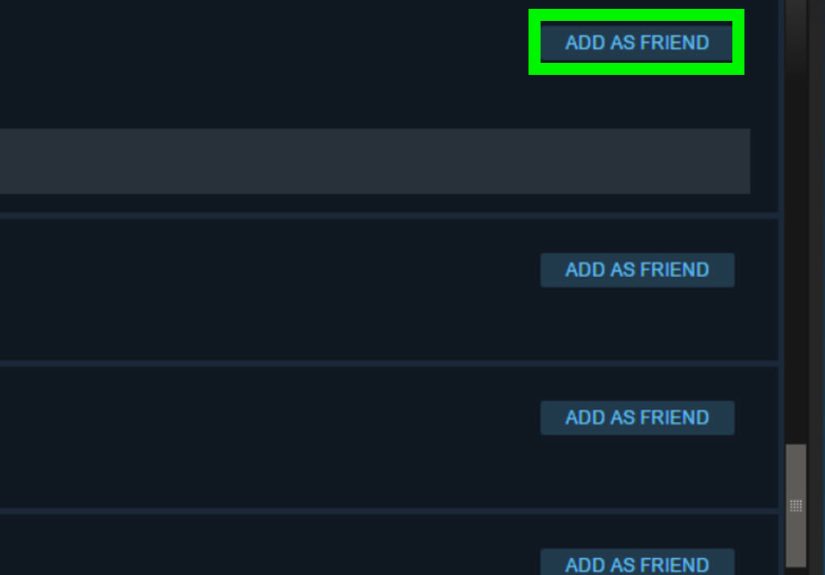
Click Add as Friend (or similar). If Steam lets you include a message, do it.
A short note like “Heythis is Alex from the Helldivers lobby” can prevent your request from getting ignored like a pop-up asking you to enable notifications. -
Generate a Quick Invite link
On the same Add Friend page, Steam often offers a Quick Invite or Invite link option. Generate a new link,
then copy it. This method is especially useful when usernames are confusing or your friend keeps changing their profile name weekly like it’s a fashion season. -
Send the link privately (seriously)
Treat Quick Invite links like a spare house key: share it with the person you trust, not “the internet.”
Some Steam guidance and community notes mention invite links can be single-usemeaning once it’s used, it’s done.
That’s great for security, but terrible if you posted it in a public place and 47 strangers clicked it first. -
Search by profile name when you don’t have a code
If your friend didn’t send a code, search for their profile name on the Add Friend page.
Important nuance: your friend’s login username (what they type to sign in) may not be the same as their profile name
(what everyone sees). If search results look wrong, ask them for their current profile name or code.Pro move: If your friend has a custom profile URL, that can be even easier to share than guessing which “xXShadowNinjaXx” is the real one.
-
Open the correct profile and click “Add Friend”
Once you find the right person in search results, open their profile and hit Add Friend.
Double-check you’ve got the right personespecially if they have an ultra-generic name and an anime avatar that 12,000 other people also use. -
Add friends from “Recently Played With”
Met a cool teammate mid-match? Steam can show players you recently played with (availability can depend on game integration and whether Steam captured the session).
On desktop, this is often reachable from menus like View → Players → Recently Played With,
or via the Steam overlay’s player list in some games.If you can’t find someone there, ask them for their Friend Codefastest rescue rope in the social wilderness.
-
Accept incoming requests and manage pending invites
Steam friendships aren’t official until the other person accepts. Check your Pending Invites (or notifications) and accept your friend.
If you’re the one waiting, remember: your friend may not see the request until they log in again.If you’re using a limited account and can’t send requests, ask your friend to send you a request using your Friend Code or an invite link.
-
Organize your friend list (so it doesn’t become chaos)
After the add is successful, do a quick tidy-up:
- Set a nickname (e.g., “Sam – Destiny clan” instead of “xX_SAMMICH_420_Xx”).
- Create groups for coworkers, IRL friends, raid teams, etc.
- Review privacy settings if you don’t want everyone seeing your game activity, inventory, or profile details.
- Block/report suspicious accounts if someone immediately asks you to “vote for their team” or click a random trade link. Steam scams are a genre.
Troubleshooting: When Steam Makes This Weird (Because Steam)
You can’t add friends (the “limited account” wall)
If Steam says you don’t meet the requirements to use the feature, your account may be limited. In many cases, accounts unlock after spending a small amount in the Steam Store.
If you don’t want to buy anything right now, try one of these:
- Ask your friend to add you using your Friend Code.
- Ask your friend to send a Quick Invite link so you can accept.
- Use a direct profile link if available and permitted.
You can’t find your friend in search
Steam search can be picky. People can change profile names whenever they want, and search may not surface older names reliably.
If search fails:
- Use Friend Codes instead of names.
- Use a Quick Invite link.
- Ask for a custom profile URL or direct profile link.
Your request is sent, but nothing happens
Common causes: the other person hasn’t logged in, they missed the notification, or they get a lot of requests.
Send a quick message outside Steam: “Hey, I just sent you a friend requestlook in Pending Invites.”
You’re worried about scams
Healthy paranoia is a gamer’s love language. If a new “friend” immediately pushes links, trades, or “verification” steps, treat it as suspicious.
Only use official Steam pages and don’t log in through random sites. If you’re unsure, don’t clickask first.
FAQ: Quick Answers You’ll Actually Use
Do I need to pay money to add friends on Steam?
Some new/limited accounts can’t send friend invites until they meet Steam’s requirements (often described as spending a small amount, like $5 USD).
But you may still be able to accept incoming requests or use invite-link-based workarounds.
Can I add friends on Steam mobile?
Yes. The mobile app generally lets you add friends by searching names or entering Friend Codes, and it can be a convenient way to accept requests quickly
(especially if you’re away from your PC and your friend is impatientso, every friend).
What’s the best method if I’m adding someone I just met in a game?
Try Recently Played With. If it doesn’t show up, ask for their Friend Code. It’s the cleanest way to avoid adding the wrong “DarkKnight1997”
out of the 800 available.
Real-World Experiences: 5 “Yep, Been There” Steam Friending Moments (About )
1) The Friend Code that saved a friendship
I once watched two friends try to add each other by searching names. One of them had a profile name that included special characters, a space, and a symbol that looked like
a lowercase “L” but was actually an uppercase “I” wearing a disguise. After ten minutes of “No, that’s not me” and “Why do you have three profiles?”, they used Friend Codes.
Thirty seconds later, they were friends. The moral: if your username looks like a Wi-Fi password, use a Friend Code and spare everyone the drama.
2) The limited account surprise (and the workaround)
New Steam users often hit the “can’t add friends” restriction and assume something’s broken. I’ve seen people reinstall Steam, reset passwords, and blame their router like it’s
a villain in a superhero movie. Usually, nothing is wrongSteam is just applying anti-spam limits. The workaround that kept everyone calm? The experienced friend generated a Quick
Invite link, sent it directly, and the new user accepted. No purchases. No rage. No ritual sacrifice to the tech gods.
3) The “wrong person” add
Someone searched for “Mike” and added the first result. It was not their Mike. It was a stranger who immediately messaged: “Hey, want to trade?” (A classic opener in the Steam
Scammer Cinematic Universe.) That “unfriend + block” lesson was learned quickly. Now, the rule is simple: if you’re adding by name, confirm with an avatar, mutual friends,
orbetteruse the Friend Code.
4) The post-match friend request that actually worked
In a co-op game, a random teammate carried the squad like a heroic pack mule. After the match, nobody wanted to lose that connection. The “Recently Played With” list did its job,
the request went out, and a note was attached: “GGsthanks for the clutch revive!” That tiny message mattered. It turned a random add into a recognizable moment, and the request
didn’t get ignored. If you add strangers, include context. You’re not proposing marriageyou’re just proving you’re not a bot.
5) The friend list cleanup that prevented chaos
After a few years, Steam friend lists can become a museum of past phases: old guildmates, one-time teammates, and people you added because they had a funny username at 3 a.m.
The best “adulting” move I’ve seen is assigning nicknames and groups right after adding someone. “Jess – IRL,” “Chris – Dota,” “Pat – Work.” It sounds boring, but it saves
time later when you’re trying to invite the correct Pat and not the Pat who only plays puzzle games and will politely decline your chaos.
Conclusion
Adding friends on Steam doesn’t have to feel like decoding an ancient riddle written in gamer tags. If you remember one thing, make it this:
Friend Codes and Quick Invite links are the fastest, least messy options. Search still worksjust verify the profile. And if Steam blocks you from sending requests,
it’s usually an account limitation, not a curse placed by a rival wizard.
Use the steps above once, and you’ll be the person everyone asks: “Hey, how do you add friends on Steam again?” Congratulationsyou’re now the tech support friend.
May your friend requests be accepted promptly, and may your invites never be posted publicly for the bots to feast on.