Table of Contents >> Show >> Hide
- What “Cache” Means on a Mac (and Why It Exists)
- Is It Safe to Delete Cache Files on Mac?
- Quick Safety Checklist Before You Clear Cache
- How to Clear Browser Cache on Mac (Step-by-Step)
- How to Clear App Cache on Mac (Safely)
- System Cache: Should You Clear It?
- How to Flush DNS Cache on Mac (When Websites Won’t Load)
- What Cache Should You Clear First? A Simple Decision Guide
- Specific Examples: Cache Cleanup That Actually Helps
- Best Practices: Keep Cache Under Control Without Becoming a Full-Time Janitor
- Conclusion
- Real-World Experiences (500+ Words): What Cache Clearing Feels Like in Practice
Your Mac is basically a neat freak with a junk drawer. It loves storing “just in case” stufftiny pieces of websites, app leftovers, and system shortcutsso things feel faster next time. That stash is called cache. And yes, it can grow… enthusiastically. Sometimes it’s a helpful assistant. Sometimes it’s the digital equivalent of keeping every takeout menu since 2014.
So: Is it safe to delete cache files on Mac? In most cases, yesas long as you clear cache the smart way and don’t go on a wild deleting spree in places you shouldn’t. This guide explains what cache is, what happens when you delete it, and step-by-step ways to clear browser, app, and system-related caches safely.
What “Cache” Means on a Mac (and Why It Exists)
Cache is temporary data stored to make future actions faster. Think: website images, fonts, scripts, thumbnails, preview files, and app “I’ll remember this so I don’t have to download it again” bits. Done right, cache improves speed and reduces repeated downloads. Done… a little too well… cache can take up storage, cause weird glitches, or keep loading an outdated version of something you know was updated.
Common Cache Types You’ll See on macOS
- Browser cache (Safari/Chrome/Firefox/Edge): stored website content to load pages faster.
- App cache: temporary files apps store to speed up loading and performance.
- System-related cache: macOS stores various temporary files to keep the OS running smoothly.
- DNS cache: saves recent domain lookups so websites can load faster (and sometimes… incorrectly).
Is It Safe to Delete Cache Files on Mac?
Generally, yes. Cache files are meant to be disposable. When you delete them, macOS and your apps can recreate them as needed. The “danger” isn’t that your Mac will spontaneously combust. The real risk is deleting the wrong thing (or deleting while an app is actively using it), which can cause temporary app issuesor at worst, wasted troubleshooting time.
What Usually Happens After You Clear Cache
- First launch may feel slower as apps and browsers rebuild cache.
- You might be logged out of websites if you clear site data/cookies along with cache.
- Sites may “look normal” again if you were stuck with outdated files.
- Some apps may need to re-download content (music streaming apps are famous for this).
When You Should NOT Rush to Delete Cache
Most of the time, cache is doing its job. You don’t need to clear it weekly like it’s a spiritual ritual. Consider leaving cache alone if:
- Your Mac is running fine and you’re not low on storage.
- You’re troubleshooting something unrelated (cache isn’t a cure-all).
- You don’t know what a folder is for and your plan is “delete first, ask questions later.” (Respectfully: no.)
When Clearing Cache Is Actually a Good Idea
- You’re low on disk space and cache is unusually large.
- A website is broken (layout issues, missing buttons, stuck old version).
- An app is glitchy (slow launches, freezing, corrupted temporary data).
- Privacy cleanup before sharing a Mac or troubleshooting tracking issues.
- Network weirdness (DNS cache can cause “site won’t load” problems even when your internet is fine).
Quick Safety Checklist Before You Clear Cache
- Close the app you’re clearing cache for (quit the browser, quit the app).
- Know what you’re deleting: delete cache contents, not random system folders.
- Start small: browser cache first, then specific app cache, then broader cleanup if needed.
- Don’t delete what you can’t explain (especially anything in protected system locations).
- Optional but smart: back up important data (Time Machine is your friend).
How to Clear Browser Cache on Mac (Step-by-Step)
Browser cache is the #1 “my website is acting haunted” culprit. Clear it and you often fix weird layout issues, stuck logins, or pages refusing to refresh properly.
Clear Cache in Safari (Option A: Clear Website Data)
- Open Safari.
- Go to Safari > Settings (or Preferences on older macOS versions).
- Click Privacy.
- Click Manage Website Data.
- Choose Remove All (or remove specific sites).
Heads-up: this can log you out of websites, because it often clears site data tied to logins. If your goal is “fix one broken site,” consider removing just that site’s data instead of nuking everything.
Clear Cache in Safari (Option B: “Empty Caches” via Develop Menu)
Want to clear Safari’s cache more directly? Safari has a developer feature that adds an “Empty Caches” option. It’s like having a “clean crumbs out of toaster” buttonhelpful, as long as you don’t start poking random developer settings for fun.
- Open Safari.
- Go to Safari > Settings > Advanced.
- Enable Show features for web developers (wording can vary by macOS version).
- In the menu bar, click Develop.
- Select Empty Caches.
Clear Cache in Google Chrome on Mac
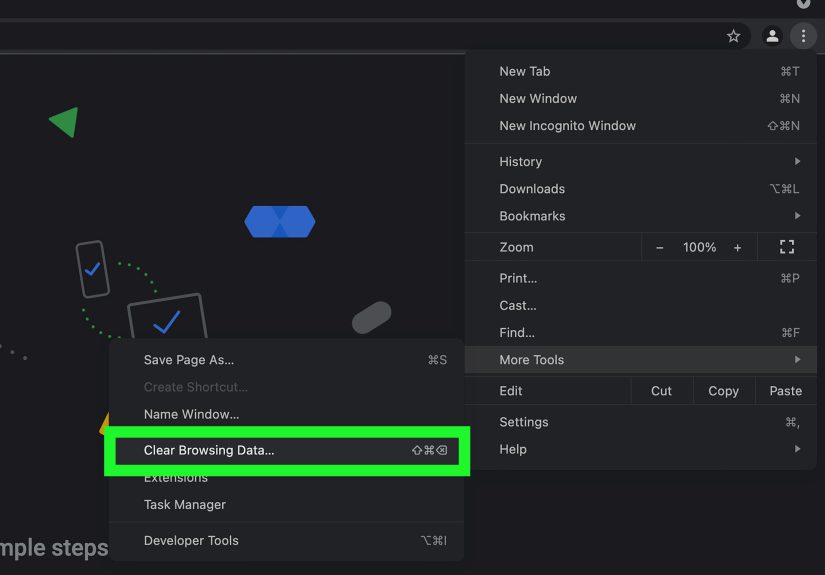
- Open Chrome.
- Click the three-dot menu (top right).
- Go to Delete browsing data (or Settings > Privacy and security).
- Choose a Time range (for maximum cleanup, choose All time).
- Select Cached images and files.
- Click Delete data.
If you also select cookies/site data, you’re more likely to get signed out of accounts. Great for privacy; mildly annoying when you forget your password exists.
Clear Cache in Mozilla Firefox on Mac
- Open Firefox.
- Go to Settings (or Preferences).
- Click Privacy & Security.
- Find Cookies and Site Data.
- Click Clear Data, then select Cached Web Content.
- Confirm to clear.
Clear Cache in Microsoft Edge on Mac
- Open Edge.
- Go to Settings.
- Click Privacy, search, and services.
- Under Clear browsing data, choose what to clear.
- Select Cached images and files and confirm.
How to Clear App Cache on Mac (Safely)
App cache can be tinyor it can be a storage black hole wearing a trench coat. Apps that handle media, messages, or downloads (think streaming, chat, photo editing, browsers, dev tools) can build sizable caches over time.
Method 1: Clear User App Cache (Recommended First)
- Quit the app(s) you’re targeting.
- Open Finder.
- Click Go in the menu bar.
- Click Go to Folder…
- Type: ~/Library/Caches and press Enter.
- Open folders that match the app name (example: a browser, chat app, or creative tool).
- Move cache files to the Trash.
- Restart your Mac (optional, but helpful if you cleared a lot).
- Empty Trash once you confirm everything works normally.
Pro tip: Prefer deleting the contents inside an app’s cache folder rather than deleting the entire parent folder. Keeping the folder structure helps apps rebuild cleanly.
Method 2: Clear Computer-Wide Caches (Use Caution)
There’s also a top-level caches location that can affect multiple users and services. This is more advanced and often unnecessary unless you’re troubleshooting.
- Close apps.
- Finder > Go > Go to Folder…
- Type: /Library/Caches
- Delete contents of specific folders you recognize (avoid random system-looking items if you’re unsure).
- Restart your Mac before deciding everything is fine.
System Cache: Should You Clear It?
“System cache” sounds like the boss-level cache. It also sounds like something you should avoid poking with a stick. The good news: modern macOS is designed to manage system caches automatically, and many system areas are protected.
Better Alternatives to “Manually Delete System Cache”
- Restart your Mac: often clears temporary files and refreshes system processes.
- Update macOS and apps: fixes bugs that may be causing runaway caching or corrupted temp files.
- Safe Mode (Troubleshooting): can help with certain startup issues and forces a cleaner boot process.
- Use built-in Storage tools: System Settings > General > Storage offers recommendations that are safer than random deletions.
If your Mac is stable, skip the “system cache purge” fantasies. If you’re troubleshooting a specific issue, clear browser/app cache first and only go broader if you have a strong reason.
How to Flush DNS Cache on Mac (When Websites Won’t Load)
If your internet works but one specific website refuses to load correctly, DNS cache can be the culprit. Flushing DNS forces macOS to forget recent domain lookups and fetch fresh ones.
Steps to Clear DNS Cache (Modern macOS)
- Open Terminal (Applications > Utilities > Terminal).
- Enter this command (you may be asked for your admin password):
Important: When you type your password in Terminal, you won’t see characters appear. That’s normal. Type carefully and press Enter.
What Cache Should You Clear First? A Simple Decision Guide
| Problem | Best Cache to Clear | What You Might Notice After |
|---|---|---|
| Website looks broken or outdated | Browser cache (Safari/Chrome/Firefox/Edge) | Site reloads “fresh,” may need to sign in again |
| One app is huge or glitchy | That app’s cache in ~/Library/Caches | App may re-download files; first launch may be slower |
| Low storage and “System Data” feels big | Targeted app cache + restart + Storage recommendations | Gradual space recovery, fewer surprises |
| Sites won’t load / DNS weirdness | DNS cache flush | Connectivity may normalize quickly |
Specific Examples: Cache Cleanup That Actually Helps
Example 1: Safari Keeps Loading the “Old” Version of a Site
You updated a webpage (or a site updated its design), but Safari insists on showing the previous layoutbuttons misaligned, images missing, or a banner that was retired two weeks ago. Clearing Safari’s cache (especially via Develop > Empty Caches) forces Safari to fetch fresh assets and often fixes the issue immediately.
Example 2: A Chat App Hoards Media Like It’s Building a Museum
Many messaging apps cache photos, GIFs, videos, and thumbnails so scrolling feels instant. Over months, that cache can balloon. Clearing the app cache can reclaim storagejust expect the app to re-download recent media when you scroll back.
Example 3: Chrome Feels Sluggish and Pages Load “Weird”
If Chrome pages load with broken styling, incomplete scripts, or odd behavior after a browser update, clearing cached images and files can resolve it. It’s one of the quickest “reset the vibe” moves you can try.
Best Practices: Keep Cache Under Control Without Becoming a Full-Time Janitor
- Clear cache when there’s a reason (bugs, storage pressure, outdated pages), not out of habit.
- Start with browser cache for web issues; it’s the cleanest fix with the least risk.
- Target specific apps instead of clearing everything everywhere.
- Restart after major cleanup so the system can rebuild what it needs cleanly.
- Use Storage recommendations when you need spacemacOS can help you find the real hogs.
Conclusion
Deleting cache files on a Mac is usually safeand sometimes genuinely helpfulbecause cache is designed to be temporary. The trick is clearing the right cache for the right problem. For broken websites, clear your browser cache. For a single misbehaving app, clear that app’s cache in ~/Library/Caches. For networking oddities, flush DNS. And for “my Mac feels weird,” start small before you go full-cleanup crusader.
Real-World Experiences (500+ Words): What Cache Clearing Feels Like in Practice
Clearing cache is one of those tech tasks that sounds dramaticlike you’re pulling a lever labeled “DO NOT PULL” but in real life it’s usually more like sweeping crumbs off the counter. Still, the results can be surprisingly satisfying. Below are a few common, realistic scenarios people run into (shared as composite examples) that show what changes after you clear cache.
The “This Website Time-Traveled” Moment
A classic: you open a site you visit dailymaybe your work dashboard, an online store, or your bankand it looks wrong. Buttons overlap. Text is gigantic. Or the site keeps showing last week’s layout even though everyone else sees the new version. In these cases, the browser cache is basically being overhelpful: it serves old files because it thinks it’s saving you time. Clearing the browser cache often fixes this instantly. The first reload may take a second longer and the page might ask you to sign in again, but then everything snaps back into place, like the internet finally remembered what year it is.
The “Why Is This App 20 GB?” Mystery
Sometimes you open Storage settings and see an app that looks suspiciously large. “There is no way this music app needs the storage capacity of a small moon,” you think. Often, it’s cachedownloaded previews, artwork, temporary downloads, thumbnails, and offline remnants you forgot existed. Clearing the app cache can reclaim space quickly, but there’s a tradeoff: the app may re-download content the next time you browse older media or revisit certain screens. In practice, that’s fine for many people. The experience is usually: storage frees up now, the app feels normal, and later the app quietly rebuilds only what you truly use.
The “It Got Worse Before It Got Better” (Totally Normal)
One thing that surprises people: clearing cache can make things feel slower briefly. That’s not your Mac “punishing” you. It’s simply rebuilding the shortcuts it used to have. Your browser may take longer to load a few sites because it’s downloading fresh images and scripts. A creative app may take a bit longer to open because it’s re-creating previews. Usually, this is short-lived. After a day of normal use, performance stabilizesoften with fewer glitches and a cleaner slate.
The “I Cleared Cookies Too and Now I’m Locked Out” Lesson
Another very real experience: someone clears “cache” and accidentally clears cookies/site data too. Suddenly, every site wants a login, two-factor codes, and the name of your first pet (kidding… mostly). This isn’t dangerous, but it can be annoying. The fix is simple: use password manager entries, reset passwords if needed, and next time select cache-only options when available. Many people end up learning a helpful habit: clear cache first, then only clear cookies if you specifically want privacy cleanup or you’re troubleshooting login/session problems.
The “DNS Flush Saved My Sanity” Scenario
Occasionally, everything is fine except one site. Everyone else can open it; your phone can open it; your Mac refuses. This is when flushing DNS cache can feel like magic. After running the DNS flush command, the site loads normally, because your Mac stops using an outdated or incorrect cached lookup. It’s not something you need to do oftenbut when you need it, it’s one of the most satisfying 10-second fixes in computing.
In the end, clearing cache on a Mac is best treated like a targeted tool, not a lifestyle. Use it when something is broken, slow, or bloated. Keep it minimal, keep it deliberate, and your Mac will stay fast without you having to become its full-time housekeeping manager.