Table of Contents >> Show >> Hide
- First, which “Nest Cam Indoor” are we talking about?
- What you get (the stuff that matters day to day)
- Key specs and hardware details (quick but specific)
- Setup and daily use in the Google Home app
- Alerts, video history, and the subscription question (the honest part)
- Gemini-style smarts: helpful, but still growing up
- Privacy and trust: the “don’t make it weird” checklist
- Real-world examples: where the Nest Cam Indoor shines
- Common downsides (so you’re not surprised later)
- Is the Nest Cam Indoor security camera worth it?
- Experiences: what it’s like living with a Nest Cam Indoor security camera (the last 500-ish words)
If you’ve ever wished your living room came with a “rewind” button (or at least a “why is the dog barking?” decoder ring),
the Nest Cam Indoor security camera is basically thatminus the popcorn, plus the peace of mind.
It’s Google’s indoor camera built to live in the Google Home ecosystem, keep an eye on things 24/7, and send you alerts that
are actually useful instead of “Something moved. Somewhere. Good luck.”
This guide walks through what the latest Nest Cam Indoor can do, what it costs to get the “smart” features, where it shines,
and where it might annoy youbecause an indoor camera should reduce stress, not create a new hobby called “notification management.”
First, which “Nest Cam Indoor” are we talking about?
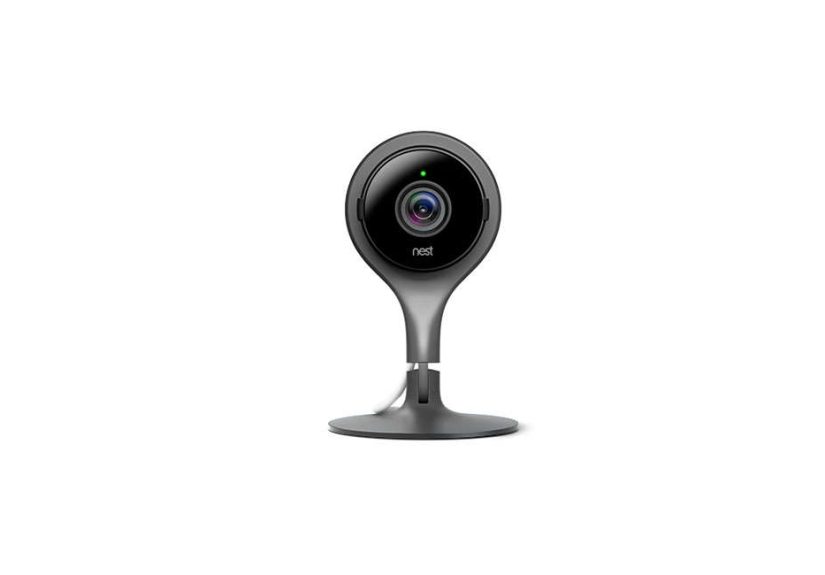
“Nest Cam Indoor” can refer to a couple of different generations. In late 2025, Google’s newest model is the
Nest Cam Indoor (wired, 3rd gen), which upgrades to 2K video and a wider field of view.
You’ll also still see the earlier Nest Cam (indoor, wired) model (commonly 1080p) aroundespecially at
retailers, during sales, or as older inventory.
Practically speaking: if you want the sharpest image, widest view, and the newest “AI-powered” features inside the Google Home app,
the latest wired 3rd gen is the headline act. If you find the older version at a great price and you mostly want dependable indoor coverage,
it can still do the core job wellbut you’ll be buying into older hardware and a different feature mix.
What you get (the stuff that matters day to day)
2K video + HDR: clearer faces, better tricky lighting
The latest Nest Cam Indoor security camera records up to 2K (2560×1440) at up to 30 fps and supports
HDR. In real homes, HDR is a big deal because indoor lighting is chaotic: bright windows, dark hallways,
lamp glare, and overhead lights all fighting for dominance. HDR helps preserve detail in both bright and shadowy areas,
so you’re less likely to end up with a blown-out window and a mysterious silhouette that could be your roommate… or your coat rack.
Wide field of view: fewer blind spots
The newest wired model offers a 152° diagonal field of view, which is genuinely roomy.
That wider view can cover a long hallway, a larger living room, or an open-plan kitchen area from a single corner placement.
Translation: fewer cameras needed to cover the same space (and fewer cords to hide, which is a blessing).
Night vision (with HDR): useful after dark
Nest’s indoor night vision is built for typical indoor distances and uses infrared (IR) to see in the dark.
On the newest model, the IR system is paired with night vision that supports HDR, which can help with mixed-light situations
(like a dim hallway plus a bright nightlight). It’s not meant to turn your house into a movie set, but it’s designed to show motion,
shapes, and activity clearly when the lights are low.
Two-way audio: actually practical
Two-way audio is one of those features that sounds gimmicky until you use it in real life:
“Hey, the dog is on the couch again,” “Please stop climbing that bookshelf,” or “Yes, the delivery is for usthank you!”
The newest specs include a speaker and microphone with noise cancellation so voices come through more clearly.
Key specs and hardware details (quick but specific)
- Video: up to 2K (2560×1440) at up to 30 fps, HDR
- Field of view: 152° diagonal
- Zoom: 6x digital zoom
- Night vision: infrared LEDs designed for indoor illumination distances
- Audio: speaker + mic, two-way audio with noise cancellation
- Power: wired, with an attached USB-C power cable (about 10 ft) and included power adapter
- Use case: indoor only (not weather-rated for outdoor exposure)
That power detail matters more than it sounds: a wired indoor cam is “set it and forget it,” but your placement is limited by where the
cable can reach without becoming a tripping hazard or an accidental cat toy.
Setup and daily use in the Google Home app
Setup is designed to be straightforward: plug it in, add it in the Google Home app, connect to Wi-Fi, and pick your
alert preferences. The newest Nest Cam Indoor is built to be managed in Google Home (not the older Nest app), which simplifies things
if you already use Google Home devicesbut it can be an adjustment if you’ve used the Nest app for years.
Placement tips that make the camera “feel smarter”
- Corner placement wins: corners usually give you the widest coverage and fewer blind spots.
- Avoid direct window glare: HDR helps, but pointing straight at a sunny window can still wash out detail.
- Mind the height: chest-to-head height often gives the most recognizable view of faces.
- Plan the cord path: run the cable along baseboards or furniture edges; a neat cable = less visual clutter and fewer accidents.
Alerts, video history, and the subscription question (the honest part)
Here’s the simple truth: you can use a Nest Cam Indoor security camera without paying monthly, but
the “best” experience depends on how much history you want and how deep you want the AI features to go.
What you get without a subscription
On newer wired Nest cameras, you can typically review event video previews without paying monthly.
For the latest Nest Cam Indoor, that means you can see short clips of recent activity over a limited window of time.
It’s enough to answer, “What was that noise?” without immediately committing to another subscription in your life.
What you unlock with Google Home Premium (formerly Nest Aware)
Google has shifted its camera subscription into Google Home Premium, which replaced the older Nest Aware branding.
The two tiers are designed around how much history you want and whether you want continuous recording:
- Standard tier: longer event-based video history (good if you mainly care about motion/person events and want more time to review them).
-
Advanced tier: even longer event history plus up to 10 days of 24/7 continuous video history on compatible cameras
(helpful if you want to scrub through “everything,” not just motion events).
Pricing can change over time, but as of mid-to-late 2025, the widely reported U.S. pricing for these plans is around
$10/month (Standard) and $20/month (Advanced), with annual options typically offering savings if you’re committed.
If you already pay for multiple smart-home subscriptions, it’s worth doing the math before you fall in love with the “rewind everything” lifestyle.
So… do you actually need the subscription?
Ask yourself one question: How often do you expect to look back?
- If you mostly want live view + quick “what happened?” clips, you may be fine without paying monthly.
-
If you want to review events from days ago, share clips often, or rely on advanced identification features,
the subscription becomes a lot more attractive. - If you want a true “security DVR vibe” with continuous 24/7 recording, you’ll likely be looking at the higher tier.
Gemini-style smarts: helpful, but still growing up
Google is leaning hard into Gemini-powered experiences inside Google Homethink more descriptive notifications,
easier searching through video history, and “tell me what happened” style summaries. When it works well, it can feel like your
camera went from “motion detected” to “here’s why you care.”
The catch: newer AI features can be fantastic and occasionally a little chaoticespecially early in their rollout.
If you love being on the cutting edge, you’ll enjoy watching these features improve. If you want something that behaves like a toaster
(predictable, reliable, no surprise personality), you may prefer using the camera primarily for live view + basic alerts.
Privacy and trust: the “don’t make it weird” checklist
Indoor cameras live in the most personal spaces of your home, so the privacy setup matters as much as video quality.
The practical privacy baseline looks like this:
- Use the status light as your cue: if the camera is processing or streaming, you should have a clear visual indicator.
- Control audio deliberately: only enable microphone features when you actually need them.
- Turn cameras off when appropriate: many households set schedules (home vs. away) so cameras aren’t running when everyone’s relaxing.
- Lock down account security: use strong passwords and two-step verification on the Google account tied to your home.
Also: if you live with other people, the best “feature” is communication. Tell them where the camera is, what it covers,
and when it’s active. A security upgrade shouldn’t turn into a roommate group chat titled “Why is the hallway being filmed?”
Real-world examples: where the Nest Cam Indoor shines
1) The front hallway / entryway
An entryway placement can capture who comes and goes, verify that the door actually got locked, and help you confirm whether
that “mystery sound” was a person, a pet, or your HVAC doing its nightly percussion solo.
2) Pet monitoring (aka: “what are you doing?”)
Wide-angle coverage plus quick event clips is perfect for checking on petsespecially when you get alerts and can jump into live view.
It’s also useful for training moments: catching the pattern of when the dog barks or when the cat attempts to become a counter-top chef.
3) Home office oversight
If you have a home office with expensive gear, a camera can add a layer of awarenessespecially when you travel or have workers in the home.
Bonus: it can also confirm whether that printer is truly “out of paper” or just being dramatic again.
Common downsides (so you’re not surprised later)
- No pan/tilt: it’s a fixed view. Placement matters.
- Indoor-only: not meant for rain, sun exposure, or outdoor mounting.
- Wired limits placement: you’re playing a strategy game with outlets and cable routing.
- Best inside Google’s ecosystem: it’s strongest with Google Home/Nest displays; HomeKit fans should look elsewhere.
- Subscription adds cost: advanced history and “smarter” features are often paywalled behind Google Home Premium.
Is the Nest Cam Indoor security camera worth it?
The Nest Cam Indoor security camera is a strong pick if you want a clean design, sharp video, a wide view, and smart alerts that integrate
neatly with Google Home. It’s especially compelling for households already using Nest Hubs, Google Home speakers, or other Google smart-home gear.
You may want to skip it if you strongly prefer local storage, dislike subscription pricing, or need tight compatibility with non-Google ecosystems.
But if your goal is simpleknow what’s happening at home, quickly and clearlyNest Cam Indoor is designed to do that job with minimal fuss.
Experiences: what it’s like living with a Nest Cam Indoor security camera (the last 500-ish words)
Most people don’t “install an indoor camera” so much as they “start a new relationship with notifications.” The first few days with a Nest Cam Indoor
are usually a mix of curiosity and mild comedy. You’ll check live view more than you want to admitpartly to test the angle, partly because it’s
weirdly satisfying to confirm that your living room is, in fact, still your living room.
The first real win tends to be the moment you hear a noise in another room andrather than doing the cautious “is that a person or a dropped spoon?”
walkyou just open the Google Home app. In a few taps, you know whether it’s the dog pacing, a family member coming home, or your cat doing parkour
off the furniture like it’s training for an Olympic event nobody asked for.
Then comes the tweaking phase. You’ll likely adjust placement by a few inches (which somehow feels like a full renovation), because a slightly higher
angle can mean the difference between “I see the whole room” and “I have a beautiful, cinematic shot of the top of a chair.” If your camera can see a
window, you’ll probably experiment with positioning to avoid glare at certain times of day. HDR helps, but good placement is still the cheapest upgrade.
Notifications are where real-life experience diverges from the marketing. Out of the box, many users start with alerts turned onthen quickly realize
that “motion detected” includes things like shadows shifting, a ceiling fan, or a pet tail that deserves its own documentary series. The fix is usually
simple: set activity zones and narrow alerts to the areas you actually care about (like the doorway rather than the whole room). Once you do, the alerts
become less “spammy” and more “useful ping.”
The wired nature becomes either a comfort or a mild annoyance, depending on your outlet situation. On the comfort side: no battery anxiety, no charging
schedule, no “why is it offline?” moments caused by a dead battery. On the annoyance side: you start noticing cable visibility like you’ve developed
a sudden interior-design superpower. Many households end up routing the cable behind a bookshelf, along a baseboard, or using small clips to keep it tidy.
Five minutes of cable management can make the whole setup feel intentional instead of temporary.
Finally, the subscription decision tends to happen naturally. Some people never need more than quick previewsenough to confirm what happened and move on.
Others realize they like being able to look back further, especially if they travel, have pets, or want to check patterns over time (“Why is the dog
barking at 2:17 p.m. every day?”). Either way, the best experience is when the camera fades into the background: it’s there when you need it, quiet when
you don’t, and never makes your home feel like a surveillance set. If it does, it’s usually a sign to adjust zones, schedules, or when the camera is on.