Table of Contents >> Show >> Hide
- What Is CHKDSK in Windows XP?
- When Should You Run CHKDSK on Windows XP?
- How to Run a Chkdsk Function on Windows XP: 8 Steps
- What Do CHKDSK /F and CHKDSK /R Mean?
- What If Windows XP Will Not Start?
- How Long Does CHKDSK Take on Windows XP?
- Common CHKDSK Problems on Windows XP
- Best Practices Before and After Running CHKDSK
- Why This Matters on Legacy Systems
- Experience and Practical Lessons From Running CHKDSK on Windows XP
- Conclusion
- SEO Tags
If your Windows XP computer is acting like it woke up on the wrong side of 2004, CHKDSK might be the built-in tool that saves the day. Short for “Check Disk,” this utility scans your hard drive for file system errors, checks for bad sectors, and can repair logical issues that make XP feel grumpy, sluggish, or downright dramatic. In plain English: if your PC is freezing, booting slowly, or throwing weird disk-related errors, CHKDSK is one of the first things worth trying.
This guide walks you through how to run a Chkdsk function on Windows XP in 8 simple steps, using the easiest beginner-friendly method. After that, we’ll cover what the scan actually does, when to use the /f and /r switches, and what to do if Windows XP refuses to boot. Because with older computers, “refuses” is sometimes their favorite hobby.
What Is CHKDSK in Windows XP?
CHKDSK is a Windows utility that checks the integrity of your hard drive. On Windows XP, it can help detect file system errors, identify bad sectors, and repair some of the damage that happens after improper shutdowns, power outages, or drive wear. If you run it with repair options, it can fix logical errors and try to recover readable information from damaged sectors.
That does not mean it performs miracles. If your hard drive is physically failing, CHKDSK is more like a mechanic with a flashlight than a wizard with a magic wand. It can help, diagnose, and sometimes stabilize the system, but it cannot guarantee that a dying drive will suddenly become young and full of ambition again.
When Should You Run CHKDSK on Windows XP?
You should consider running CHKDSK on Windows XP if you notice any of these symptoms:
- Frequent freezing or crashing
- “Disk error” or “file system” messages
- Windows XP taking forever to start
- A blue screen that suggests checking the disk
- Programs refusing to open or files acting corrupted
- The system asking to scan the drive at startup
It is also smart to back up important files first, especially if the drive is making clicking sounds, disappearing from the system, or showing repeated bad-sector warnings. That is your hard drive’s version of waving a tiny white flag.
How to Run a Chkdsk Function on Windows XP: 8 Steps
The steps below use the Windows XP graphical interface, which is the simplest method for most users.
Step 1: Open My Computer
Click the Start button, then open My Computer. You will see a list of drives, usually including Local Disk (C:), which is the main system drive on most Windows XP computers.
Step 2: Right-click the drive you want to check
Find the drive you want to scan. In most cases, this will be the C: drive. Right-click it and choose Properties. This opens the drive’s settings window.
Step 3: Go to the Tools tab
Inside the Properties window, click the Tools tab. This is where Windows XP hides its disk-checking feature, because apparently making useful tools slightly inconvenient was part of the design aesthetic back then.
Step 4: Click “Check Now” under Error-checking
In the Error-checking section, click Check Now. This launches the CHKDSK options window.
Step 5: Choose your scan options
You will usually see two check boxes:
- Automatically fix file system errors this is similar to running
chkdsk /f - Scan for and attempt recovery of bad sectors this is closer to
chkdsk /r
If you want a quick repair of file system issues, check the first box. If you suspect disk damage or recurring problems, check both boxes for a more thorough scan. The second option takes longer, but it is more comprehensive.
Step 6: Click Start
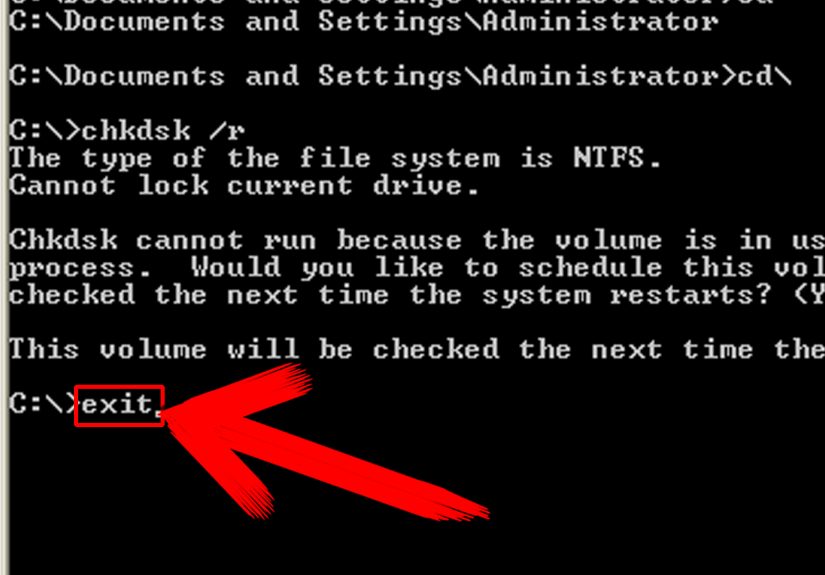
Click Start to begin. If you are checking a non-system drive, Windows XP may start scanning right away. If you are checking the main system drive, XP will probably tell you it cannot lock the drive because it is in use.
Step 7: Schedule the scan for the next restart
If Windows XP says it cannot perform the check now, click Yes to schedule the disk check the next time the computer restarts. This is completely normal for the C: drive because Windows is actively using it while you are logged in.
Step 8: Restart the computer and let CHKDSK finish
Restart your computer. Before Windows XP fully loads, CHKDSK should begin automatically. Let it finish. Do not interrupt it unless you enjoy unnecessary suspense and possible file system damage. Some scans finish in minutes, while others can take much longer depending on drive size, condition, and whether bad sectors are involved.
What Do CHKDSK /F and CHKDSK /R Mean?
If you prefer using the command line, or if you just want to understand what the check boxes really mean, here is the simple version:
chkdskchecks the disk and reports status, but does not fix anythingchkdsk /ffixes file system errorschkdsk /rlocates bad sectors, attempts recovery of readable data, and includes error repair functions
On Windows XP, you can open Start > Run, type cmd, and then enter a command like:
chkdsk c: /f
or
chkdsk c: /r
If the drive is in use, Windows XP will ask whether you want to schedule the check for the next restart. Type Y, press Enter, and reboot.
What If Windows XP Will Not Start?
If your Windows XP machine will not boot at all, you can still run CHKDSK from the Recovery Console. This requires a Windows XP setup CD or a recovery environment that includes the Recovery Console.
Use CHKDSK from Recovery Console
- Insert the Windows XP CD and restart the computer.
- Boot from the CD when prompted.
- At the setup screen, press R to enter the Recovery Console.
- Select your Windows installation, usually by typing 1.
- Enter the Administrator password if requested.
- At the command prompt, type
chkdsk /rand press Enter. - Wait for the scan to complete.
- Type
exitto restart.
This method is especially useful when Windows XP throws boot errors, loops endlessly, or stops with messages suggesting disk corruption. In many cases, /r is the better choice here because it performs a deeper scan.
How Long Does CHKDSK Take on Windows XP?
That depends on the size and condition of the drive. A basic file system check may finish quickly. A full scan with bad-sector recovery can take much longer. If the drive is older, heavily used, or already damaged, it may seem to stall at a certain percentage for a while. That can be normal. The important thing is to give it time before assuming it is frozen.
Example: a lightly used 40 GB XP-era drive might finish a basic scan fairly quickly, while a larger or failing disk can take much longer, especially when using the bad-sector scan option. In other words, this is not the moment to decide your machine “must be done by lunch.”
Common CHKDSK Problems on Windows XP
CHKDSK will not run at startup
If you scheduled the scan but it does not start on reboot, a third-party antivirus or disk utility may be interfering. In some cases, temporarily disabling or removing the conflicting service solves the problem.
CHKDSK keeps running every time the computer starts
This can happen if the drive remains marked as “dirty” or if the previous scan did not complete successfully. Re-running chkdsk /r may help. If it continues happening, the drive may have deeper file system or hardware trouble.
CHKDSK finds bad sectors
If CHKDSK reports bad sectors, take that seriously. One or two issues do not always mean instant disaster, but recurring bad sectors often point to drive deterioration. Back up your files as soon as possible and consider replacing the hard drive.
Best Practices Before and After Running CHKDSK
- Back up your important files first
- Close programs before starting the scan
- Use
/ffor file system fixes and/rfor deeper checks - Do not interrupt the scan once it begins
- Review system behavior afterward for recurring issues
- If problems continue, test the drive with the manufacturer’s diagnostic tool
That last point matters. CHKDSK is useful, but it is not the only diagnostic tool. If the hard drive keeps throwing errors after a successful scan, the hardware itself may be the real villain of the story.
Why This Matters on Legacy Systems
Windows XP is old enough to remember when dial-up tones were a household soundtrack, but plenty of legacy systems still exist in workshops, labs, small offices, and hobby setups. On machines like these, running a CHKDSK function is not just a maintenance step. It can be the difference between a usable system and a digital paperweight with nostalgic wallpaper.
Because XP is no longer supported, users often keep it alive for one special program, one old printer, one beloved CNC machine, or one accounting tool that absolutely refuses to join the modern era. That makes simple maintenance tasks even more important. CHKDSK is one of the easiest places to start when the system gets unstable.
Experience and Practical Lessons From Running CHKDSK on Windows XP
Anyone who has spent time with Windows XP knows the emotional arc of computer maintenance on legacy hardware. It starts with optimism. You notice the system is taking longer to boot, a file refuses to open, or XP throws a message that sounds vaguely threatening but not yet catastrophic. You tell yourself it is probably nothing. Then it happens again. And again. Suddenly you are staring at a startup screen that looks one coffee away from a full meltdown.
That is usually when CHKDSK enters the conversation.
In real-world use, one of the biggest lessons from running CHKDSK on Windows XP is that patience matters almost as much as the command itself. Older hard drives are not fast. Older systems are not subtle. And older operating systems have a special talent for making normal maintenance look like a crisis. A scan may appear stuck at 12%, 34%, or some strangely specific number that convinces you the machine has become decorative. Then, ten minutes later, it moves again. The moral of the story: if the system is still working, let it work.
Another common experience is discovering that chkdsk /f fixes the immediate symptom but not the underlying pattern. Maybe the PC boots normally afterward, but a week later the same weird behavior returns. That often suggests the drive is aging, the machine had a rough shutdown, or the file system is recovering from repeated stress. On an old XP computer, CHKDSK is sometimes less like a one-time cure and more like a warning shot from the hardware gods.
There is also a practical difference between running CHKDSK from inside Windows and running it from the Recovery Console. Inside Windows XP, the process feels easy and familiar. A few clicks, a restart, and the machine handles the rest. But when the system will not boot, using the Recovery Console feels like stepping into a more serious level of the game. Suddenly you are working with a plain command prompt, typing carefully, hoping you remember the Administrator password, and trying not to feel judged by a blinking cursor. It is not glamorous, but it is often effective.
One especially useful lesson from experience is that CHKDSK should be paired with observation. Did the machine lose power recently? Was it turned off by holding the power button? Is the hard drive making unusual noises? Did the problem start after a crash, a driver install, or a failed update? Those clues matter. CHKDSK works best when you treat it as part of a troubleshooting process rather than a magic word you throw at the machine like holy water.
It is also worth mentioning that successful does not always mean healthy. Sometimes CHKDSK completes, Windows XP boots, and everything seems normal again. Great. But if the system was already showing signs of bad sectors, corruption, or repeated startup scans, that is your cue to back up files immediately. Not tomorrow. Not after reorganizing the desktop. Right then. A drive that recovers once may not be in the mood to recover twice.
For many users, the most memorable part of CHKDSK on Windows XP is how strangely satisfying it feels when it actually works. You restart, the text scrolls by, the scan finishes, and suddenly the old machine comes back to life. It is like reviving a stubborn lawn mower, except the lawn mower contains tax records and a copy of Office 2003.
So yes, CHKDSK is old. Windows XP is old. But the experience of nursing a cranky PC back into working order is timeless. And when it works, it feels less like basic maintenance and more like winning a tiny, nerdy rescue mission.
Conclusion
If you need to know how to run a Chkdsk function on Windows XP, the good news is that it is still a straightforward process. Open the drive properties, use the Tools tab, select the repair options you need, and restart if prompted. For systems that will not boot, the Recovery Console gives you a second path using chkdsk /r.
The bigger takeaway is simple: CHKDSK is one of the most useful built-in maintenance tools on Windows XP. It can repair file system errors, check for bad sectors, and help stabilize older machines. Just remember that if the same problems keep returning, the hard drive may be nearing retirement, and no amount of optimism can turn a failing disk into a reliable one forever.